
A customer emails five minutes after checkout asking to swap a medium shirt for a large. Meanwhile, your merchandiser is trying to move a new product to the front of a collection, and both searches lead to the same phrase: Shopify change order of products. Shopify uses separate workflows for these jobs, so choosing the wrong admin screen can waste time or create fulfillment problems.
The quick distinction is simple. If you want to control how products appear on a storefront page, you need collection merchandising. If a customer has already placed an order and wants to change its items, you need post-purchase order editing. The two tasks affect different records, permissions, and operational processes.
Table of Contents
- Two Meanings of Changing Product Order in Shopify
- Reordering Products in Collections and Storefronts
- Editing Line Items on a Placed Shopify Order
- Native Editing Versus a Post-Purchase Edit App
- How a Self-Serve Post-Purchase Edit Flow Works
- Rules and Safeguards for Post-Purchase Edits
- Which Path Fits Your Store and Next Steps
Two Meanings of Changing Product Order in Shopify
Most merchants searching for this topic mean one of two things. The first is storefront product order, meaning the sequence customers see inside a collection, on a home-page product section, or through a connected sales channel. You manage that job in Products > Collections, where Shopify separates collection layout and product sorting from order administration. Shopify documents collection sorting as a storefront merchandising function, not an edit to an already submitted order. (Shopify's collection layout documentation)
The second meaning is placed-order line-item editing. A customer may want to change a quantity, swap a variant, add another product, or remove an item after checkout. That work starts in Orders, where staff can edit an existing order rather than rearranging products in a collection. Shopify's order-editing workflow supports adding or removing products, changing quantities, and updating shipping fees without canceling and recreating the order. (Shopify's order-editing documentation)
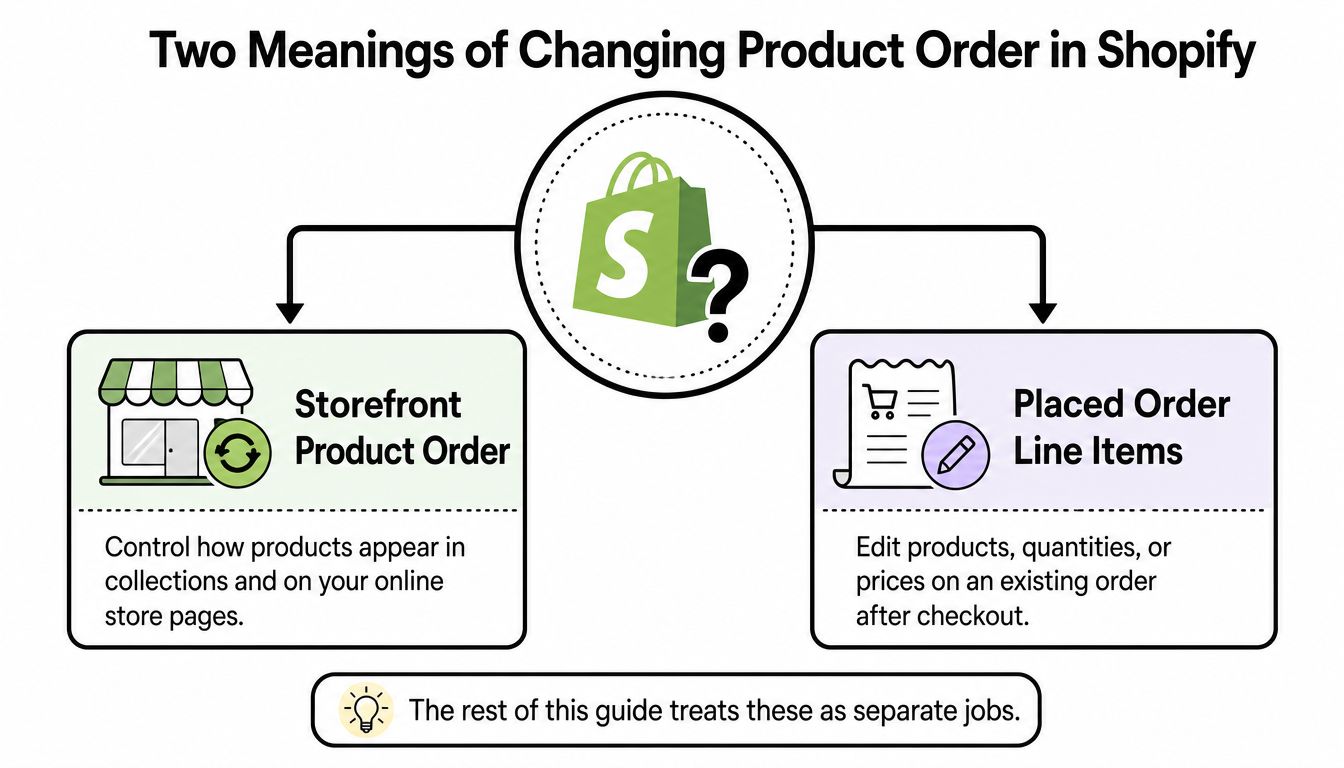
Use this 30-second decision cue:
- The issue appears on a live collection or store page: Open Products > Collections and change the sort or manual sequence.
- The issue appears on a receipt, order confirmation, or Orders list: Open the placed order and use the order-editing workflow.
- The customer wants to change what they bought: Treat it as a post-purchase edit, not a catalog-sorting task.
That distinction prevents a common mistake: changing a collection when the customer needs a line-item correction, or trying to edit an order when the merchant only wants to feature a different product.
Reordering Products in Collections and Storefronts
For a storefront display change, open Shopify admin and go to Products > Collections. Select the collection, then locate its product list and sorting controls. Shopify's collection settings support manual arrangement and predefined sort options, so the right choice depends on whether merchandising judgment or an automatic rule should control the sequence.
Choose Manual when a buyer should encounter products in a deliberate order. Drag products into position, placing your priority item first and supporting products after it. This works well for seasonal launches, curated bundles, campaign landing collections, and collections where the order tells a story.
The available automatic options include:
- Best selling: Useful when commercial performance should determine visibility.
- Product title A–Z: Appropriate for broad catalogs where shoppers expect alphabetical navigation.
- Price high to low or low to high: Helpful when price is a central shopping criterion.
- Creation date: A practical option for surfacing newer catalog additions.
- Vendor: Useful for collections organized around supplier or brand names.
Merchandising rule: Use Manual when the sequence itself matters. Use an automatic sort when the collection changes often and nobody should have to maintain the order by hand.
A collection's sort choice generally controls how products are presented wherever that collection is used, including linked sales channels. Your theme can also affect presentation. In the theme editor, open the relevant Collection page or Featured collection section and check its product-source and sorting controls. Some sections inherit the collection's order, while others provide section-level settings that influence which products appear and how they're arranged.
Changing the display sequence doesn't rewrite product URLs. It's a merchandising adjustment, not a handle change, so the products remain the same catalog records. The change is reversible too. Switching back to Manual lets you restore deliberate sequencing rather than permanently altering the catalog.
If the issue concerns size, color, or another option within a product, use the separate guide to changing Shopify variant order instead of changing the collection sequence.
Editing Line Items on a Placed Shopify Order
A placed-order change affects the order record, not the collection display. Open Orders, select the relevant order, and choose Edit. Shopify's native editor lets staff add products, adjust quantities, remove line items, and update shipping fees while recalculating the existing order. See Shopify order editing for the admin workflow.
Use this sequence:
- Open the order and select Edit.
- Add a product, edit a line item, or remove an item.
- Change the product, variant, or quantity.
- Review the recalculated subtotal, discounts, taxes, shipping, and total.
- Request additional payment or issue a refund through the available Shopify workflow.
- Save the edit and confirm the order's fulfillment state.
The financial result depends on the change. Removing an item or reducing a quantity can leave money owed to the customer. Adding an item or increasing a quantity can require additional payment. A variant swap may increase or reduce the total when the replacement has a different price. Review the recomputed amount before confirming instead of treating every edit as an even exchange.
Native editing is a staff-only workflow. Shopify's order-editing guidance recommends making changes before fulfillment, since warehouse work can put the order, inventory, picking, packing, taxes, and shipping charges out of sync. Set a short post-purchase editing window, then close it when fulfillment begins.
The native editor does not create a customer-facing self-service link. If a customer requests a change while the order is already moving through fulfillment, staff may need to reconcile the request manually. A post-purchase editing app can provide a controlled customer flow, while the merchant still sets the permitted actions and timing. Choose this path when support volume makes individual admin edits difficult to manage.
Native Editing Versus a Post-Purchase Edit App
The native editor is a sensible starting point for a lean store. Staff can make controlled changes directly from the order, review the recalculated totals, and keep Shopify as the operational record. The trade-off is labor. Every request still arrives through support, and a team member must open the order, interpret the request, make the change, and resolve any payment or refund outcome.
A dedicated app changes the customer experience by moving approved actions into a controlled self-service flow. Mayra Order Edit and Upsell, for example, can place editing inside customer accounts and Shopify's Order status page, where merchants can govern edit windows, allowed actions, approval rules, and eligibility. (Mayra Apps)
| Capability | Native order editor | Dedicated post-purchase edit app |
|---|---|---|
| Who starts the change | Staff in Shopify admin | Customer through an approved customer-facing flow |
| Typical actions | Add or remove products, change quantities, update shipping fees | Merchant-configured product, quantity, variant, and address changes |
| Fulfillment control | Staff must coordinate timing | Configurable fulfillment holds can protect active edits |
| Payment handling | Staff reviews the recalculated balance | The app can route additional charges or refunds through configured rules |
| Governance | Shopify's native permissions and workflow | Edit windows, eligibility, approvals, and capability controls |
| Best fit | Occasional requests and low operational complexity | Repeated customer requests, support-heavy stores, and multi-store operations |
One public Shopify-focused benchmark reports 90% fewer editing-related tickets and a 5.2% post-checkout editing baseline across more than 10M orders. Those figures come from the vendor's own public documentation, so treat them as directional benchmarks rather than a guarantee for your store. (Order Editing benchmark documentation)
For agencies and operations teams, the decision is less about adding another app and more about standardizing rules. Native editing works when volume is manageable and every request needs human judgment. A dedicated flow becomes more practical when customers repeatedly request size swaps, address corrections, add-ons, or quantity changes.
How a Self-Serve Post-Purchase Edit Flow Works
A self-serve flow begins with the order, not the product catalog. After installing Mayra Order Edit and Upsell, the merchant configures access to the relevant Shopify order and product data, then sets the rules that determine which customers can edit and what they can change.
The merchant-side setup typically covers:
- Edit windows: Define when a customer can request a change.
- Allowed actions: Enable or disable quantity changes, variant swaps, additions, removals, or address updates.
- Fulfillment holds: Pause fulfillment while an edit is active.
- Approval requirements: Auto-approve safe changes or route selected requests for review.
- Eligibility rules: Limit access by product, collection, tag, fulfillment state, destination, or other operational criteria.
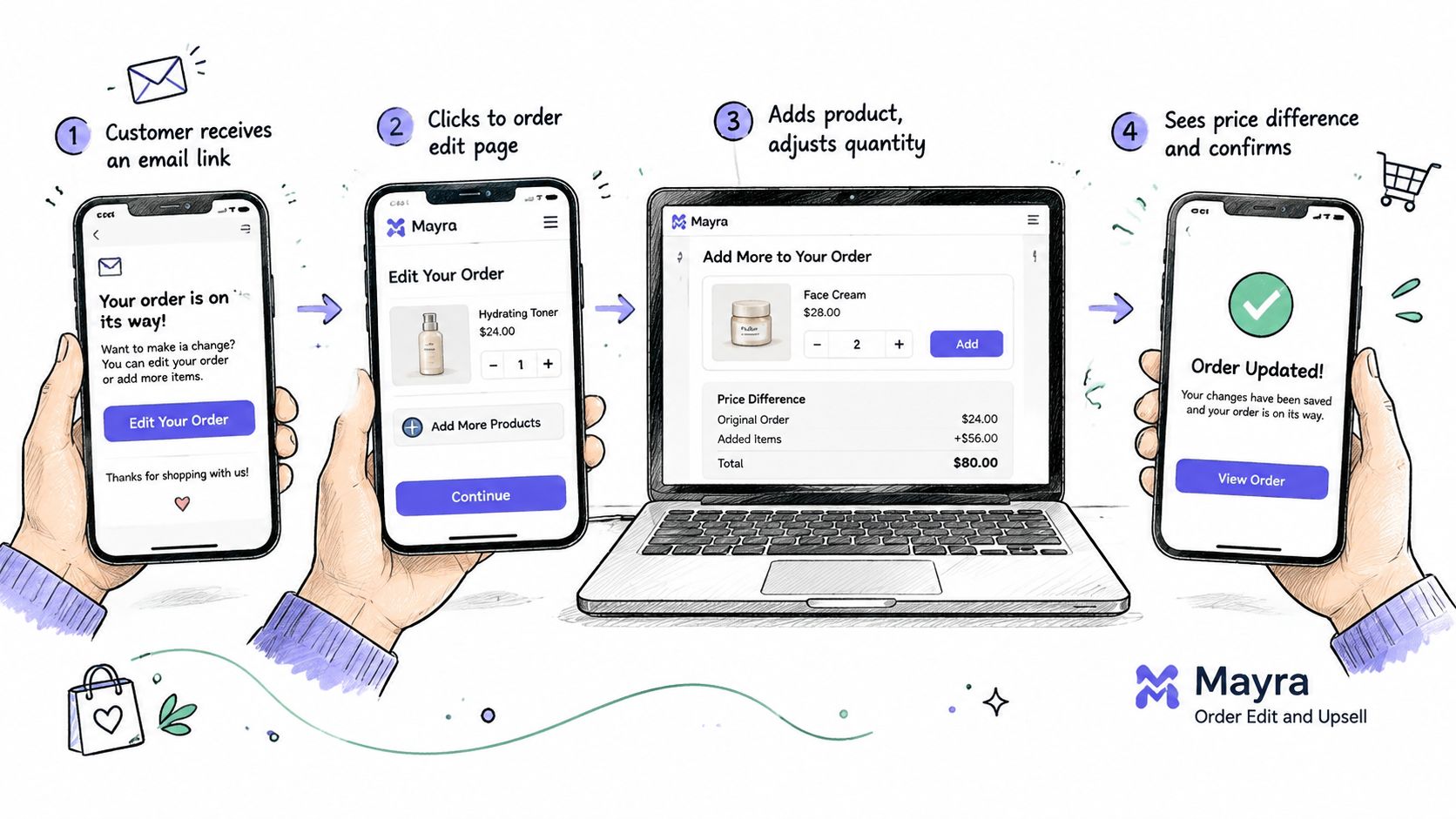
When a customer asks to change an order, the merchant can send a secure edit link from the order detail page. The customer opens a storefront-style interface, selects a new variant, swaps a product, adds an item, or changes a quantity. The customer sees the revised order before completing the change, which removes the ambiguity that often appears in email-only requests.
If the revised order costs more, the additional amount can be collected through a Shopify draft order. If the change lowers the amount, the configured refund process handles the difference. Inventory is updated as the order changes, while fulfillment remains paused until the configured approval or automatic approval rule allows it to continue.
The important control is that the edit writes back to the original Shopify order. The merchant doesn't need to manage a replacement order and a cancellation side by side. That preserves one operational record for support, inventory, fulfillment, and settlement review.
For a DTC team, the value is consistency. For an agency, the value is repeatable configuration across client stores. Both groups still need to test the customer link, payment outcome, inventory behavior, and fulfillment release before enabling the flow in production.
Rules and Safeguards for Post-Purchase Edits
Self-service editing needs firm boundaries. If a customer changes an order after picking starts, the warehouse may follow the original SKU while Shopify records different line items. Shopify's documented order-editing workflow centers on changes made before fulfillment, so your policy should match the point at which warehouse work begins. Shopify order editing guidance
Set the edit window around your actual fulfillment schedule. Keep it open long enough for routine corrections, then close access before picking and packing. A fast-shipping store needs tighter coordination than one that batches orders later.
Configure controls that protect inventory and payment handling:
- Fulfillment holds: Pause eligible orders while an edit is active, so the warehouse does not act on outdated line items.
- Approval modes: Auto-approve low-risk changes and route unusual requests to staff.
- Required notes: Ask customers to explain address corrections and other exceptional requests.
- Eligibility filters: Exclude products, collections, subscriptions, destinations, or fulfillment states that cannot support edits.
- Capability toggles: Enable only the actions your support and warehouse teams can manage consistently.
Use manual review when a request exceeds your operating limits. Examples include a major product substitution, a destination change, or an edit affecting a restricted fulfillment route. Automatic approval works only when the rule stays narrower than the potential risk.
Control the permission, not just the interface. A polished edit page cannot prevent inventory drift if access remains open after warehouse processing starts.
Test the safeguards with realistic scenarios before launch. Confirm that an order pauses when required, inventory reflects the revised line items, payment or refund handling follows the configured rule, and fulfillment resumes only through the intended approval path.
Agencies should record these settings in each client's operating procedure. Document the edit window, eligible orders, approval owner, required notes, and fulfillment behavior. That record makes audits easier and reduces dependence on individual staff judgment.
Which Path Fits Your Store and Next Steps
Choose the path based on where the requested change occurs and who needs to perform it. A merchandising team that wants to feature a different product should stay in Products > Collections. A support team correcting a customer's submitted purchase should work from Orders or use a governed post-purchase editing flow.
For stores with occasional requests, native editing is usually enough. Staff can review each order, make the change, resolve the balance, and coordinate fulfillment. Stores that receive frequent size swaps, color changes, address corrections, or add-on requests should test a customer-facing editor while keeping strict windows and fulfillment holds.
Agencies managing several Shopify stores should standardize the policy before standardizing the tool. Each client may need different eligibility and approval rules, but the implementation checklist can stay consistent:
- Name the problem: Decide whether you're changing collection display order or a placed order's line items.
- Test merchandising: Apply the desired sort to a low-traffic collection and verify the live storefront and connected sales channels.
- Write the edit policy: Define permitted changes, refund and payment handling, and the fulfillment cutoff.
- Set the edit window: Close customer access before warehouse work begins.
- Measure support deflection: Review editing requests and unresolved fulfillment issues over the next 30 days. Treat your store's result as its own baseline, not as a promise based on an external benchmark.
The fastest next action is to open the screen where the problem appears. A live collection points to merchandising. An order confirmation points to post-purchase editing. Once that choice is clear, the correct Shopify workflow is straightforward.
Mayra Apps provides tools for Shopify merchants to manage controlled post-purchase edits, including customer-facing changes to quantities, variants, line items, and shipping details through supported order surfaces. Visit Mayra Apps to review the available workflow and decide whether it fits your store's edit policy.