
A customer emails five minutes after checkout: they ordered Large in Black, but they need Medium in Navy. At the same time, you're looking at a product page where the variant dropdown starts with an unpopular option, making shoppers work harder to find the choice you want to feature. Both problems lead people to search for “Shopify change order of variants,” but they aren't the same task.
One is a catalog merchandising change. The other is a post-purchase order change with implications for inventory, payment, fulfillment, and historical records. Treating them as one workflow is how merchants end up rearranging the wrong data, promising customers an edit Shopify can't safely complete, or changing a live product while assuming an old order will update with it.
Table of Contents
- Two Different Problems Behind One Search Query
- Reordering Variants in the Shopify Admin
- Understanding Option Values and API Reordering
- Post-Purchase Variant Swaps and Order Integrity
- Enabling Self-Serve Variant Changes with Mayra
- Choosing the Right Approach for Your Store
Two Different Problems Behind One Search Query
Consider two support requests arriving in the same morning.
The first says, “Can you make Medium appear before Small on the product page?” That request concerns the live catalog. You're deciding how shoppers see the available choices, and Shopify lets merchants control that presentation through the product's variant sequence.
The second says, “I selected the wrong size after placing my order. Can you change it before shipping?” That request concerns an existing transaction. The product page sequence won't change the order that's already been placed, and reordering the catalog won't swap the customer's line item.
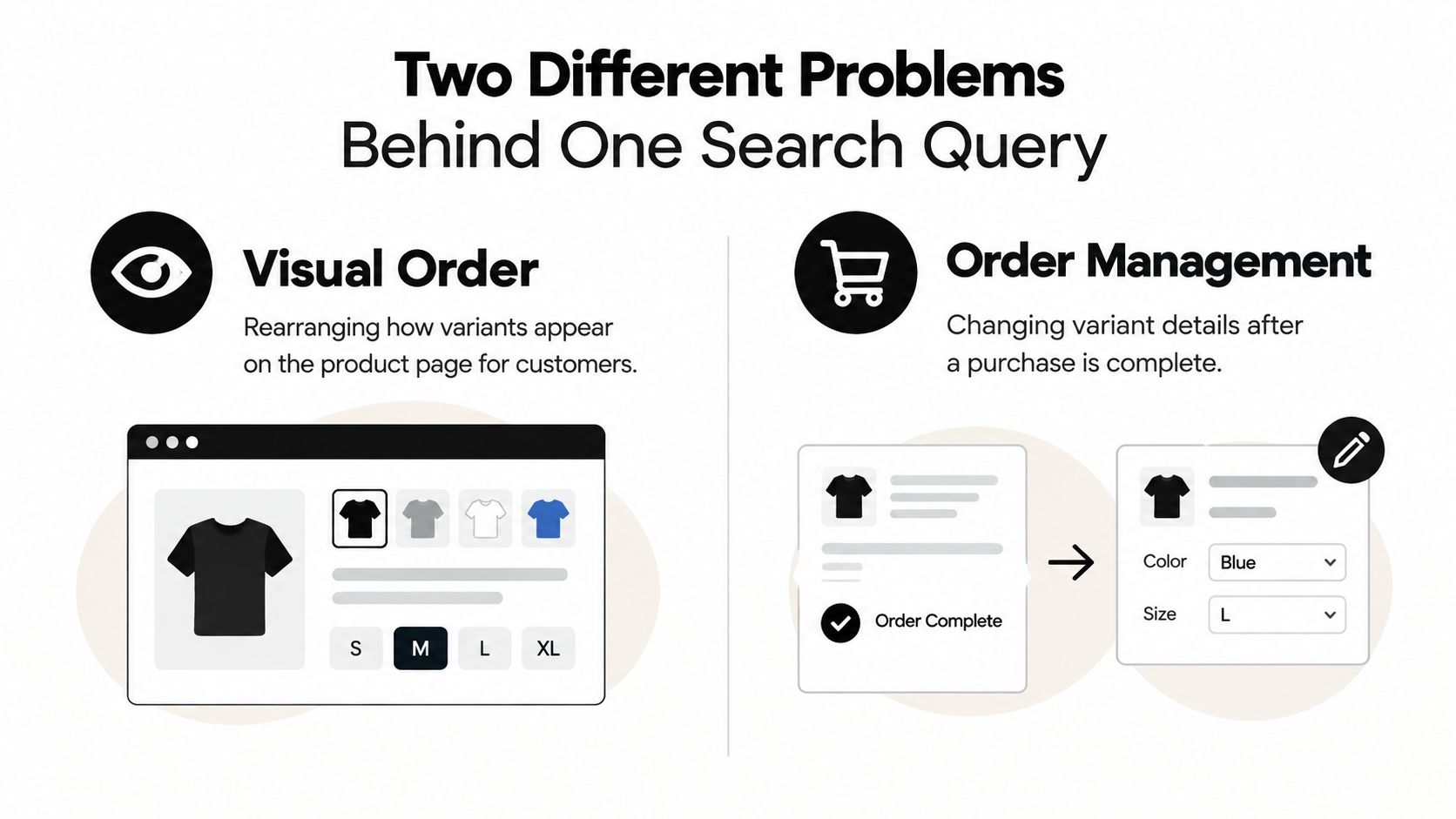
Catalog order versus order contents
Catalog reordering affects how variants are presented to future shoppers. Shopify's admin supports opening a product, entering the Variants area, choosing the reorder action, and dragging variants into the desired sequence. Community guidance also describes the first variant as commonly becoming the default selection shown to shoppers, so the first position can influence merchandising rather than merely tidy up an admin list. Shopify Community guidance on variant ordering
Post-purchase swapping asks whether an existing order can be changed from one variant to another. That decision depends on whether the order is still operationally editable, whether the replacement is available, how price differences are settled, and whether fulfillment has already started.
Operational rule: Change the catalog when you're improving future selection. Change the order only when you're correcting a specific customer transaction.
The distinction matters because Shopify preserves product and variant information in order history as it existed when the purchase was placed. Updating the live product later doesn't rewrite the historical variant name or option data recorded on that order. Shopify's order-detail documentation explains this separation between current product data and purchase-time details.
Before touching anything, ask one question: Is the problem on the product page, or inside an order that already exists? Your answer determines the safe workflow.
Reordering Variants in the Shopify Admin
For a storefront display change, start in the product record, not in Orders. Shopify's current admin workflow gives merchants direct control over the sequence used to present variants.
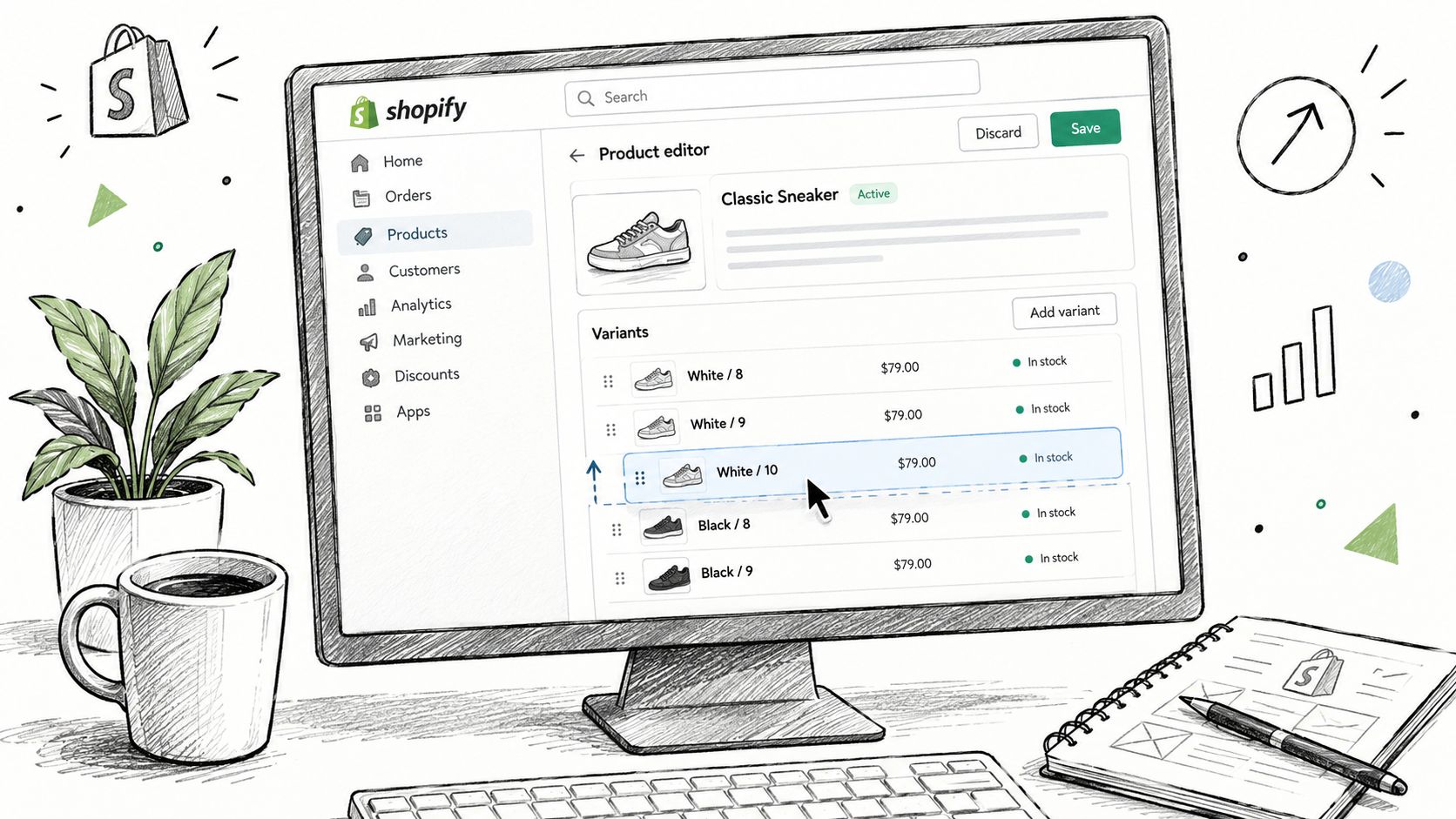
The admin workflow
- Open Products in Shopify admin and select the product whose choices need rearranging.
- Go to the Variants section. Review the current sequence before changing it, especially if the product has more than one option.
- Choose the reorder action. Shopify provides a drag-and-drop interface for moving variants into the desired order.
- Place the intended default first. The first listed variant is commonly used as the default selection presented to shoppers, as described in Shopify Community guidance. Review the documented reorder workflow
- Save the product and check the storefront from a customer's perspective. Confirm the dropdown, swatches, or selectors use the sequence you intended.
The exact storefront appearance can still depend on your theme or product options. A theme may render separate option selectors rather than one combined variant list, so verify the customer-facing result instead of assuming the admin table tells the whole story.
Why the order sometimes reverts
Merchants often report that a custom sequence doesn't persist, particularly when option labels contain numbers or follow an apparently sortable pattern. Community cases describe custom orders reverting unless the option is recreated in the desired sequence or labels are handled as strings, which suggests that backend sorting behavior can override a naive manual arrangement. Shopify Community discussion of option order changes
That behavior is a warning not to treat individual variant rows as the only source of truth. If a bulk editor, product import, or integration rebuilds option values, it may reconstruct the variants according to the option structure rather than your last visual drag-and-drop action.
Practical check: After reordering, test the product in an incognito window and inspect the first selectable combination. If the order looks right in admin but wrong on the storefront, investigate the option values and theme rendering before repeating the drag-and-drop action.
Catalog reordering won't affect prior orders. It changes the live presentation layer, while Shopify's order record retains the product details captured at purchase.
Understanding Option Values and API Reordering
The reliable technical model is option order first, variant rows second. Shopify's product structure treats the first product option as option1, and the order of values inside each option determines how Shopify recalculates the positions of the resulting variants. Shopify's productOptionsReorder documentation describes this relationship directly.
Suppose a product has Color and Size. If Color is the first option, Shopify treats it as option1; if Size is first, the same choices are represented differently. Reordering the individual combinations without understanding that hierarchy can produce a result that looks correct temporarily but becomes inconsistent when a new value is added or an integration synchronizes the product.
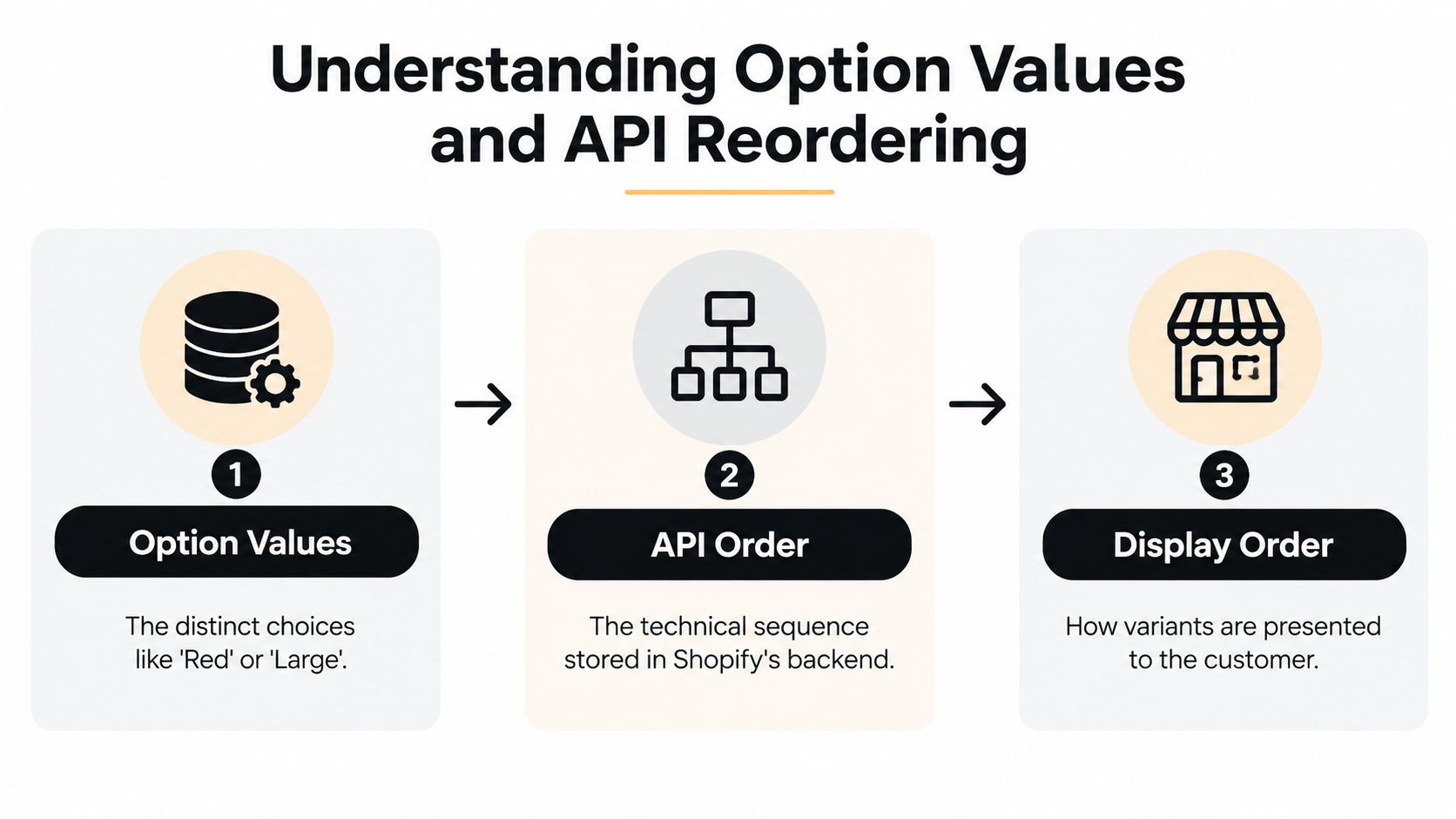
Use option values as the source of truth
The option-value layer contains the distinct choices, such as Red, Blue, Small, or Large. Shopify then calculates the variant presentation from the sequence of those options and values.
That leads to a safer implementation pattern:
- Define the option sequence first. Decide whether Color or Size should be the first option exposed to shoppers.
- Arrange values within each option. Put the commercially preferred or most intuitive value first.
- Regenerate or review combinations. Confirm that the resulting variant positions match the intended storefront experience.
- Protect the sequence in imports. Make sure product feeds and bulk tools don't alphabetize or numerically sort values during synchronization.
The Shopify product variant editing documentation confirms that merchants can change the presentation order by reordering product options and option values. It also notes that the Admin GraphQL productOptionsReorder mutation recalculates variant ordering from the new option sequence.
When the GraphQL mutation makes sense
Use productOptionsReorder when a developer or agency needs repeatable control across a catalog, especially when products are managed through a product information system, custom app, or automated import. The mutation is more dependable than trying to identify and move every individual variant row because it expresses the underlying business rule directly.
A developer should also make the operation idempotent. The integration should read the current option structure, compare it with the intended sequence, and apply a change only when the sequences differ. It should then verify the returned product data rather than assuming the request succeeded.
Numeric labels deserve special caution. A store may want a custom sequence that doesn't match numeric or alphabetic order, but community cases indicate that Shopify or connected tooling can restore a calculated order. Recreating the option values in the required sequence, or using labels that are treated as strings, can be more reliable than repeatedly forcing the individual variant rows.
Developer note: If a catalog import can recreate option values, the import is part of your merchandising system. Fix the ordering rule there, not only in Shopify admin.
This approach also reduces accidental reshuffling when the catalog changes. You're managing the structure Shopify uses to derive variant positions, rather than applying a cosmetic fix that another system can overwrite.
Post-Purchase Variant Swaps and Order Integrity
A customer who chose the wrong size doesn't need a different storefront sequence. They need a controlled change to an existing order, and the first question is whether fulfillment has started.
Shopify's order-editing rules differ from product editing. Its documentation states that an order records the variant name and option data that existed when the customer purchased. If you later rename, reorder, or otherwise change the live product, the historical order continues to show the purchase-time details, while the product link leads to the current product version. Shopify's order-detail rules make that distinction important for audits, customer communication, and fulfillment reconciliation.
Why a swap isn't a simple rename
A variant swap generally means removing one line-item choice and adding another. That can affect availability, pricing, taxes, shipping logic, fulfillment routing, and inventory reservations. It also changes what the warehouse should pick, so an edit that happens after a fulfillment handoff can create a physical mismatch even if the order screen looks correct.
Shopify's documentation for editing products in existing orders includes a specific constraint: when a variant already exists in an order, merchants increase the quantity of that existing variant rather than adding a duplicate line item. That rule illustrates why order editing follows transaction logic, not catalog merchandising logic.
A practical manual process is:
- Confirm the order is still eligible for editing and hasn't entered fulfillment.
- Check inventory for the requested replacement.
- Remove or adjust the original line item according to the available Shopify workflow.
- Add the replacement variant if the order can support it.
- Reconcile any price difference through the appropriate charge or refund process.
- Add an internal note describing the request and confirm the final pick details with fulfillment.
Compare the operating choices
| Approach | Where it works | Main trade-off |
|---|---|---|
| Native admin edit | A straightforward request before fulfillment | Support owns every step, and the timing window can be narrow |
| Draft or replacement order | Complex changes or pricing corrections | The transaction trail becomes more complicated |
| Exchange workflow | Orders already moving through fulfillment or delivery | The original order remains the system of record, while the replacement follows returns handling |
| Self-serve editing tool | Repeated eligible requests before fulfillment | Requires careful rules for eligibility, inventory, settlement, and holds |
The safest process preserves the original order history and ensures fulfillment sees one unambiguous instruction. A customer may describe the request as “change the order of variants,” but the operational requirement is usually replace the ordered variant without losing transaction integrity.
For a deeper workflow focused specifically on this problem, see how to swap variants after purchase on Shopify.
Enabling Self-Serve Variant Changes with Mayra
Self-serve editing works when the merchant defines the boundaries before customers make changes. The tool should not give every customer unrestricted access to every order. It should expose only the actions that your inventory, payment, and fulfillment processes can safely support.
With Mayra Order Edit and Upsell, the setup starts by installing the app from Shopify and adding the Mayra block to the Order status page and customer account. This placement gives customers a controlled route back to an eligible order instead of forcing them to email support with a size or color request. See how the Mayra workflow operates.
Configure the rules before enabling edits
Start with eligibility. Decide which orders can be edited based on fulfillment state, product, collection, tag, destination, or order value. A made-to-order product may need to be excluded, while a standard stocked item may allow a variant swap.
Then choose capabilities individually:
- Variant changes: Allow customers to exchange one size, color, or style for another.
- Quantity changes: Permit increases or reductions where inventory and settlement rules support them.
- Line-item additions and removals: Useful for forgotten items, but only if your fulfillment team can absorb the change.
- Shipping-address edits: Limit changes to the period before the order is handed to the carrier.
- Approval thresholds: Route higher-value refunds or sensitive changes to a merchant review instead of approving them automatically.
Set the editing window around your actual fulfillment process. If the warehouse begins picking quickly, a long customer-facing window creates risk. If orders sit unprocessed long enough to accommodate changes, a broader window may be practical.
Protect fulfillment and payment flows
An active edit should pause fulfillment so the warehouse doesn't ship the old variant while the customer is selecting a replacement. Mayra's fulfillment holds are designed for that purpose, allowing the order to remain controlled while the edit is in progress.
Financial settlement should also happen through Shopify. If the replacement costs more, the customer can receive an invoice for the additional amount. If the revised order costs less, the refund can be automatic or held for approval according to the merchant's threshold.
The key operational benefit is more than a nicer account page. The edit writes back to the original order, keeping Shopify admin as the system of record instead of creating an unrelated conversation, spreadsheet adjustment, or disconnected replacement transaction.
Test the unhappy paths
Before launch, place test orders that cover:
- A same-price variant swap.
- A replacement with a higher price.
- A replacement with a lower price.
- An unavailable variant.
- An order already in fulfillment.
- A product or destination excluded by your rules.
- A customer who abandons an edit before settlement.
Review the order timeline, inventory effect, fulfillment status, customer messaging, and refund or invoice behavior. Support should know exactly when to intervene, while fulfillment should know which order state means “do not pick yet.”
Used with discipline, self-serve editing turns routine correction requests into a governed workflow. It doesn't remove the need for policy. It makes the policy executable.
Choosing the Right Approach for Your Store
The right answer depends on where the friction occurs.
If shoppers struggle to find the preferred size or color before checkout, fix the catalog sequence. Reorder the options and values, confirm the first visible selection, and test the storefront. If a product feed keeps undoing the change, correct the source system or import logic instead of repeatedly dragging rows in admin.
If customers frequently request size, color, address, or quantity changes after checkout, you have an order-operations problem. Manual edits may be sufficient for a small catalog with a slower fulfillment rhythm. They become harder to control when support receives requests while the warehouse is already picking.
Use this decision filter:
- Catalog presentation issue: Reorder product options and values.
- Occasional pre-fulfillment correction: Handle the order in Shopify admin and document the change.
- Complex financial or product change: Use a controlled draft, refund, or replacement workflow.
- Recurring customer-led edits: Evaluate a self-serve tool with fulfillment holds, eligibility rules, approval controls, and Shopify settlement.
- Heavy support involvement: Pair order editing with a broader ecommerce support guide so automation handles the request without weakening escalation paths.
Before selecting an app, document your current process for wrong variants. Record who approves the change, how inventory is checked, how fulfillment is paused, and how refunds or additional charges are recorded. Then compare that process with the controls described in this Shopify order-editing guide.
Don't start by asking which tool has the longest feature list. Start by asking whether the store needs better pre-purchase merchandising, safer post-purchase correction, or both. That distinction keeps catalog changes separate from transaction changes and gives your team a workflow it can operate.
Mayra Apps provides Shopify post-purchase editing for customers who need to swap variants, update quantities, change addresses, or add and remove items within merchant-defined rules. Visit Mayra Apps to review the setup and decide whether controlled self-serve edits fit your fulfillment process.