
Across more than 10 million Shopify orders, 5.2% were edited after checkout, roughly one in 19 orders. The median time from checkout to an edit was 4.6 minutes, and 80.6% of edits happened within the first hour (independent Shopify order-editing research). That timing changes the implementation question. The issue isn't whether customers might want to edit an order someday. It's whether your warehouse, payment workflow, and customer account experience can safely handle changes while the order is still moving toward fulfillment.
A well-configured Shopify edit order status page gives customers a controlled place to correct an address, adjust an item, remove something, or add a relevant product. A poorly governed one creates a race between the shopper, Shopify, your 3PL, and the person printing the shipping label. The difference comes down to placement, eligibility rules, payment settlement, and fulfillment holds.
Table of Contents
- Why the Order Status Page is Your New Control Center
- Installing and Placing Self-Serve Edit Blocks
- Governing Edit Windows and Fulfillment Holds
- Deflecting Cancellations and Driving Post-Purchase Upsells
- Testing Edge Cases Before Going Live
- Measuring the Impact on Support and Operations
Why the Order Status Page is Your New Control Center
The Order status page is no longer just a tracking destination. Shopify identifies it as the final page of checkout and, in the newer customer account experience, customers can reach it by logging in, using a pre-authenticated link from order notifications, or verifying their email or phone number with the order number (Shopify's Order status page documentation).
That access model matters operationally. Customers can return to the same authenticated surface after checkout, rather than relying on a support agent to locate the order and interpret a change request. Shopify also says pre-authenticated access can last up to 3 weeks in the same browser session, or up to 2 weeks across as many as 5 different browser sessions (Shopify's Order status page documentation). The page is therefore suitable for repeat post-purchase actions, not only one-time tracking.
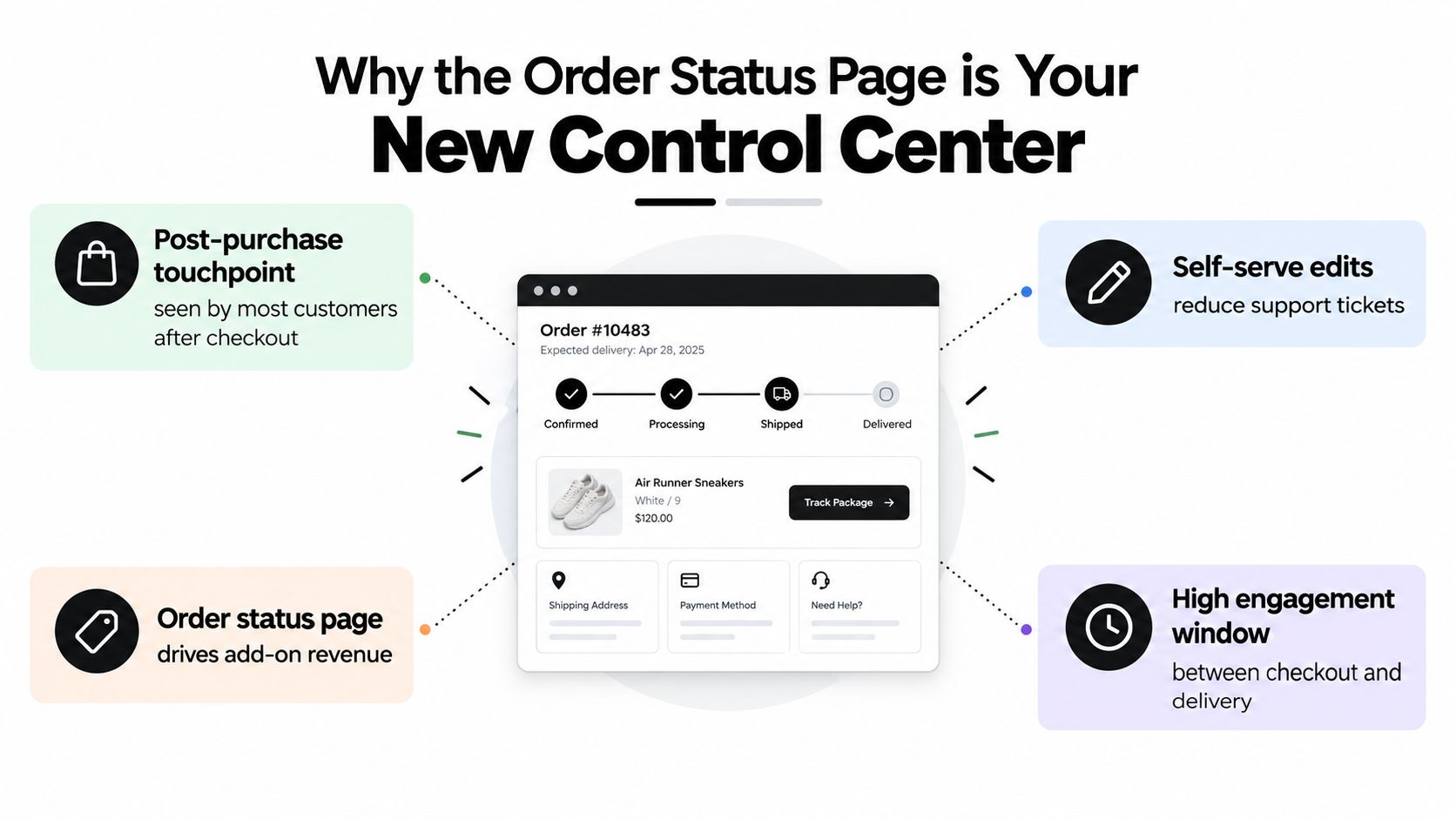
The behavior data reinforces the point. 90.4% of post-purchase edits occurred within 24 hours, while 92.2% were completed by the customer without a support agent (independent Shopify order-editing research). Customers usually aren't asking for an open-ended order-management portal. They're correcting a mistake while the purchase is still fresh, often before the fulfillment team has acted.
Treat the page as an operational checkpoint
The unified checkout and accounts editor brings checkout, Thank you, Order status, and customer-account functionality into one configuration environment. Shopify's documentation also places extensions related to a specific order on the Order status page, where the order object is available to extension experiences (Shopify's checkout and accounts customization documentation).
That makes the page a better location for actions such as:
- Address corrections: Let customers fix delivery details before a label or pick list becomes authoritative.
- Variant changes: Provide a controlled route for correcting a size, color, or other eligible selection.
- Quantity adjustments: Recalculate the order while inventory and payment rules are still manageable.
- Additions and removals: Keep the original order record in Shopify instead of creating an avoidable support workaround.
- Status communication: Show whether the order remains editable and what will happen after the cutoff.
Operational rule: The Order status page should tell customers not only what happened to the order, but also what they can still change and when control passes to fulfillment.
The strategic value comes from timing. A customer-facing edit block placed on an authenticated, repeatable surface can intercept a request before it becomes an email, a cancellation, a refund investigation, or a warehouse exception. That only works when the page reflects the actual fulfillment state. A button that promises an edit after the order has entered pick and pack is worse than no button at all.
Installing and Placing Self-Serve Edit Blocks
Shopify's current approach separates checkout and account extensibility from theme code. The practical consequence is important: you shouldn't solve post-purchase editing by rewriting a theme template that wasn't designed to govern authenticated order actions. Install the app, use Shopify's checkout and accounts editor, and place the block on the Order status customer-account surface.
Use the native editor, not a theme workaround
Start in Shopify admin and open the checkout and accounts editor. Shopify describes this editor as the place to manage functionality for checkout, Thank you, Order status, and customer-account pages from a single interface, separate from the theme (Shopify's checkout and accounts customization documentation).
A reliable setup sequence is:
- Install the order-editing app from Shopify and approve the requested permissions.
- Open the checkout and accounts editor from the relevant Shopify settings area.
- Choose the Order status page, not only the Thank you page.
- Locate the order-status customer-account extension target for the app.
- Add the app block beneath or beside fulfillment details, where customers already look for order-specific information.
- Use the render-after fulfillment-details position when the app exposes it. Shopify provides a dedicated target for rendering after fulfillment details on the Order status page.
- Save and preview the configuration, then validate it with a real test order and an authenticated access path.
The distinction between the Thank you page and the Order status page is easy to miss. The Thank you page is an immediate post-checkout surface. The Order status page remains the more useful location for repeat access, tracking, fulfillment context, and order-specific actions. If the edit control appears only on Thank you, a customer who returns later may not find it.
Place the control where the decision happens
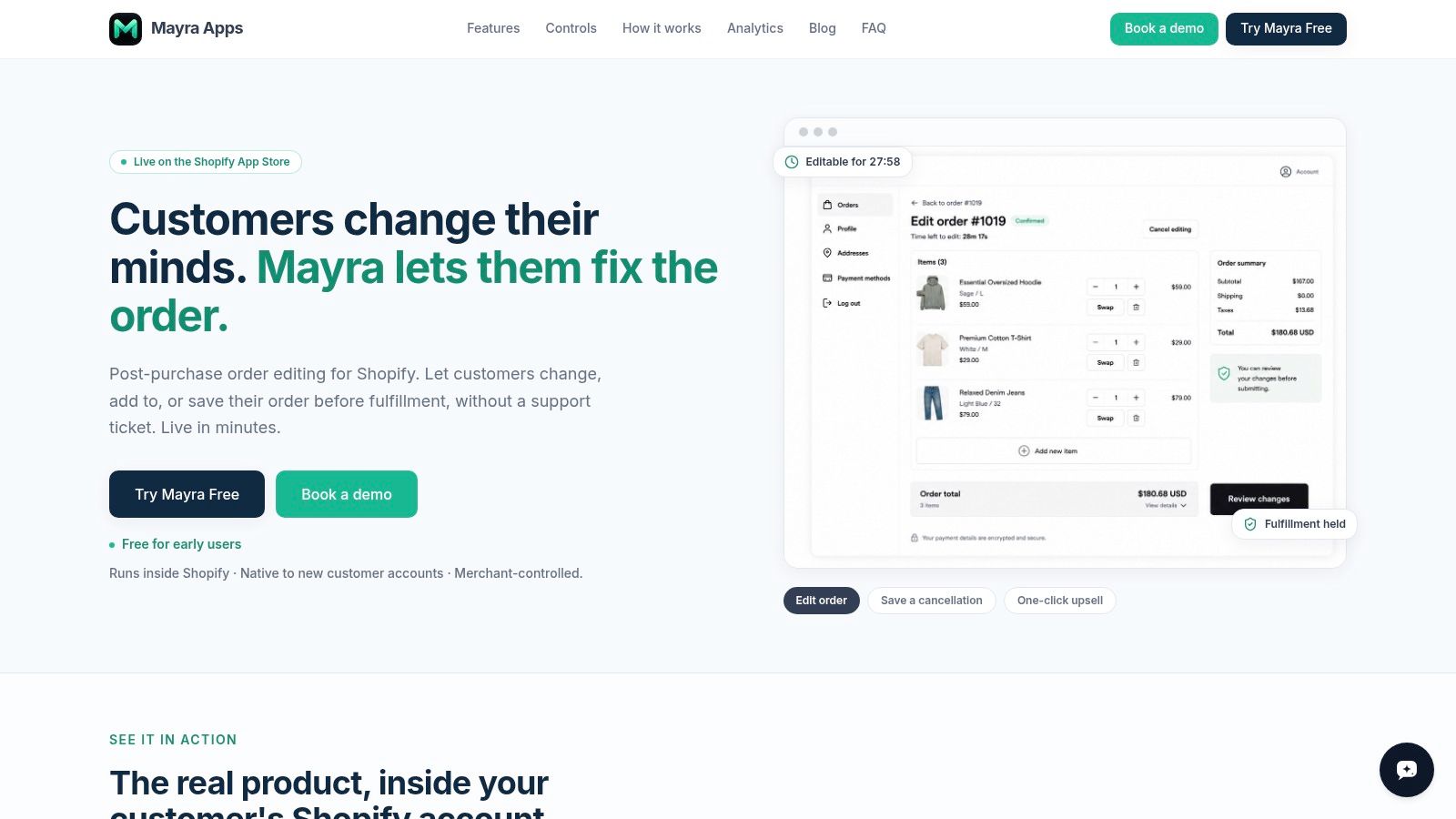
Don't bury the edit action below unrelated marketing content. Put it close to the order summary or fulfillment details, with clear copy such as Edit order, Change address, or Manage items. The customer should understand three things before opening the flow:
- What can be changed, such as eligible items, quantities, or address details.
- Whether the order is still editable, based on fulfillment state and merchant rules.
- What happens financially, including an additional payment request or refund.
For stores migrating from older checkout customizations, a careful guide for complex Shopify migrations can help teams map legacy theme logic to the current extension model. The migration isn't complete when the block renders. It's complete when the customer path, permissions, order state, and warehouse handoff all agree.
Governing Edit Windows and Fulfillment Holds
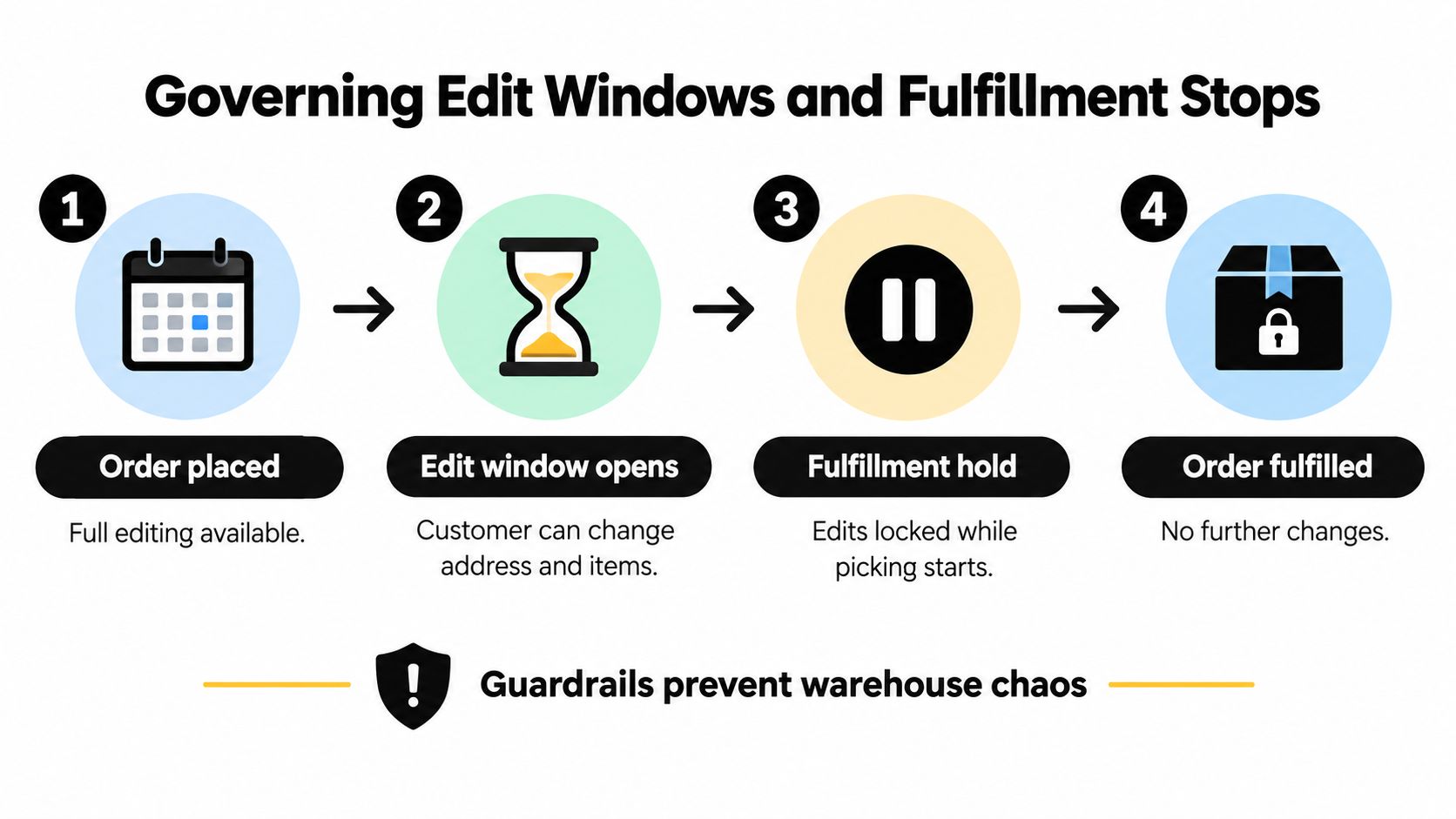
Unlimited editing is attractive in a product demo and dangerous on a live fulfillment floor. The correct policy isn't “let customers edit until they feel finished.” It's “let customers edit while the order can still be changed safely, and stop the flow when fulfillment takes control.”
Shopify supports merchant-side order changes such as adding or removing products, adjusting quantities, updating shipping fees, and applying discounts, but its constraints are material. Fulfilled items can't be removed or have quantities adjusted, orders in pending payment may not be editable, and a fulfillment service can impose additional restrictions (Shopify's order-editing guidance).
Define eligibility before enabling controls
A safe rule set usually separates what the customer wants to change from whether the order is still operationally eligible. A customer may be allowed to change an unfulfilled quantity but blocked from changing a line that has already been fulfilled. A shipping address update may require a separate validation or approval path, particularly when the destination country changes.
Use rules that answer these questions:
- Fulfillment state: Are all affected items unfulfilled?
- Payment state: Has the original order settled, and can an added amount be collected through Shopify's supported workflow?
- Inventory state: Is the requested replacement available and reservable?
- Product eligibility: Are personalized, restricted, bundled, or subscription-linked items excluded?
- Destination: Does the new address remain inside the merchant's shipping policy?
- Warehouse handoff: Has picking, packing, label creation, or carrier transfer started?
The edit window should reflect the slowest safe handoff in your operation, not an arbitrary promise. Fast-moving warehouses need an earlier cutoff. Made-to-order operations may have more flexibility, but the rule still needs an explicit point at which production or fulfillment becomes authoritative.
Hold fulfillment while a change is active
Shopify marks orders or fulfillments as On hold when a merchant or app pauses them, and fulfillment can't proceed until the hold is released. Shopify also states that post-purchase upsell flows temporarily place fulfillment on hold, releasing it when the customer reaches the Order status page or when the post-purchase timeout expires (Shopify's checkout and accounts customization documentation).
That behavior should shape your workflow:
- Customer opens an eligible edit flow.
- The system places the relevant fulfillment on hold.
- Inventory and order details are recalculated.
- Any additional payment or refund is handled through Shopify's supported process.
- The updated order is written back to Shopify.
- The hold is released only after the change is complete or the session expires.
- The warehouse receives the final state, not an intermediate version.
Warehouse safeguard: Never release a fulfillment hold merely because the customer reached the edit screen. Release it after the order, inventory, and financial state have reached a known final condition.
Where the rules for editing become operational rather than cosmetic, this is the point. A visible button isn't a governance system. The system needs to prevent changes that would leave the warehouse picking a removed item, shipping an old variant, or fulfilling an order whose added balance hasn't been settled.
Deflecting Cancellations and Driving Post-Purchase Upsells
A cancellation request often signals a correctable problem. The customer may have selected the wrong size, entered an old address, forgotten an item, or decided that the order needs a small adjustment rather than a full reversal. A self-serve flow can expose the reason, offer a suitable correction, and preserve the original order when the customer wants to continue.
The order status page is a natural location because the customer is already authenticated and looking at the order. The edit experience should make the least disruptive resolution easy:
- Change the item when the issue is a variant or product selection.
- Update the address when delivery information is wrong.
- Remove one line when the customer no longer wants part of the purchase.
- Add a relevant product when the customer forgot something and the warehouse can combine fulfillment.
- Cancel fully when the customer wants a refund or the order isn't eligible for a safe edit.
Use cancellation reasons as decision inputs
A cancellation flow shouldn't present a store-credit offer before asking why the customer wants to cancel. Capture the reason first, then show an appropriate option. An address problem deserves an address editor. A sizing concern may deserve a variant swap. A customer who no longer wants the order should be able to cancel without being forced through a retention pitch.
Store credit can be useful when the customer accepts it, but it shouldn't conceal the financial state of the order. Explain whether the order will remain active, whether the credit is issued immediately, and what happens if the customer chooses a full cancellation instead. For higher-risk or higher-value changes, route the request to approval rather than creating an automatic promise.
Keep upsells subordinate to order accuracy
One-click additions work best when they are contextually connected to the order and don't distract from the primary edit. A customer changing a size might see a compatible accessory. A customer adding a product might see the shipping consequence before confirming. The add-on should be presented as an option, not as a barrier to correcting the original order.
Shopify's post-purchase flow can place fulfillment on hold while an upsell is presented, so the offer must fit inside the same operational window as the edit (Shopify's checkout and accounts customization documentation). The new item must be available, the extra charge must be settled through Shopify, and the warehouse must receive the final combined state.

Mayra Apps provides one implementation option for this model, with self-serve edits, cancellation-reason capture, store-credit offers, and post-purchase additions configured through merchant rules. The broader principle is more important than the tool: use the order status page to resolve the original problem first, then present retention or revenue options that won't compromise fulfillment.
For practical guidance on handling the underlying customer issue rather than only the transaction, see resolving customer problems. The flow should leave the customer with a clear outcome, not another support conversation.
Testing Edge Cases Before Going Live
A post-purchase editor can look correct in preview and still fail at the exact moment a warehouse or payment provider needs certainty. Test the entire sequence with real order states, not just the ideal case where an unfulfilled order receives a simple quantity change.
Access and placement checks
Begin with the customer path:
- Pre-authenticated link: Open the order from an order notification in the same browser, then test the link in another permitted browser session. Confirm that the customer sees the correct order and not a generic account landing page.
- Account login: Sign in through the new customer account experience and verify that the Order status page contains the edit control.
- Email or phone verification: Test the fallback verification route with an order number and the matching customer detail.
- Mobile rendering: Confirm that the button, item selector, price difference, and confirmation message remain usable on a small screen.
- Thank you versus Order status: Verify that the control appears on the persistent Order status page, not only immediately after checkout.
The first failure to catch is usually not a payment problem. It's a visibility problem. If customers can't find the action, they'll contact support even though the workflow technically exists.
Order-state and inventory tests
Create test orders that represent each operational boundary:
- Fully unfulfilled order: Change a quantity, remove an item, add an eligible item, and update the address. Confirm that the original order reflects the final state.
- Partially fulfilled order: Try to change an unfulfilled line and a fulfilled line separately. The system should block changes to fulfilled items and explain why.
- Pending payment order: Confirm that the edit action is disabled or routed to the correct fallback when Shopify doesn't permit editing.
- Out-of-stock replacement: Attempt a variant swap after inventory has changed. The customer should receive a clear unavailability message rather than a confirmed impossible order.
- Restricted product: Test an item excluded by product, collection, or order rules. It should remain protected while other eligible items behave normally.
- Address validation failure: Enter incomplete or undeliverable details and confirm that the order isn't released to fulfillment with an invalid destination.
Check the inventory result after every test. A removed item should no longer be fulfillable, while an added or increased item should appear as a new fulfillable requirement. The warehouse view must match the customer confirmation.
Payment, timeout, and hold tests
A successful screen doesn't prove successful settlement. Test an added-item flow where the extra payment fails, then confirm that the original order isn't automatically released with an unpaid addition. Test a removal or quantity reduction and verify that the refund path follows the configured approval rules.
Abandon the edit session at each important stage:
- After opening the editor.
- After changing an item.
- After accepting an upsell.
- After reaching the payment step.
- After payment succeeds but before the confirmation screen loads.
For each abandonment, verify that the fulfillment hold behaves as intended. Shopify documents a post-purchase timeout of one hour after checkout submission when an offer is abandoned, but your app's edit behavior still needs explicit validation against your own fulfillment process (Shopify's checkout and accounts customization documentation). Finally, compare the Shopify admin, customer-facing order status, inventory, payment record, and warehouse queue. If any one of those shows a different version, don't launch.
Measuring the Impact on Support and Operations
The useful measurement isn't just how many customers clicked Edit order. The key question is whether the flow resolves routine requests safely, keeps the warehouse working from the correct order state, and gives support agents fewer repetitive conversations.
Start with a baseline from your own operation. Count order-change contacts, cancellations tied to correctable mistakes, manual edits, fulfillment exceptions, and refund-related escalations before launch. Then separate customer-led edits from agent-assisted changes after launch. The independent benchmark of 92.2% customer-completed edits is a useful reference point for the potential of embedded self-service, but your own result should be judged against your order mix and fulfillment model (industry analysis of Shopify apps that reduce support tickets).
Track the complete operational chain
Use a dashboard that connects customer behavior to warehouse and financial outcomes:
- Self-serve completion: How many eligible edits finish without agent involvement?
- Escalation reasons: Which changes still require support, approval, or manual payment handling?
- Edit timing: When do customers initiate changes relative to checkout and fulfillment?
- Hold performance: How often are holds created, released, expired, or manually overridden?
- Warehouse exceptions: Do edited orders generate wrong-item picks, duplicate labels, split shipments, or address corrections?
- Settlement outcomes: Are added charges collected, refunds issued, and failed payments routed correctly?
- Cancellation recovery: How many cancellation attempts become an edit, a store-credit resolution, or a completed order?
- Customer experience: Are customers returning to support because the edit status or financial result is unclear?
Don't optimize for the highest possible edit volume. A flow that accepts every request but causes warehouse rework is not efficient. Tighten eligibility or shorten the window when late changes create fulfillment risk. Expand access only after the warehouse and payment records remain aligned.
For broader process design, the ecommerce operations management perspective is useful because order editing sits between support, finance, inventory, and fulfillment. Teams that want to connect this workflow with wider automated support ticket fixes should preserve clear escalation triggers rather than automating every exception.
The best Shopify edit order status page setup changes support from a reactive inbox function into a controlled self-service layer. It gives customers a short path to fix mistakes, gives operations a defined cutoff, and gives the warehouse one final order state to trust.
Mayra Apps helps Shopify merchants place self-serve editing, cancellation deflection, store-credit offers, and one-click upsells inside the customer account and Order status experience. If you're designing edit windows and fulfillment holds, visit Mayra Apps to review the available controls and configure a post-purchase flow that fits your operation.