
You ordered a new phone on Monday. The confirmation email landed within minutes, the charge is on your card, and every time you open the T-Mobile order status page since then it says the same two words: no update yet. Nothing looks broken, but nothing looks like it's moving either, and the page doesn't tell you which of those two things you're looking at.
The lookup itself takes under a minute once you have the right three details in front of you. What follows is how to run that lookup, how to fix it when it fails, what each stage means, and where the page stops being useful and the carrier's record takes over.
Table of Contents
- Opening Your T-Mobile Order Status in Under a Minute
- Fixing Common Lookup Errors
- What Each Order Stage Means and Who Tracks It
- How to Track Your Shipment After It Ships
- Why Your Order Says No Update Yet
- Confirm Your Order Before You Contact Support
Opening Your T-Mobile Order Status in Under a Minute
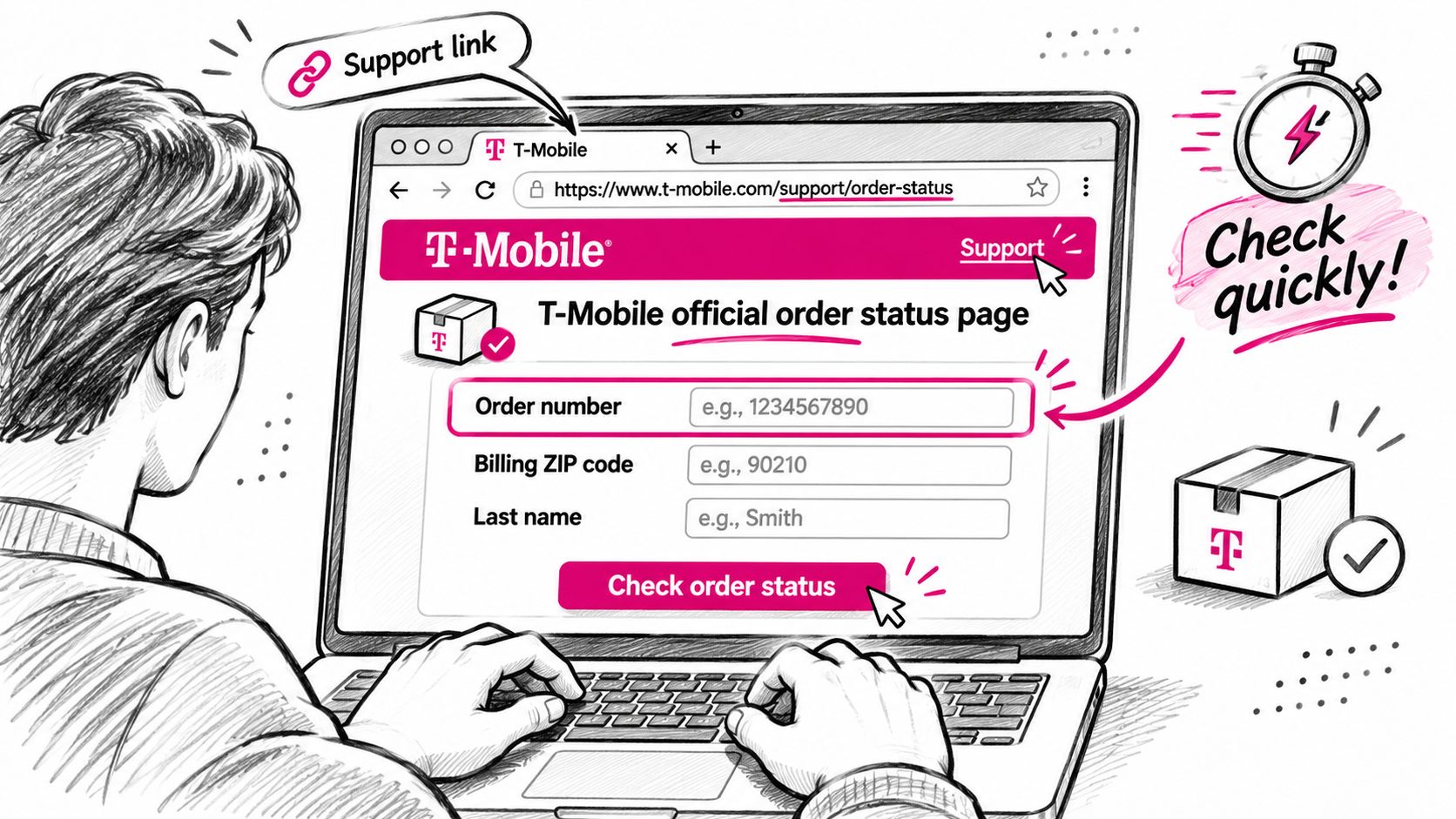
Go to T-Mobile's official order status page, reachable from the orders or support area of t-mobile.com, and enter three details: the order number, the billing ZIP code, and the last name on the order. The page returns the current stage of that order in seconds, and you don't need to sign in to anything to see it.
Your order number is printed in the confirmation email T-Mobile sends after checkout, usually near the top and labeled as the order or transaction number. All three details have to match the record exactly. That's not the company being difficult: the combination is what stops a stranger who knows your name from opening your order, so the page keeps quiet until the details agree.
The lookup screen is shown here, so you know you're in the right place before you type anything.
Three ways in, and when to use each
| Access route | What you need | Best for |
|---|---|---|
| Order status page | Order number, billing ZIP code and last name | A quick check without signing in |
| My T-Mobile account | Account login | Viewing several orders at once |
| Shipping confirmation email | Tracking link from the email | Going straight to carrier tracking after shipment |
Use the first row only. Use the account route when you've ordered more than one thing and want them listed side by side, and use the email link once the parcel is in the carrier's hands and the order page has nothing new to tell you.
How to confirm you opened the right order
Before you read the status line, spend five seconds checking that the page is showing your purchase and not an older one. Three details should match:
- The items: the model, color and storage you bought.
- The order date: the day you placed the order, not the day the email arrived.
- The stage line: a plain status such as "order received" or "preparing to ship," not a blank space.
If all three line up, the status you're reading is real and you can act on it.
Fixing Common Lookup Errors
Almost every failed lookup traces back to one detail that doesn't match the record, not to a missing order. Here are the ones that come up most, symptom first and fix second.
- The page says no order found and you typed the number by hand: copy and paste it from the confirmation email instead. A capital O where a zero belongs, or an I where a 1 belongs, is enough to fail the check.
- The ZIP code is rejected: use the billing ZIP tied to the payment method you used at checkout, not the ZIP of the address where the phone is going. Shipping somewhere else is common; billing records rarely change.
- The last name doesn't take: try the exact spelling used on the order. Maiden names, middle names added at checkout, hyphenated surnames and accents all cause this.
- Someone else placed the order: the details have to match the person who bought it. Ask them for the order number and the last name they used, since your name won't open their record.
- Your account shows nothing, but you know the order exists: you're probably signed in with a different email than the one on the order, which means the account view can't see it.
- The page is blank a few hours after checkout: new order records can lag behind the confirmation email. Wait and retry later rather than assuming the order failed.
- One browser shows an old or empty page: clear the cached page or try a different browser, including a private window, to rule out a stale view.
Lookup failures are only the first of many post-purchase questions that end up in a support inbox. This overview of ecommerce customer support covers how teams structure the rest of those conversations.
One habit worth keeping: treat your order number like a reference code, not a status update. Post it in a public forum and anyone can pull your order's public details. Share it with T-Mobile support directly, and nowhere else.
What Each Order Stage Means and Who Tracks It
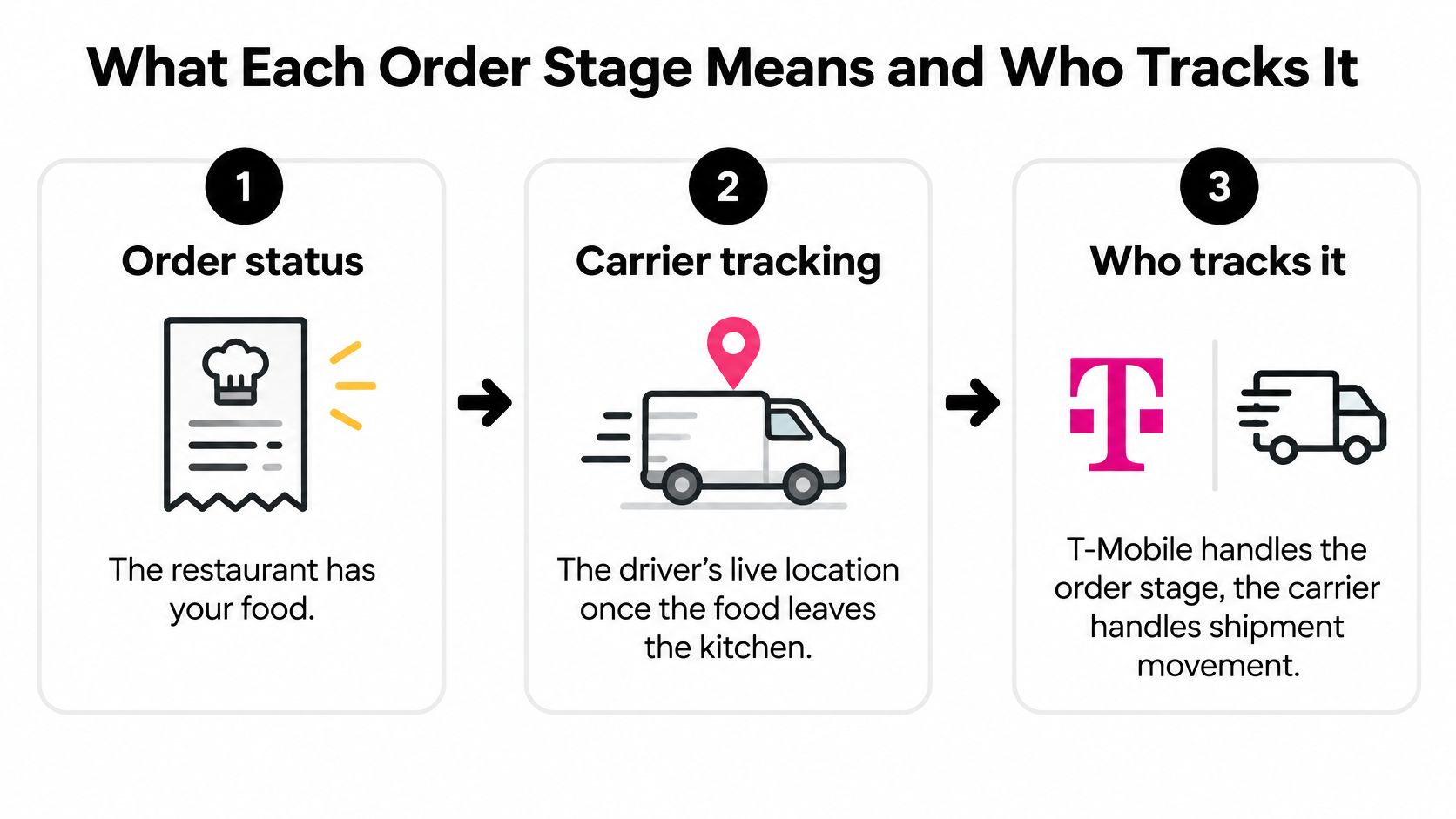
Think about ordering food at a restaurant. The kitchen ticket tells you the kitchen has your order and is working on it, but it can't tell you where the driver is. Once the food leaves, the driver's location app takes over. An order status works the same way: it's the store's record of its own progress, and carrier tracking is a separate record that starts when the parcel changes hands.
Order received. T-Mobile has your order and the payment has gone through. Nothing is moving yet, and nothing needs to.
Processing or review. Payment verification, fraud screening, and stock allocation occur at this stage. An order can remain here for a business day or more without any issue, especially for a new line or an address that doesn't match the account history.
Preparing to ship, label created. A shipping label now exists, which is why the page looks more advanced than the parcel feels. The parcel may still be waiting in a warehouse for a carrier pickup scan.
Shipped and in transit. The carrier has the parcel, and its scans drive the timeline from here. T-Mobile's page usually reflects those scans with a delay.
Delivered. The carrier closes the record, including where the parcel was left.
The distinction that resolves most confusion: an order status is the store's record of its own progress, not a live map of the parcel.
That split isn't unique to one carrier. Shopify's order status page documentation describes the page as the place customers track orders and view shipping updates, with supported carriers supplying real-time shipment location data. Retailers generally hold the order record and hand the movement record to the carrier.
The three-step picture below keeps the two records apart.
| Stage | What it means | Recorded by |
|---|---|---|
| Order received | Store has accepted the order and it is in the system | T-Mobile order record |
| Processing or review | Order is being checked, prepared or allocated stock | T-Mobile order record |
| Label created | Shipping label exists but the carrier has not scanned the parcel | T-Mobile order record |
| Shipped and in transit | Carrier has accepted the parcel and is moving it | Carrier scans |
| Delivered | Carrier records the parcel as delivered | Carrier scans |
What your current stage tells you to do next
Read the stage, then ask what the next one depends on. If you're in review or label created, the next step belongs to T-Mobile's systems and there's nothing for you to chase yet. If you're in transit, the next step belongs to the carrier.
Post-purchase changes such as a corrected address or a swapped variant follow the same logic, which is why post-purchase ecommerce operations treat the pre-shipment window as the one that matters most. Once a parcel is scanned into a carrier network, options narrow quickly.
How to Track Your Shipment After It Ships
Once the shipping confirmation email arrives, the carrier's record becomes your best source. Four moves cover the whole process.
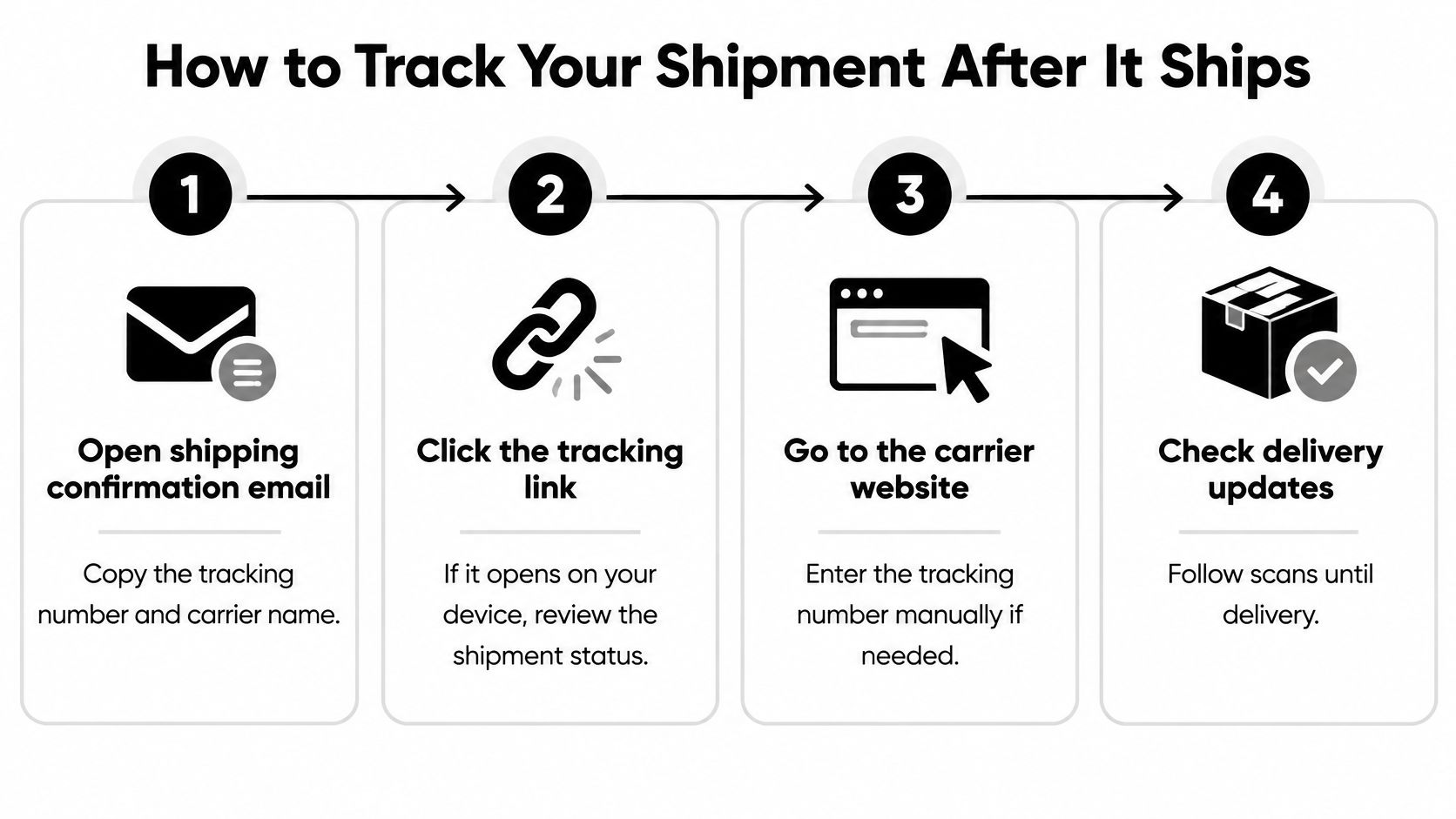
- Open the shipping confirmation email and copy the tracking number and carrier name. Copy them rather than relying on the button alone, because the link may not open on every device or email client.
- Click the tracking link. If it opens, you land on the carrier's page with the number already filled in. The link saves you typing; it isn't more authoritative than the number itself.
- If the link fails, go to the carrier's website directly. Choose the carrier named in the email and paste the number in. Include every letter exactly as shown, since one dropped character returns a "not found" result even when the parcel is fine.
- Read the most recent scan first. The top entry, with its date, time, location and short description, is the last place the parcel was handled. Read downward for history, not for current position.
Two more habits save a lot of frustration. Save the tracking number and the date of the last scan, because those exact details are what any support agent will ask for. And if your order contains several items shipped separately, check each tracking number on its own, since split shipments arrive on separate schedules and can look stalled when only one parcel is moving.
A normal in-transit record isn't a continuous line. Expect a handful of scans across regional hubs, with gaps of a day or more between some of them and quiet stretches over weekends. Long gaps between scans are ordinary; a parcel that never receives its first scan is the case worth investigating.
Why Your Order Says No Update Yet
Say you ordered a handset on Monday morning. Monday afternoon the page says "no update yet." Tuesday it says the same. By Wednesday you're wondering whether something has gone wrong, and the page still won't tell you. That message is the weakest point in the whole lookup experience, because it doesn't say whether your order is waiting on fraud or payment review, waiting for inventory allocation, waiting for carrier pickup, or waiting for its first tracking scan.
That ambiguity is a known gap. The T-Mobile order status page shows "no update yet" without explaining which of those queues the order is in, and the wording is identical in each case. It matters because the two records are separate: once a parcel ships, movement questions belong to the carrier (T-Mobile's own guidance points customers to UPS after shipment), while replacement and re-shipping issues stay with T-Mobile.
Here's the assumption to drop. An unchanged status is not proof of a lost package. A label can be created days before a carrier accepts the parcel, and that gap produces no new scans at all. Silence on the page usually means an internal step hasn't finished, not that something vanished.
Practical rule: change comes from one of four events, so the question to ask is which one you're waiting on. The order clearing review, stock being allocated, the label being created, or the carrier logging its first scan.
Reading the stalled status
| Situation | Likely cause | Next move |
|---|---|---|
| No status change within one to two business days | Order in review, stock allocation or label preparation | Wait and check again the next business day |
| Label created but no carrier scan for several days | Carrier has not yet accepted the parcel | Check the carrier site, then contact T-Mobile if still unchanged |
| Carrier shows delivered but item is missing | Delivery location or handoff issue | Check with the carrier and nearby locations, then contact T-Mobile |
| Carrier shows an exception or delay | Carrier delay or address problem | Follow the carrier instructions and contact T-Mobile for replacements or re-shipping |
Treat those windows as estimates, not promises. They describe when it's reasonable to act, and no one can hand you a delivery date while an order sits in review.
Confirm Your Order Before You Contact Support
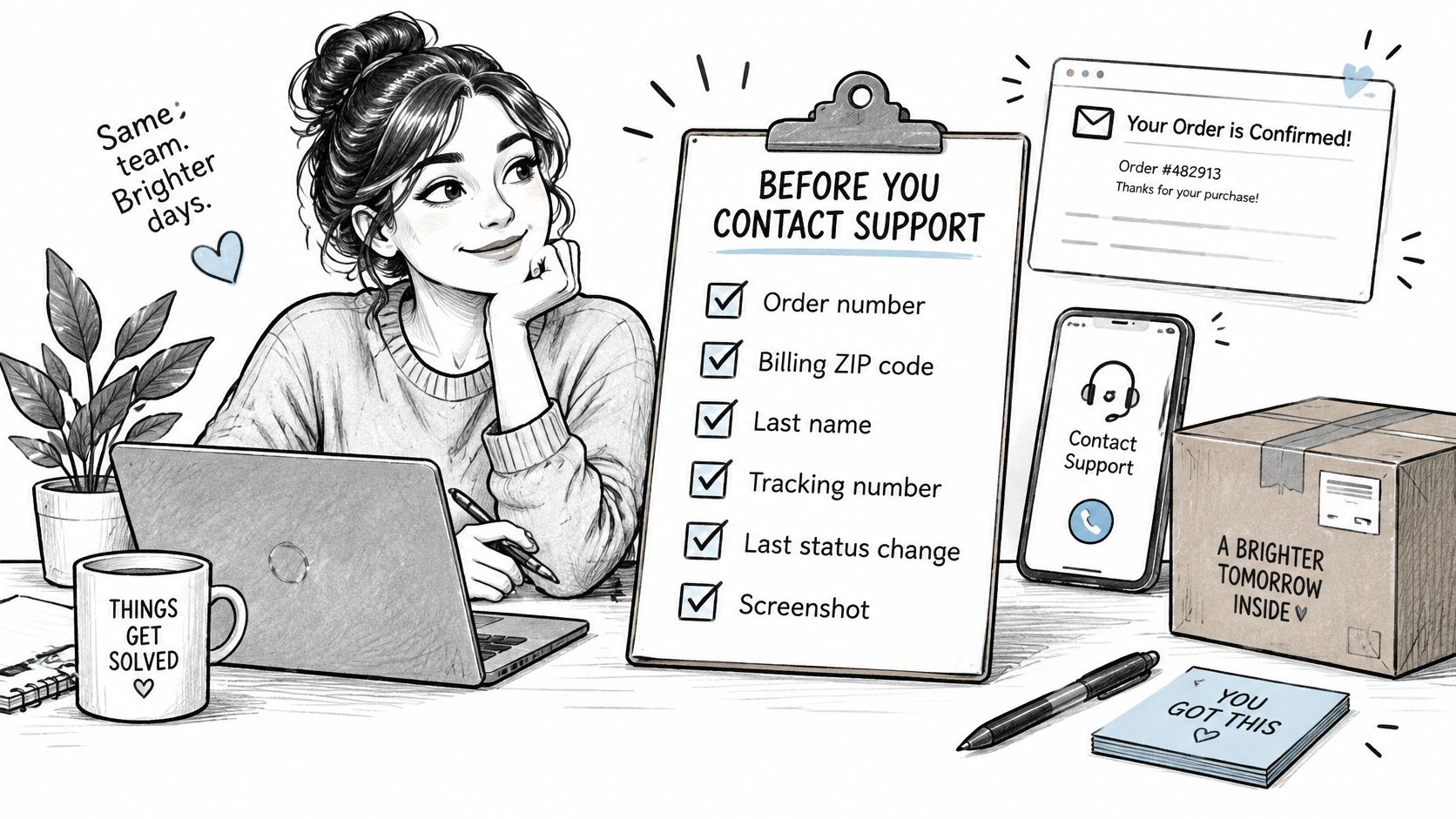
A support conversation goes faster when you arrive with facts. Before you call or open a chat, gather six things: the order number, the billing ZIP code, the last name on the order, the tracking number if one exists, the date of the last status change, and a screenshot of what the page shows right now. All of them live in the order confirmation email and the shipping confirmation that follows it.
Keep that checklist in front of you while you gather, because a missing detail usually means a second call.
Then route the question to the party that owns the answer. Contact T-Mobile for order-level problems: a status that hasn't moved at all, a replacement, a re-shipment, or a cancellation question. Contact the carrier for shipment-level problems: scans, delivery locations, and exceptions such as an address issue on the day of delivery.
Phone numbers, chat options and support hours differ by country, so use the contact details published on T-Mobile's official site or on your order page. Numbers quoted in third-party articles and forum posts go stale, and a wrong number costs you the afternoon.
Four checks tell you you're ready:
- Verified the order: the lookup details match and the page is showing your purchase.
- Read the current stage: you know whether the order is still pre-shipment or already with the carrier.
- Checked the carrier if shipped: you have the tracking number and the date of the last scan.
- Escalated to the right party: T-Mobile for order records, the carrier for movement, and your details ready before you reach out.
If you run a Shopify store, the same pre-shipment window is where customer requests pile up, and Mayra ‑ Order Edit & Cancel puts the controls on the order status page so shoppers can change quantities, swap variants, correct a shipping address, add an item, or cancel the order themselves before it ships. The Mayra block is added in Shopify admin under Settings > Checkout > Customize > Order status, and fulfillment is held while an eligible order is being edited, so nothing leaves the warehouse mid-change. Visit Mayra ‑ Order Edit & Cancel to see how the edit window and merchant rules work.