
A customer reaches checkout and sees a shipping charge that no longer covers your carrier cost. At the same time, another customer has already paid and wants an address change or a faster service level. Both requests sound like “change the shipping price,” but Shopify handles them through different workflows.
The first is a checkout-rate change. You update shipping profiles, zones, and rates under Settings > Shipping and delivery, and the change affects future checkout calculations. The second is an order-level shipping-fee edit. You open the existing order and change the shipping fee when the order is still eligible for editing. Fulfillment status matters because labels, fulfillment actions, and shipment movement can narrow what you can safely change.
This guide separates those jobs so you can use the right admin screen, choose an appropriate rate model, and avoid changing a store-wide rule when only one order needs correction.
Key takeaway: Keep Shopify admin as the source of truth. Update checkout logic in Shipping and delivery, and update an individual order through the order editor before fulfillment advances.
Table of Contents
- Introduction to Changing Shipping Prices in Shopify
- What to Check Before You Change Any Shipping Price
- How to Change Shipping Rates Customers See at Checkout
- How to Change the Shipping Price on an Existing Order After Purchase
- Common Pitfalls and Smart Ways to Price Shipping
- Final Checklist and Next Steps for Accurate Shipping Prices
Introduction to Changing Shipping Prices in Shopify
Shipping problems usually appear in one of two moments. A shopper reports that the checkout rate looks wrong, perhaps because a price-based threshold doesn't match the cart. Or a buyer contacts support after payment because the address changed, the shipment needs to be split, or an upgraded service costs more.
Those situations require different decisions. A checkout rate is part of your store's pricing logic. It can be flat, free, price-based, weight-based, or carrier-calculated, and Shopify manages that logic through shipping profiles and zones. Shopify's documentation confirms that merchants can edit a shipping profile and adjust a carrier-calculated option with a handling fee, rather than treating shipping price as a fixed postage amount. See the Shopify shipping-rate setup documentation for the supported configuration paths.
An existing order is different. The customer has already accepted a transaction, so changing the fee affects that order's financial record. Shopify's order-editing workflow allows a merchant to enter a shipping-fee name and price during an order edit, but the order's state still determines whether the change is practical. Once fulfillment or label creation has progressed, recalculation becomes more constrained.
The two workflows at a glance
- Before checkout: Change the rate rules customers see by editing the applicable shipping profile and zone.
- After purchase: Edit the shipping fee on the specific order, if the order remains eligible.
- After fulfillment activity: Review whether a refund, new payment request, draft order, or controlled app workflow is safer than forcing an edit.
The distinction prevents a common operational mistake: opening an order editor when the problem affects every future checkout, or changing a profile when one customer's order needs a correction.
What to Check Before You Change Any Shipping Price
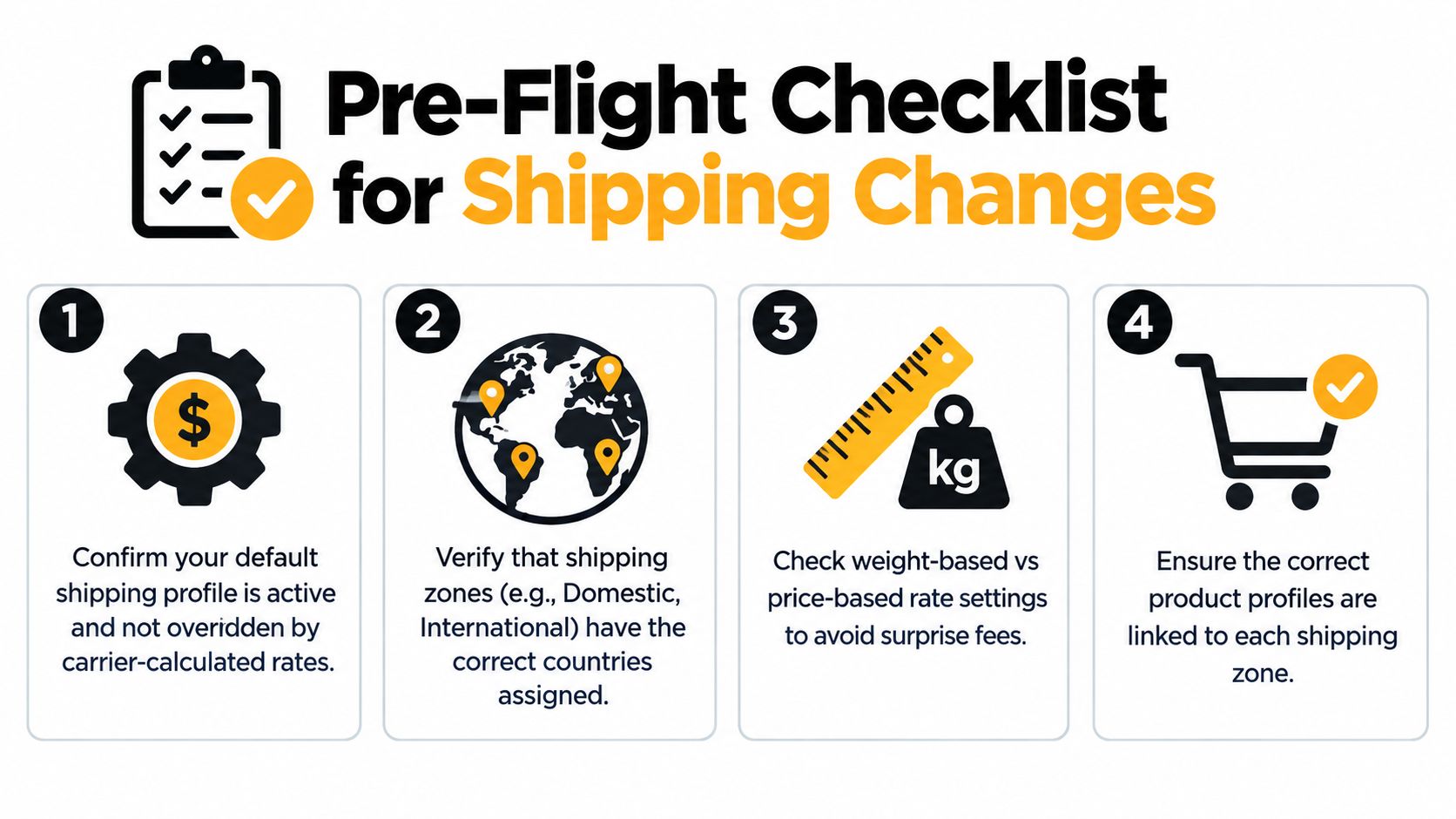
Start with the location of the rule. In Shopify admin, open Settings > Shipping and delivery, then review the shipping profiles that govern the products and fulfillment locations involved. A profile connects products and locations to shipping zones, while each zone contains the rates customers may receive at checkout.
Before editing, confirm which of these situations you have:
- A rate is wrong for future orders. Work in the shipping profile.
- One paid order has an incorrect fee. Open the order and check its edit options.
- The address or service changed after purchase. Check fulfillment status before changing money or shipping details.
- Different markets need different pricing. Review the relevant market and zone assignments rather than changing the default profile blindly.
Permissions matter too. If you can't see or save shipping settings, ask an administrator with the required access instead of making a temporary workaround in an order. For a post-purchase change, place or confirm a fulfillment hold before warehouse staff pick, pack, or buy a label. A hold gives the team time to resolve the commercial change before the shipment moves.
Inspect the rate model
Shopify supports flat rates, free shipping, carrier-calculated rates, price-based rates, and weight-based rates. A flat rate is easy for customers to understand, while a carrier-calculated option can reflect order and destination details. Price-based and weight-based rules give you more control over thresholds, but they need careful testing.
Check whether the rate is controlled by a handling-fee adjustment. That fee can add to or reduce a carrier-calculated result, but it shouldn't be used to hide a broken zone or incorrect product assignment. Also verify that the right products are attached to the profile and that the destination belongs to the intended zone.
For broader process context, review this Shopify order workflow guide before changing a live order. It helps connect shipping edits with approvals, fulfillment timing, and customer communication.
How to Change Shipping Rates Customers See at Checkout
Use this workflow when the goal is to change what shoppers see on future checkouts. It doesn't rewrite the shipping fee on an order that has already been placed.
Open the correct profile and zone
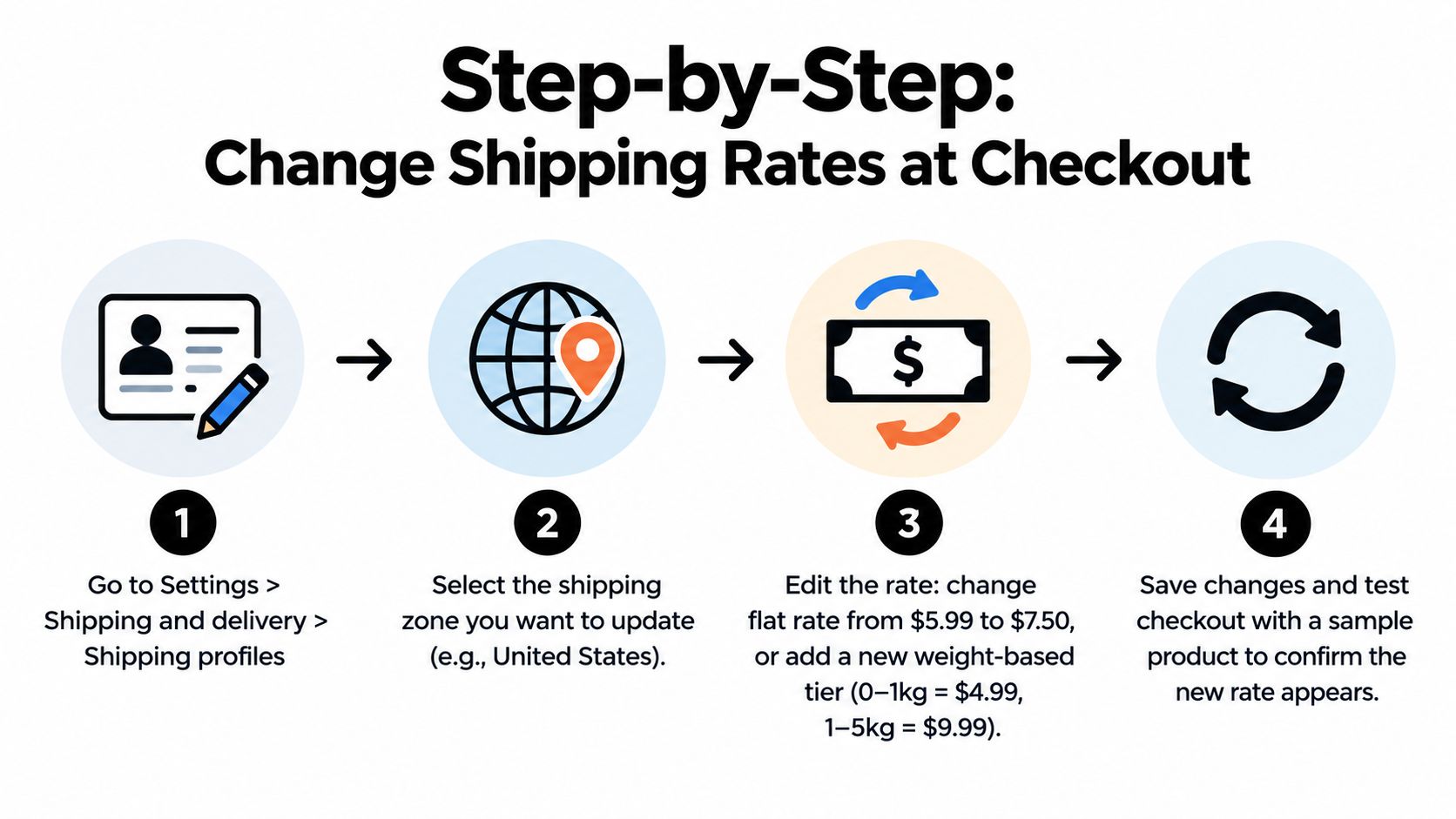
In Shopify admin, go to Settings > Shipping and delivery. Find the relevant shipping profile and select Manage. If the store has separate profiles for general products, heavy goods, or different fulfillment locations, don't assume the default profile controls the item you're testing.
Locate the destination zone, then review the rates currently available there. Shopify describes shipping rates as the customer-facing prices shown at checkout, and its admin supports flat, free, and carrier-calculated configurations. The Shopify troubleshooting guidance for shipping rates is useful when a rate doesn't appear or a cart fails to match the intended condition.
Edit, add, or replace the rate
Choose the action based on the business change:
- Edit a flat rate when the same customer-facing charge should apply to qualifying orders.
- Adjust a price-based rate when the charge should change at cart-value thresholds.
- Adjust a weight-based rate when package weight is the main cost driver.
- Add free shipping when the margin model supports absorbing delivery cost or using a qualifying threshold.
- Modify a carrier-calculated rate when the carrier result needs an additive handling fee or discount.
To change an existing rate, open its menu or edit control, update the name, conditions, or price, and save. To preserve the old option while introducing a new one, add another rate instead of overwriting the current rate. This is useful when you want to offer standard and expedited choices, but it can confuse buyers if both options have unclear names or overlapping conditions.
For a conversion-focused review of how the new charge appears to buyers, use this ecommerce checkout optimization resource.
Build thresholds carefully
Price-based rates should have deliberate boundaries. Confirm that each intended cart value matches one rate and that the rate's wording makes the condition clear. Weight-based rates need the same discipline, especially when products have missing or inaccurate weights.
Market-specific options can support localized pricing and transit information. Shopify's shipping architecture treats a shipping option as a price and transit-time choice that can vary by market, so review the market assignment before changing a global-looking rate.
After saving, test the result as a customer. Add a representative product, enter destinations from each important zone, and test carts near every threshold. Then test a mixed cart, because combining products from different profiles can produce a different checkout result than testing one item alone.
Practical rule: Never trust a saved rate until a test checkout confirms the price, name, destination eligibility, and available alternatives.
How to Change the Shipping Price on an Existing Order After Purchase
An order has already been placed, but the customer needs a different delivery service, destination, or shipping charge. Use Shopify's order editor for that single transaction. Shopify's documented flow lets you edit an order and enter a name and price for the shipping fee, which supports address corrections, service upgrades, and shipment changes that need different handling. Order edits touch one transaction and leave future checkout rates unchanged.
Open the order in Shopify admin and select the order-edit action. Check the line items, destination, fulfillment status, and current payment details before changing the fee. Use the shipping-fee option to enter a clear service name and the correct price, then save the edit. Confirm whether Shopify creates an additional charge or refund before telling the customer the adjustment is complete.
Guard the fulfillment boundary
Apply the fulfillment checks from Section 2 before editing. Then match the workflow to the request:
- An address correction can require both the order address and shipping fee to change. Confirm the new destination before recalculating the charge.
- A service upgrade generally needs an additional customer payment and a delivery-service name that support and fulfillment can understand.
- A split shipment may require a revised fee based on the selected fulfillment plan, especially when items leave from different locations.
- A post-label change may be safer to resolve with a refund, a new payment request, or a replacement order if the physical shipment is already committed.
If Shopify blocks the native edit, do not force it. A draft order can provide a clean replacement transaction, while a partial refund can correct an overcharge. A post-purchase editing app can support controlled changes when it includes eligibility rules, approval requirements, fulfillment holds, and Shopify-based settlement.
Mayra Apps provides a post-purchase workflow that lets customers edit eligible orders from their account or the order status page, including address and item changes before fulfillment. Its controls include merchant-defined edit windows, permissions, exclusions, fulfillment holds, Shopify invoicing for extra charges, and refund handling. Review Shopify order editing guidance before choosing an app or fallback process.
Choosing the right method to update shipping on an existing order
| Scenario | Recommended Workflow | When to Use |
|---|---|---|
| A future checkout rate is wrong | Edit the shipping profile and zone | Use when the rule affects new orders |
| One unfulfilled order has the wrong fee | Edit the order's shipping fee | Use when the order remains editable and fulfillment has not advanced |
| The customer needs an address change before fulfillment | Use an order edit with a fulfillment hold | Use when the destination and charge must stay synchronized |
| The native order edit is unavailable | Create a draft order or use a controlled refund and payment workflow | Use when Shopify cannot safely apply the change to the original order |
| The store needs repeatable customer-led changes | Use a post-purchase editing app with merchant rules | Use when support volume and fulfillment timing justify managed self-service |
| A label or fulfillment step is already active | Review refund, replacement, or carrier options first | Use when editing could disconnect the order record from the shipment |
Record the reason for the edit in the order timeline or internal notes. Customer support, finance, and fulfillment should see what changed, who approved it, and whether the customer owes money or should receive a refund. Before closing the request, verify the updated order total, payment status, shipping method, destination, and fulfillment instructions.
Common Pitfalls and Smart Ways to Price Shipping
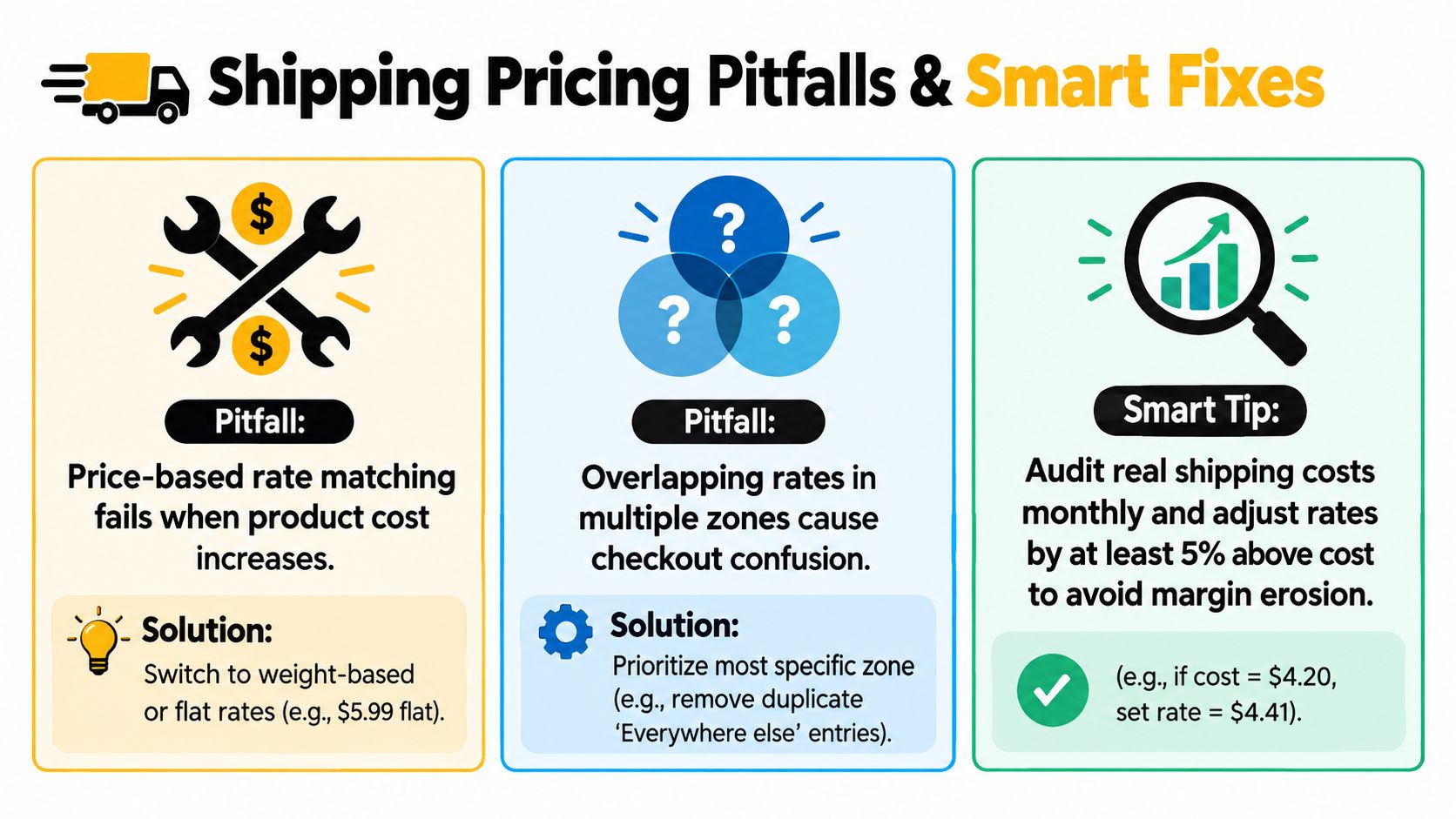
Most shipping failures come from mismatched logic rather than a single incorrect number. A product may belong to an unexpected profile, a destination may sit outside the intended zone, or a cart may fall between price or weight conditions. Start troubleshooting by checking the product assignment, zone membership, condition boundaries, and whether a carrier-calculated option is being adjusted by a handling fee.
Overlapping rules create a second problem. If several zones or profiles appear to apply, Shopify may not produce the result you expect. Remove duplicate coverage, make destination names precise, and test the exact product combination that created the complaint.
Carrier costs also change the pricing decision. The supplied shipping-rate coverage reports USPS Ground Advantage increases of 7.1% in July 2025 and 7.8% in January 2026, along with a temporary USPS surcharge in 2026. Those figures come from Shippo's Shopify shipping-rate optimization coverage. Treat them as a reason to review your model, not as an automatic instruction to pass every increase directly to customers.
Decide whether to raise, absorb, or redesign
Raising the visible rate protects margin immediately but can create checkout resistance. Absorbing the increase keeps the customer-facing price stable but reduces contribution from each order. Redesigning a free-shipping threshold can preserve the offer while encouraging a larger basket, though the threshold must be tested against actual order patterns and market costs.
Use a simple review routine:
- Audit the carrier result: Compare calculated rates with actual fulfillment costs.
- Retest thresholds: Check carts just below and above each price or weight boundary.
- Review markets separately: A rate that works domestically may not work internationally.
- Inspect edited orders: Confirm refunds, extra charges, and fulfillment status match the intended outcome.
- Keep fallback logic intentional: Avoid a “mystery” flat rate that appears only because another rule failed.
The best setup is predictable, not merely cheap. Customers should understand the option they receive, and your team should know which rule produced it. Recheck the design whenever product weights, fulfillment locations, carrier pricing, or market coverage changes.
Final Checklist and Next Steps for Accurate Shipping Prices
Treat shipping as two controlled systems. Shipping profiles change future checkout behavior, while order edits change a specific transaction. Before saving anything, confirm the profile, zone, rate model, order state, and fulfillment hold.
Use this final verification sequence:
- Test checkout with representative products and destinations.
- Review the edited order timeline and financial result.
- Confirm fulfillment is paused until the change is settled.
- Check that the customer received the correct charge or refund.
- Review edited orders for recurring rate or process failures.
- Set an approval rule for unusual fees, destinations, or post-label requests.
Retest rates as carrier costs and product mixes evolve. A short operational review can prevent repeated support tickets, incorrect refunds, and margin leakage.
If post-purchase shipping changes are creating support work, visit Mayra Apps to review controlled order editing, fulfillment holds, customer account changes, and Shopify-based charge or refund handling. Configure the rules around your edit windows and fulfillment process so eligible customers can make changes without taking your team away from routine operations.