
Confirm edit on release is the point where a customer's order change is committed to the original order and the fulfillment hold lifts, so the order can move to the warehouse. That's the short answer, but it hides the question many teams get wrong. When a customer taps confirm, has the order changed, or have they only stated what they'd like to change?
Those aren't the same moment. Between intent and release sit payment, tax recalculation, and a final check that the warehouse hasn't already started picking. If you treat one button click as one success event, you can't explain a failed payment, a blocked release, or why the original order sometimes ships unchanged. Separating the milestones makes every outcome explainable to the customer and auditable for your team.
Table of Contents
- What Confirm Edit on Release Means
- The Four Stages From Draft to Release
- Checks and Fulfillment Gate Before Release
- Payment and Refund Outcomes Case by Case
- When an Edit Gets Stuck and How to Clear It
- Set Release Rules Before You Turn Edits On
What Confirm Edit on Release Means
Confirm edit on release is the point where a customer's order change is committed to the original order and the fulfillment hold lifts, so the order can move to the warehouse. Think of a parcel held at a sorting office while the sender checks a new delivery address. The parcel doesn't move on the strength of a phone call. It moves when the sender signs off the corrected label and staff hand it back to the delivery stream.
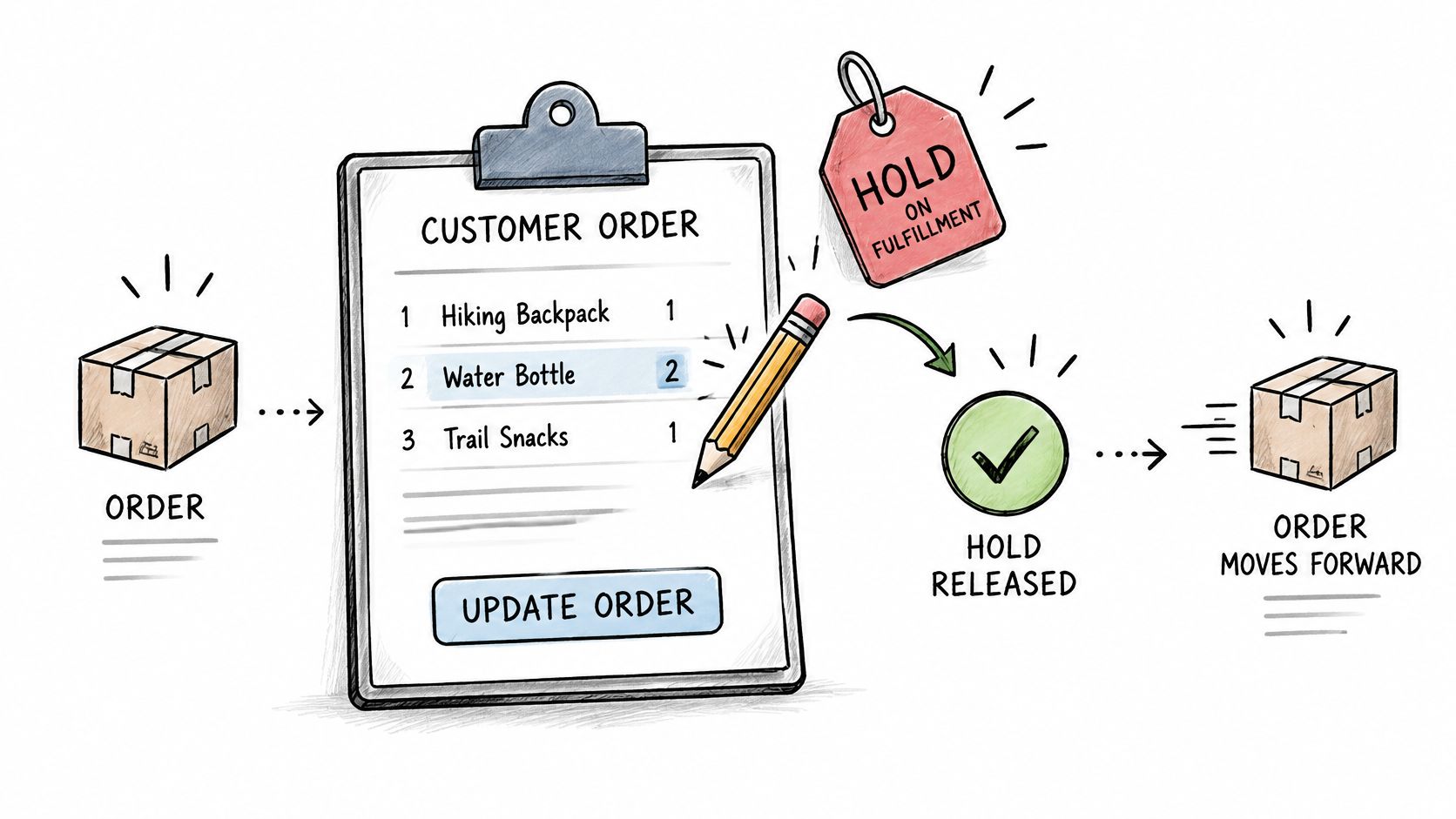
The phrase breaks into three parts. The edit is what the customer changes, such as a quantity, variant, item, or shipping address. The confirm is the customer's explicit commitment after seeing the revised order and any price difference. The release is when the changed order leaves its held state and goes to fulfillment.
Say a customer orders a shirt in size M, then changes it to L twenty minutes later. She sees the size, unchanged total, and delivery details in a preview. When she confirms, the L is written to the real Shopify order, not a copy, and the warehouse picks the L. Customers edit their own orders this way, with extra charges invoiced and refunds processed under your settings, so the Shopify admin stays the source of truth.
Without that clear line, trouble begins. A picker may follow the old size while support believes the new one is live. A customer may assume an unpaid balance doesn't matter because she already pressed confirm. The release point removes that ambiguity. Before it, the change is still being checked. After it, the order is final in its changed form.
The Four Stages From Draft to Release
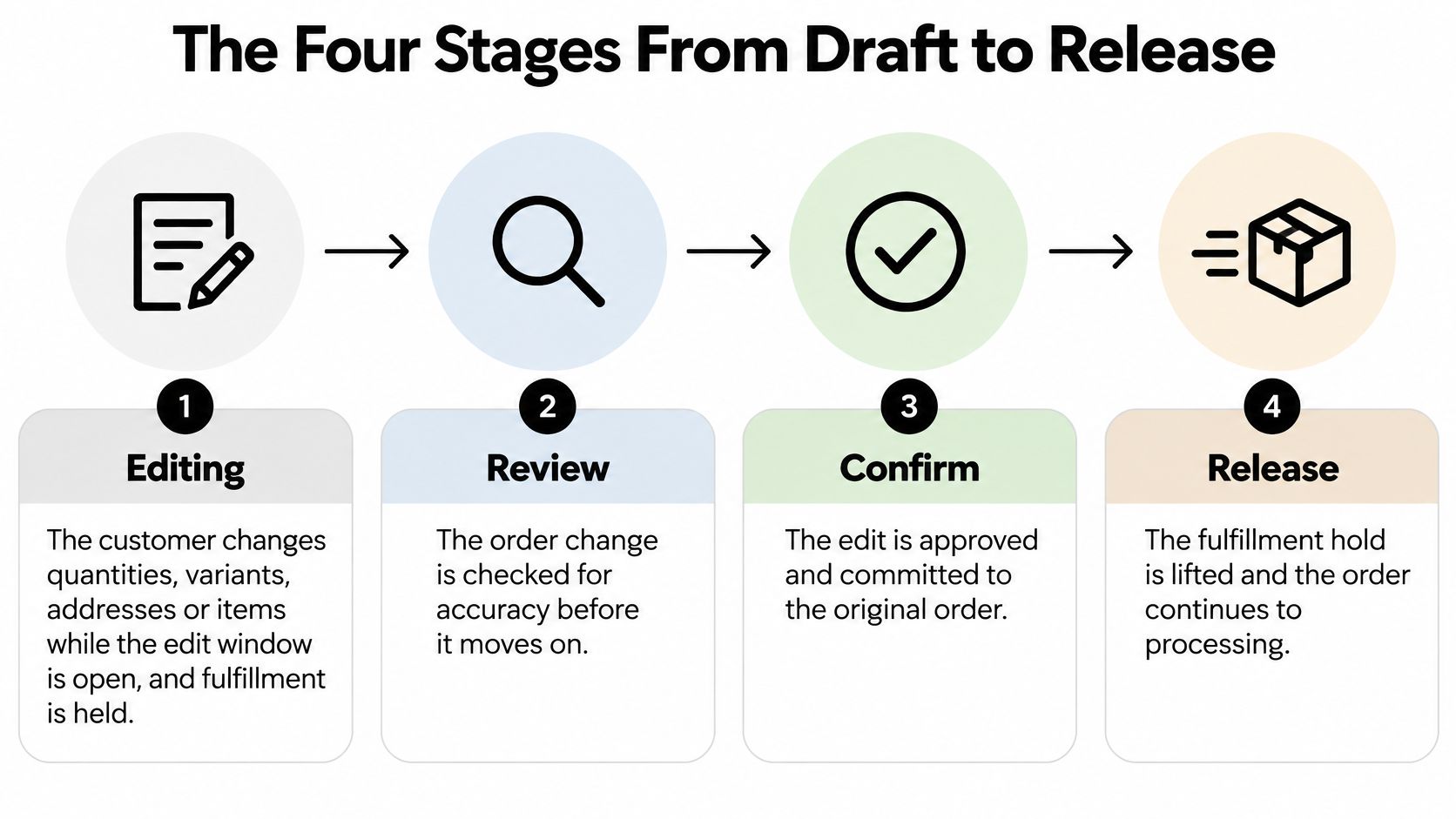
A single edit passes through four stages, and naming the stage tells you what can still happen next. Confusion usually starts when support describes a draft as though it's already changed the order. It hasn't. Only confirmation commits anything.
- Editing. The customer changes quantities, variants, addresses, or items while the edit window is open. Fulfillment is held, so the order can't ship mid-change.
- Confirmed. The customer commits the change. Totals, payment, and fulfillment status are checked before anything moves.
- Released. The hold lifts, the updated order and receipt are issued, and the order proceeds to fulfillment.
- Abandoned. The customer leaves without confirming. The hold lifts and the original order stands exactly as it was.
What each stage looks like in practice
| Stage | Customer can do | Fulfillment status | Merchant sees |
|---|---|---|---|
| Editing | Change or abandon the edit | Held | Edit in progress, original order unchanged |
| Confirmed | Wait for checks and any payment step | Still held | Checks running, payment or refund pending |
| Released | View updated receipt | Hold lifted, ready to pick | Changed order ready for fulfillment |
| Abandoned | Start again if window is open | Hold lifted | Original order, no change applied |
The edit window is the clock on the first stage. You can set it to 15 minutes, 30 minutes, 1, 2, 6, 12 or 24 hours, or until the order ships. When it closes, editing ends whether the customer finished or not.
If you're unsure which stage an order is in, check the order timeline and the status shown on the order before you promise the customer anything.
That one habit prevents most mix-ups. The timeline shows whether confirmation was recorded, whether release followed, and whether the original version is still the one the warehouse will receive.
Checks and Fulfillment Gate Before Release
Confirmation is a commit point, not just a button click. The customer is accepting a specific revised order at a specific recalculated price. Your system should verify that exact version before it writes anything or lifts the hold.
The blocking checks
Run these checks in order, and stop release if any one fails.
- Match the preview. Compare items, variants, quantities, and address against what the customer just saw. Don't commit a different version from the one she accepted.
- Recalculate the money. Rebuild totals, taxes, shipping, and discounts for the changed order.
- Show the price difference. Require explicit acceptance before the change is written.
- Re-check fulfillment now. Don't rely on the status from when the window opened. Picking may have started in the meantime.
- Verify payment for an increase. Don't release altered fulfillment instructions if the extra payment hasn't succeeded.
- Prevent duplicates. Use an order version or edit token so a double click, browser retry, or webhook redelivery can't apply the same change twice.
- Check the fulfillment service. Confirm it supports the changed items and destination.
The Shopify guide to editing products in an order explains that edits can add or remove products, change quantities and shipping fees, and apply discounts, after which a decrease can require a refund and an increase can require an updated invoice or additional payment. That's why the final financial delta belongs on the confirmation screen. A small variant swap can still create a balance due or a refund obligation.
Fulfillment is held during an edit so nothing ships mid-change, and it's released when the edit is done. But a hold at the start isn't a guarantee at the end. The Shopify order editing considerations state that edits are intended for orders before fulfillment and fulfilled items cannot be removed or have their quantity adjusted. The same guidance warns that incompatible fulfillment services can produce missed or incomplete orders when fulfillable items change. It also sets a payment timing constraint. Shopify Payments authorization lasts 7 days, and capture at fulfillment happens only when the order or fulfillment completes within that authorization period.
A release that should be rejected
Say a customer adds a product while picking has already begun. The preview may look fine, but the fulfillment re-check fails. Release is rejected, the original order stays unchanged, and the customer receives a clear message that the change can't be applied, plus what to do next. She isn't left believing the extra item is coming.
Strong controls make that outcome routine. Use a short-lived reservation during editing, atomic status transitions from editing to confirmed to released, warehouse revalidation at confirmation, and an audit record of the actor, timestamp, old and new line items, recalculated totals, and payment outcome. If a separate risk review flags the order itself, your team also needs a clear policy on when to cancel flagged orders rather than trying to solve a fraud concern through the edit flow. Teams connecting these gates to their wider warehouse systems can map the handoffs against their ecommerce fulfillment automation setup so a blocked release doesn't leave tasks stranded downstream.
Practical rule: Close the edit window before your dispatch cut-off, so a hold never overlaps packing.
Payment and Refund Outcomes Case by Case
Start with the outcome table, because the money path determines when release is allowed.
| Edit type | Price effect | Customer action | Refund or invoice path | Release condition |
|---|---|---|---|---|
| Quantity increase | Balance due | Pay separate invoice | Shopify invoice | After payment succeeds |
| Quantity decrease | Refund due | None | Refund through Shopify | After refund path is set |
| Variant swap to higher price | Balance due | Pay difference invoice | Shopify invoice for difference | After payment succeeds |
| Variant swap to lower price | Refund due | None | Refund per merchant settings | After refund path is set |
| Item removed | Refund due | None | Refund per merchant settings | After refund path is set |
| Address change only | No change unless shipping cost changes | None | None unless shipping changes | After checks pass |
When an edit raises the order total, Shopify sends the customer a separate invoice to pay the balance before the edit completes. Until that payment succeeds, the order isn't final. When an edit lowers the total, the refund is issued through Shopify under your settings, including cases that need a Shopify partial refund rather than a full-order reversal.
Say a customer swaps to a more expensive variant. He confirms the new item, sees the difference, and pays the invoice. Only then does the order mutate, the updated receipt issue, and the hold lift. If he swaps to a cheaper variant instead, he takes no payment action. You set the refund path, commit the change, and release the lower-value order.
The Shopify guide to customer account customization options notes that newer customer accounts can show outstanding balances and a "Pay now" path for edited orders. That visibility matters because confirmation of intent, payment authorization, order mutation, tax recalculation, and fulfillment release are separate milestones. Taxes, duties, payment methods, and refund timing also vary by market, so any tax change belongs in the final summary before the customer confirms.
The original order remains valid while payment is collected, but it is not released until the edit completes.
Keep reconciliation in one place. Check that the receipt, invoice, and any refund all point to the original order, and plan explicitly for partial refunds and outstanding balances. Your post-purchase terms should be as readable as a clear B2B example such as the Material Handling USA returns policy, which gives customers one place to understand what happens after they ask for a change.
When an Edit Gets Stuck and How to Clear It
The most common stuck state is a failed payment for an increase. The customer confirmed her intent, but the extra payment didn't succeed, so the edit isn't complete. Don't release the changed order and don't tell her the new items are confirmed. The original order stands, and she can retry payment or cancel the edit while the window is still open.
Fixes by stuck state
- Payment fails. Check the payment status first. Ask the customer to retry or abandon the edit, and confirm which version will ship if she does nothing.
- The customer leaves mid-edit. The fulfillment hold is released as soon as an edit is completed or abandoned. The original order is kept, so there's nothing to undo.
- The customer accepts store credit. The order stays and is locked from further edits. Don't reopen it for another self-serve change.
- The order can't be edited. Orders that are fulfilled, cancelled, or archived cannot be edited by customers. Move the request to support for manual handling.
One more case causes avoidable panic. A customer receives the original fulfillment email before an edit completes and assumes the wrong items shipped. Check the order timeline to see whether the edit was committed and released, then tell her plainly which version will ship. If the timeline shows no committed edit, the original version is the answer.
Reopen an edit only if the window is still open and fulfillment hasn't advanced. Otherwise, you're not clearing a stuck edit. You're creating a manual exception, and it should be handled and recorded as one.
Set Release Rules Before You Turn Edits On
Release works reliably when the settings behind it are decided before the first customer edits anything. Work through them in the order you'll meet them during setup.
- Choose the edit window. Pick a period from 15 minutes to 24 hours, or until the order ships, and make sure it closes before your dispatch cut-off.
- Block what needs manual handling. You can block specific product tags, collections, customer tags, and shipping countries from self-serve editing.
- Set a value ceiling. You can set a maximum order value above which orders are excluded from self-serve editing.
- Allow only workable actions. Turn on quantity, variant, address, item removal, or additions only where your team can fulfill the result.
- Decide approvals. Route changes or refunds above your chosen threshold to the team instead of auto-approving everything.
Our controls for this live in Mayra > Settings, where you turn editing on, set the edit window, and choose allowed customer actions. If you're drafting the wider policy first, our guide to rules for editing helps you decide which orders should never enter the flow.
Then run one edit end to end on a test order. Confirm the price difference shows before confirmation, the hold appears and lifts, the receipt updates, and the timeline records the change. Also test an abandoned edit and a failed payment, because those paths teach you what customers will see.
A release that works correctly on a test order, including its failure paths, is your signal to enable editing for the full store.
If you want customers to fix sizes, quantities, and addresses themselves while fulfillment stays held until the change is confirmed and released, Mayra ‑ Order Edit & Cancel gives you the edit window, eligibility rules, and approval controls to run that process on the original Shopify order. Set your release rules, test one order end to end, and turn editing on with confidence.