
A customer orders a gift mug, types “Happy Birthday, Sam!” into a personalization field, and expects that message to reach the person printing or packing the order. The product itself hasn't changed. No new variant or SKU was created. The message belongs to that specific purchased item, and Shopify needs a reliable place to carry it from the product page through the cart and order.
That place is a Shopify line item property. The feature looks like a simple custom field, but production problems usually appear later, when an integration updates a cart line, an order system reads the data, or private metadata unexpectedly becomes customer-facing. Understanding the full lifecycle, from capture to downstream processing, is more useful than treating properties as static personalization text.
Table of Contents
- What Shopify Line Item Properties Actually Are
- How Line Item Properties Are Captured on the Cart
- Where Line Item Properties Appear After Checkout
- Common Use Cases and Example Property Keys
- Private Properties and Hidden Metadata
- Behavior During Post-Purchase Order Edits
- Developer Notes and Integration Pitfalls
- Merchant Best Practices for Reliable Property Data
- Line Item Properties in a Post-Purchase Workflow
- Common Errors and How to Fix Them
- Quick Reference for Shopify Line Item Properties
What Shopify Line Item Properties Actually Are
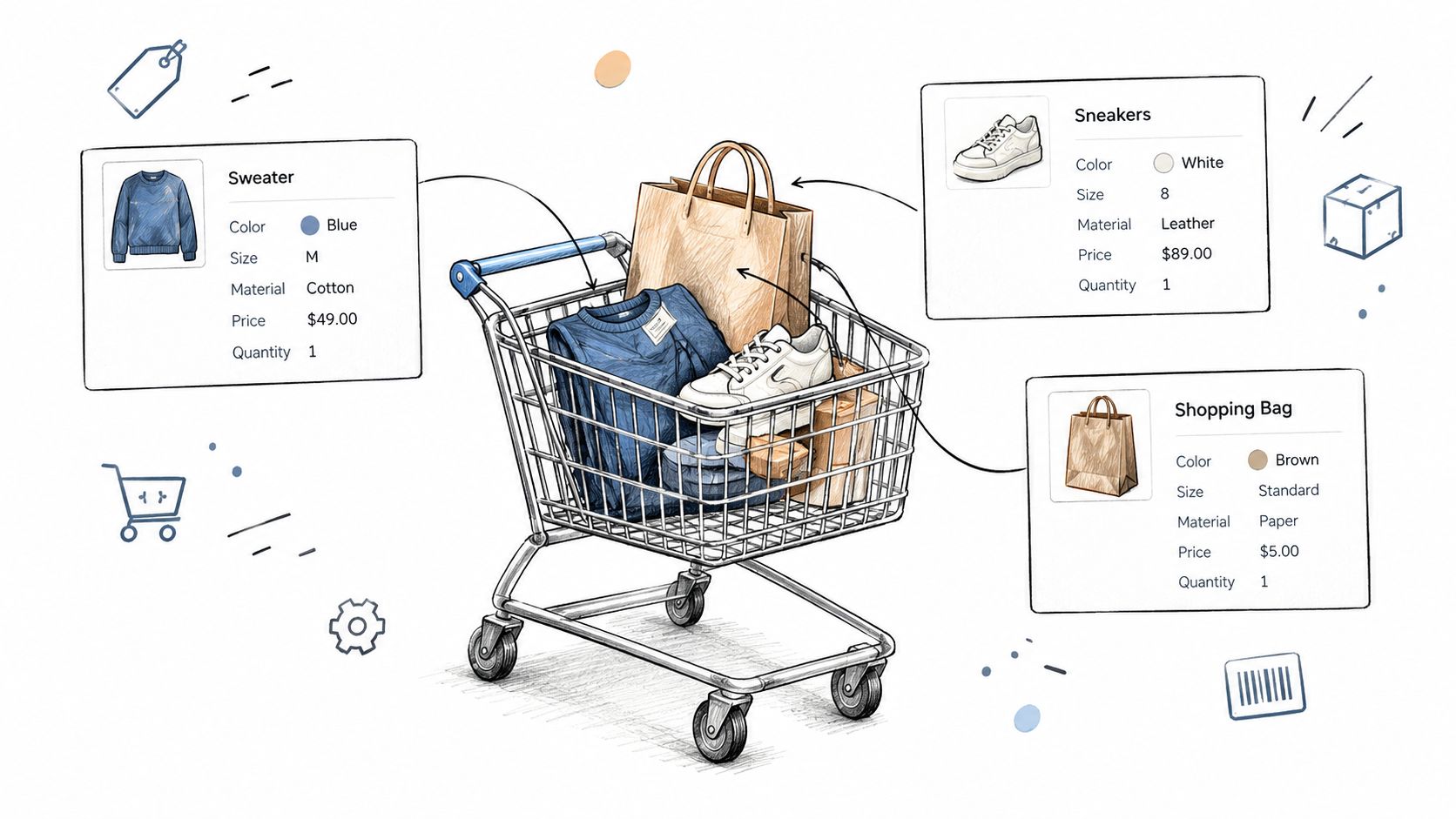
A line item property is custom key-value metadata attached to one cart line or order line item. The key identifies the field, such as Engraving, and the value contains the submitted or generated data, such as Happy Birthday, Sam!. Shopify documents properties as an object of key-value pairs associated with a cart item, and its theme documentation describes the product-form naming convention used to submit them. Shopify's line item documentation also identifies personalization, engraving, monograms, and file uploads as practical uses.
The important distinction is ownership. A property belongs to the line, not to the product catalog record and not to the cart as a whole. If a customer has two copies of the same mug with different messages, each line needs its own property set. The metadata travels alongside the purchased product rather than becoming a product option.
What properties are not
Line item properties aren't variants. A variant represents a catalog choice such as an official size or color and can affect inventory, pricing, and merchandising. A property captures additional information that accompanies a selected item.
They aren't metafields either. Metafields are structured data fields associated with Shopify resources such as products, customers, or orders. A line item property is more narrowly tied to the individual item in the transaction.
In Shopify's cart representation, the data appears through the properties field. In order data, developers work with the corresponding line item's properties or attributes, depending on the API surface. That distinction matters when building fulfillment rules, order displays, or integrations.
Practical rule: If the value describes what a customer wants done to one purchased item, start by evaluating a line item property. If it describes the product or customer record more broadly, consider a different Shopify data model.
How Line Item Properties Are Captured on the Cart
Shopify supports two common capture patterns. A theme can submit fields through the product form, or a custom storefront can send property data through a cart request. Both approaches attach the submitted values to the line being added.
In a theme, the field name uses Shopify's bracket pattern:
name="properties[Engraving]"
A text input, textarea, checkbox, or other form control can use that naming convention. When the customer submits the product form, Shopify interprets Engraving as the property key and stores the submitted value on the new cart line. The value might be an engraving message, a gift instruction, or another piece of item-specific information.
A custom implementation can send a properties object when adding or updating a cart line through the AJAX Cart API. The key point isn't the interface used to submit the value. It's the location where Shopify stores it, the specific line item being created or changed.
The capture checklist
- Render the field on the relevant product form: A property is collected in the context of the item the customer is adding.
- Use a stable key:
EngravingandGift Messageare readable in the cart and order. A short internal label may be harder for operations teams to interpret. - Submit the value with the add-to-cart request: A field that exists visually but isn't included in the request won't become order data.
- Inspect the resulting cart line: Confirm both the key and value before checkout, especially when JavaScript modifies the cart.
For a broader look at how product-page data affects the buying journey, compare this implementation with ecommerce checkout optimization guidance. The best form is one that collects only information the customer can understand and the fulfillment team can use.
Where Line Item Properties Appear After Checkout
After checkout, properties become part of the order line's data rather than remaining a temporary product-page input. Shopify's notification documentation exposes line-item fields including properties, line_price, and quantity, while its developer documentation continues to describe properties as data available for order and integration workflows. Shopify's notification variable reference is useful when checking what an email template can render.
Different surfaces expose the information differently. An operations user may need a readable value in the Shopify Admin, a fulfillment integration may need machine-readable attributes, and a customer may need to see the personalization they submitted. Don't assume that one rendering method works everywhere.
| Surface | How properties are exposed |
|---|---|
| Cart | The line carries its properties data while the item remains in the cart. |
| Shopify Admin | Order line-item data can expose the values to merchant and operations users. |
| Notifications | Liquid notification variables can expose line-item properties for supported templates. |
| Admin GraphQL | Properties are represented as line-item attributes or properties, depending on the resource and API model. |
| External systems | An integration reads the order line's property data and maps the keys into its own fulfillment or operational fields. |
Design for the reader of the data
A customer-facing email needs labels that make sense to a buyer. A production system may need stable keys that never change. Those needs can coexist, but they shouldn't be confused.
For example, Engraving is understandable in an order confirmation. A fulfillment application might normalize that field internally as engraving.text. The application should map the value deliberately rather than relying on a display label that a merchant may later edit in the theme.
The same principle applies to exports and order workflows. Test the exact surface where the value will be used. A property visible in cart Liquid may require different handling in an API response or notification template.
Common Use Cases and Example Property Keys
Line item properties work best when the information belongs to one purchased item and doesn't need to become a catalog variant. Personalization is the clearest example. A customer can enter text for one product without creating a separate product record for every possible message.
Use descriptive keys that make sense to both the customer and the fulfillment team. The examples below are intentionally readable rather than abbreviated.
| Use Case | Property Key | Example Value | Notes |
|---|---|---|---|
| Engraving | Engraving Text |
Happy Birthday, Sam! |
Use a textarea when the message may contain multiple lines. |
| Gift wrapping | Gift Wrap |
Yes |
A simple choice works well for a binary service. |
| Gift message | Gift Message |
Enjoy your new home. |
Keep the label clear in order views and emails. |
| Customer artwork | Artwork Upload |
A file reference or submitted upload value | Confirm that the receiving workflow can resolve the stored reference. |
| Custom selection | Custom Finish |
Matte black |
Use a variant when the choice affects catalog inventory or pricing. |
| Business reference | Purchase Order Number |
PO-4581 |
Keep the field tied to the line when different items need different references. |
Choose the right field for the answer
A short engraving can use a single-line input. A gift note or production instruction should use a textarea so the interface reflects the expected answer. A checkbox is suitable for a yes-or-no choice, but the submitted value should remain understandable when it appears in an order.
Don't use a line item property to imitate a variant that Shopify needs to inventory or price independently. If selecting an option changes stock management, merchandising, or the actual sellable item, a variant may be the more appropriate model. Properties are strongest for instructions, personalization, references, and operational context.
Property keys also form a practical interface between the storefront and the back office. Changing Engraving Text to Message may look harmless in a theme, but an integration that reads the original key can stop finding the value. Treat important keys as part of a small data contract.
Private Properties and Hidden Metadata
Shopify supports private line item properties by prefixing the key with an underscore. For example, _vendor_sku and _cost_center communicate that the value is operational metadata rather than a customer-facing answer. Shopify's developer documentation describes the underscore convention for keeping such values out of customer-facing display while retaining them for system logic. The Cart Line Item API documentation also explains the full-object behavior that developers need to account for when working with these attributes.
Use the prefix deliberately
A visible property should answer a customer question or help a customer confirm an order. A private property should support an internal process, such as an integration mapping, sourcing instruction, or internal reference.
The underscore is part of the key. Downstream code must request _cost_center exactly. It shouldn't look for cost_center and assume Shopify will treat the two names as equivalent.
Private doesn't mean “safe to put anything here.” Access controls, webhook handling, and third-party integrations still deserve review. Keep sensitive information out of properties unless the whole data path has been assessed. The prefix controls customer-facing visibility, not every possible access path.
Implementation check: Create one visible property and one underscore-prefixed property in a test order. Verify what the customer sees, what the Admin shows, and what your integration receives before releasing the workflow.
Behavior During Post-Purchase Order Edits
Post-purchase editing is where many property workflows become ambiguous. A merchant or application may change a line, replace a product, adjust a quantity, or create a new line. Each action should be evaluated against the current line item's property payload, not against an assumption that the original personalization will always follow.
Shopify's documented update behavior is especially important here. When an update sends properties, the submitted object replaces the existing object rather than merging individual keys. That means a request intended to change one value can remove other values if the integration doesn't include them in the replacement payload.
Treat each update as a reconciliation
Before changing a property, an integration should:
- Read the current property set for the target line.
- Apply the intended change to a local representation.
- Validate required keys and values.
- Send the complete resulting object, including values that weren't changed.
- Confirm the response contains the expected set.
This pattern matters when a customer changes an engraving but still needs the gift message and internal production flag. Sending only the new engraving can unintentionally clear the other keys.
Replacing a line with a newly created line also deserves explicit handling. A new line has its own property payload. If the workflow needs to preserve personalization, the application must deliberately copy and validate the relevant values rather than assuming Shopify will infer that relationship.
For merchants evaluating customer-facing editing, Shopify order editing guidance provides useful operational context. The implementation question remains specific: which line is being changed, which properties are required, and what complete payload will Shopify receive?
Developer Notes and Integration Pitfalls
The most damaging property bugs aren't usually caused by the initial form. They happen during updates, when an integration treats a partial payload as a patch even though Shopify treats the properties object as a replacement.
Suppose a line currently contains Engraving, Gift Message, and _production_route. An update that sends only Engraving may leave the line without the other two values. The safe approach is to retrieve the current object, merge the intended change in application code, and submit the complete result.
Build updates around the whole object
Use a small helper with explicit behavior rather than scattering property updates across cart scripts:
- Read first: Obtain the current line and its properties.
- Normalize keys: Apply one naming convention and preserve the underscore on private keys.
- Merge intentionally: Change only the requested value in memory.
- Validate before sending: Reject missing required fields and unsuitable values.
- Replace knowingly: Send the full property object because Shopify won't merge it for you.
Don't solve this by blindly copying every value forever. A property may be obsolete, customer-controlled, or no longer appropriate after a product change. The integration should define which keys are retained, removed, or regenerated.
For larger implementations, a Shopify app development resource can help teams think through authentication, webhooks, data contracts, and update handling as one system. Agencies working on the storefront and order layer can also evaluate Shopify services when the workflow needs custom implementation beyond theme fields.
Validate what your workflow actually supports
The supplied Shopify documentation confirms replacement semantics and private-key handling. It doesn't establish a universal property-count or character-length limit for every surface. Don't add undocumented limits to validation just because a particular app, endpoint, or theme implementation has its own constraint.
Instead, test the exact request path you use. Check empty values, repeated updates, Unicode characters, long messages, file references, and private keys. Log the request and response in a development environment, while removing sensitive customer data from production logs.
Merchant Best Practices for Reliable Property Data
Treat property keys as a small schema. A key such as engraving.text or gift.wrap_message tells developers what the field represents, while a stable machine name prevents integrations from breaking when the visible label changes.
Keep the customer label separate from the internal key where your implementation allows it. Customers can see “Engraving message,” while code continues to use a stable identifier. If a key is already used in live orders or downstream mappings, don't rename it casually. Add a new key and define a migration plan if the data model needs to change.
A practical operating standard
- Validate before add to cart: Required personalization should not reach checkout as an empty value.
- Keep values readable: Fulfillment staff should understand the order without translating abbreviations.
- Separate visibility from operations: Use an underscore-prefixed key for metadata that shouldn't appear in the customer view.
- Show the submitted choice in confirmation messaging: Customers should be able to verify what they requested.
- Preserve the source of truth: If another system copies the property, retain the original line-item value and document the mapping.
- Test edits, not just initial checkout: A property flow isn't complete until it survives the updates your support team expects to make.
Line item properties are useful order data, but they aren't automatically a substitute for every Shopify data structure. If a value needs to be queried, reported, or maintained independently of a particular purchased line, assess whether an order metafield or another resource is more suitable.
Line Item Properties in a Post-Purchase Workflow
The strongest use of line item properties appears after the order is placed. A personalization value can inform fulfillment, an internal flag can route production, and a customer-facing value can support an order review. The property becomes a connection between the buyer's instruction and the teams or systems that act on it.
A self-serve order-editing application may read a line's personalization, present the existing value to the customer, and write the revised value back under the same key. That workflow only works reliably when the application identifies the correct line and submits the full property object during the update.
The same principle applies to repeat purchases and post-purchase offers. A reorder experience can use previous property values as defaults, but it should distinguish reusable preferences from one-time instructions. A birthday message may be specific to one order, while an engraving format might be useful again.
Give each downstream user a clear contract
Fulfillment needs an actionable value. Customer support needs a readable value. An external system needs a predictable key. Define those expectations before adding more fields to the product form.
For example, a production workflow might consume Engraving Text, while a private _production_route property tells an internal process where the item should go. The storefront doesn't need to expose the routing detail, and the fulfillment system shouldn't depend on a customer-facing label alone.
Common Errors and How to Fix Them
Most failures can be traced to one of three places, the product form, the cart update request, or the template or integration that reads the order.
| Error Symptom | Likely Cause | Quick Fix |
|---|---|---|
| A property disappears after a cart update | The update sent only the changed key, replacing the full object | Read the current properties, merge the change, and submit the complete object. |
| A field appears on the page but not in the cart | The input name doesn't use the properties[...] pattern or JavaScript omitted it |
Inspect the add-to-cart request and confirm the submitted field name. |
| A private value appears in a customer-facing view | The key wasn't prefixed with _, or the display code renders it without filtering |
Use the underscore prefix for private metadata and filter private keys in custom rendering. |
| An integration can't find a property | It expects a different key spelling or strips the underscore | Define stable keys and reference _key_name exactly when the property is private. |
| A notification shows a blank label | The template reads the wrong object or assumes a property exists on every line | Inspect the notification's line-item variable and handle missing values safely. |
| A replacement item loses personalization | The new line was created without copying the old payload | Reapply only the required properties and validate them before the replacement is saved. |
Use browser developer tools for cart capture problems. Use the order data and webhook payload for downstream problems. The fastest diagnosis comes from comparing the value at each boundary instead of debugging the final email or fulfillment screen in isolation.
Quick Reference for Shopify Line Item Properties
Use this table as a compact review before changing a theme, cart script, or order integration.
| Question | Practical answer |
|---|---|
| What is a property? | Key-value metadata attached to a specific cart or order line item. |
| Is it a variant? | No. It accompanies the purchased item and doesn't represent a catalog variant. |
| How is it captured in a theme? | Use a product-form field named with the properties[Key] pattern. |
| Where is it stored in the cart? | In the line item's properties object. |
| What happens during an update? | A submitted properties object replaces the existing object, so send the complete set. |
| How do I hide operational metadata? | Prefix the key with _, then reference that exact key downstream. |
| What should integrations validate? | Required keys, expected values, visibility rules, and the behavior of the exact API or cart path in use. |
| What should I test? | Initial add-to-cart, cart updates, checkout display, notifications, order reads, and post-purchase edits. |
The durable implementation mindset is simple: capture properties on the right line, preserve the full object during updates, and give every downstream system a clear contract. That approach prevents the subtle data loss that a basic personalization demo rarely exposes.
Mayra Apps offers tools for post-purchase order editing and upsells, with customer-facing changes managed through the order status page and customer accounts while Shopify remains the system of record. If your line item property workflow needs to connect with controlled order changes, visit Mayra Apps to review the available approach.