
A customer notices the wrong size in an order confirmation, or spots a shipping-address mistake minutes after checkout. Your support team receives the request, the warehouse is already preparing the parcel, and the order record now sits between two conflicting versions of reality. Searching for Shopify change order status usually starts with a menu path, but the safer solution begins earlier: separate order edits from fulfillment status, then control the handoff between them.
Shopify gives merchants strong administrative tools for changing unfulfilled orders and tracking order states. Customer expectations, however, increasingly point toward immediate post-purchase self-service. The practical workflow is to protect the shipment first, edit the order through the right surface, settle any payment difference, and release fulfillment only when the data is reliable.
Table of Contents
- How Post-Purchase Changes Actually Work in Shopify
- Native Workflows for Manual Status Updates
- Using Fulfillment Holds to Prevent Errors
- The Gap Between Admin Edits and Customer Needs
- Enabling Self-Serve Order Edits with Mayra
- Best Practices for Controlling and Measuring Results
How Post-Purchase Changes Actually Work in Shopify
A shopper spots the wrong size in the confirmation email while the warehouse is preparing the parcel. They want a quick correction. The merchant must coordinate payment, inventory, shipping details, and fulfillment activity before anyone releases the order.
Shopify's admin provides editing controls for unfulfilled orders. Authorized staff can adjust products or quantities, change shipping fees, and manage refunds or updated invoices. That workflow suits requests handled before fulfillment begins. It becomes slower when a customer expects to correct a simple mistake from the order confirmation or account area without contacting support.
Customer accounts and the Order status page address part of that need. Shopify describes customer accounts as a place to view order history and current purchase status. Customers can access a specific order through sign-in, a new notification link, or order-specific verification. Shopify's customer-account and order-history guidance reflects the broader move toward post-purchase self-service.

Why the timing matters
A variant swap and an address correction create different operational risks. Removing a line item can change inventory and payment. Changing an address can affect shipping eligibility, tax treatment, carrier labels, and warehouse instructions. Updating a status communicates what the team should do next, but it does not repair inaccurate order data.
Operational rule: Treat the customer's request as the start of a controlled edit workflow, not as permission to release the shipment.
Shopify separates Order, Payment, Fulfillment, and Return statuses. Orders also move through Open or Archived states, with Canceled status handled when applicable. Shopify's order-details documentation shows why one generic “order status” label cannot guide every operational decision.
Keep two questions separate: What should the order contain? And is fulfillment allowed to act on that version yet? The first belongs to order editing. The second belongs to fulfillment control. That separation prevents a support correction from becoming a shipping error.
Native Workflows for Manual Status Updates
When a merchant needs to change an order manually, the Shopify admin remains the main working surface. The customer-facing Order status page is useful for visibility and access, but it shouldn't be confused with the internal order record or the fulfillment queue.
Start with the order record
Open the order in Shopify admin and confirm its current state before making a change. Shopify groups orders as Open or Archived, with canceled orders handled separately when relevant. If the order is unfulfilled, review its line items, payment status, fulfillment state, shipping details, and any existing notes before editing.
Shopify's native edit workflow supports changes to unfulfilled orders, including adding or removing products, adjusting quantities, updating shipping fees, and issuing refunds or updated invoices. The exact consequence depends on the change. A cheaper replacement may require a refund, while an addition may require the customer to settle an extra balance.
The customer-facing page sits beside this process, not above it. From the Orders page, open the order, select More actions, and choose View order status page. Shopify documents that this opens the same page customers can reach through order notifications. Shopify's Order status page documentation explains the access model and the relationship between the admin route and the customer view.
Understand customer access
With new customer accounts, shoppers can sign in or use a fresh link sent to the email or phone number used at checkout. Unauthenticated access may require the order number plus email or phone verification. That makes the page an order-specific workspace, not a general-purpose account dashboard.
Shopify also states that customers can access the order status page from the order-confirmation email in the same browser for 3 weeks, without logging in. If they use different browsers, access lasts 2 weeks across a maximum of 5 browsers. Shopify's order-management documentation provides those access rules and explains how customers can track shipping updates from the page.
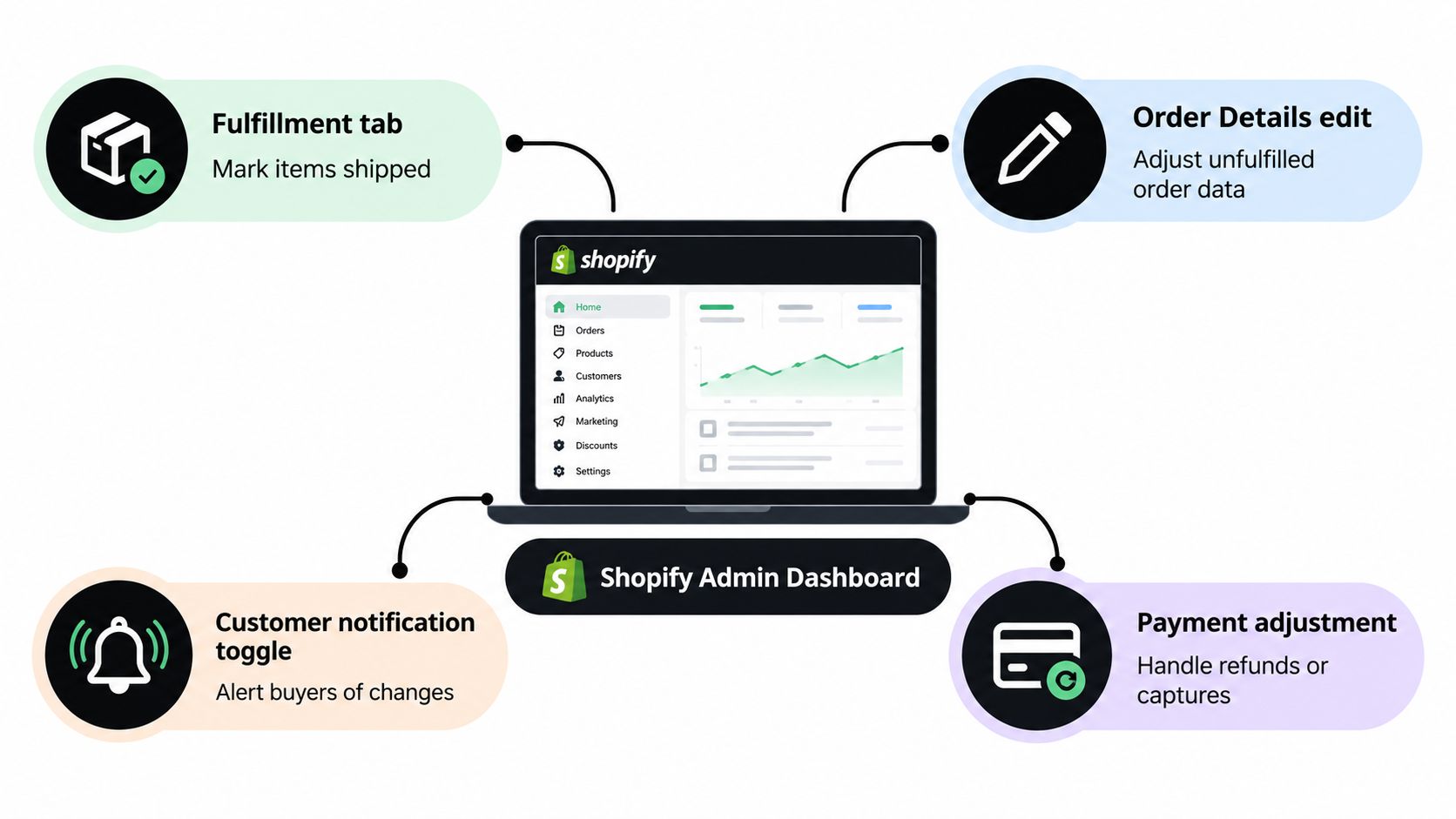
A useful admin checklist is:
- Confirm the order state. Check whether it's open, archived, canceled, fulfilled, or still unfulfilled.
- Inspect payment and fulfillment separately. A payment adjustment doesn't mean the warehouse can ship, and a fulfillment update doesn't settle a balance.
- Edit only what the request requires. Avoid changing product options or unrelated line items.
- Review the customer-facing page. Verify that the shopper can see the relevant order information and any available notification path.
- Communicate deliberately. An admin edit and a customer notification are different operational actions, so confirm what the buyer needs to know.
For stores that also want stronger social proof on the storefront, display reviews on Shopify can be considered separately from the order workflow. Reviews may support purchase confidence, but they don't replace accurate post-purchase status communication.
Using Fulfillment Holds to Prevent Errors
A fulfillment hold is more than a label for the support team. It acts as a hard gate between an active order edit and warehouse execution. If a customer asks to change a quantity, variant, or address, the shipment shouldn't continue through fulfillment while the order data is in flux.
Shopify lets a merchant place an order on hold from the Unfulfilled or In progress section. The operator selects the affected items, chooses a hold reason, and releases the hold after the issue is resolved. Shopify allows up to 10 manual holds on a fulfillment, and bulk actions can't change the status of orders or fulfillments on hold until those holds are released. Shopify's fulfillment-hold guidance documents this safeguard.
The hold-first sequence
Use the following sequence whenever an edit could affect what the warehouse ships:
- Locate the active fulfillment. Work from the unfulfilled or in-progress area, not from a customer message alone.
- Select the affected line items. Narrow the hold to the items involved where the workflow permits it.
- Choose a clear reason. Use language such as address correction, variant replacement, or quantity review so another operator understands why the shipment is paused.
- Apply the order edit. Update the relevant data, then review inventory, payment, refund, and delivery consequences.
- Reconcile the result. Confirm that the order record, financial balance, and fulfillment details agree.
- Release the hold. Only release it after the edited version is the version the warehouse should use.
Practical rule: Put the fulfillment on hold before you accept the customer's change, not after the warehouse reports a problem.
This sequence protects against the most common race condition: a customer edits an order while a warehouse operator is picking the original items. Without the hold, the warehouse may act on stale information. With the hold, the operational system has a visible pause while the merchant settles the change.
The main pitfall is assuming that a hold is temporary decoration. Shopify blocks bulk status changes for held orders and fulfillments until the holds are removed. Teams that rely on bulk processing should include hold review in their daily queue, otherwise an order can remain operationally paused after the customer issue has been resolved.
For broader process design, ecommerce fulfillment automation workflows can help teams connect order changes with fulfillment controls instead of treating them as isolated admin tasks.
The Gap Between Admin Edits and Customer Needs
Shopify's native order editing is effective when a trained merchant owns the task. The limitation is access. Customers can't normally open the admin, inspect fulfillment state, calculate the financial effect of a variant swap, and save the change themselves.
That gap forces support into the middle of simple requests. A buyer sends an email, an agent verifies identity, someone checks whether the order has entered fulfillment, and another person may need to update the warehouse. If the team misses the timing window, the customer may have to accept a cancellation, return, or reshipment even though the original request was straightforward.

Native control versus customer autonomy
The admin workflow is strong for exceptions and judgment calls. Staff can inspect the full order, decide whether an edit is safe, and apply refunds or charges through Shopify. It isn't designed to give every shopper unrestricted control over every post-purchase action.
Customer accounts and the Order status page point toward a different model. Shopify says customers can edit orders and check delivery status from customer accounts, and the order object includes an edited flag. Shopify's order-editing considerations also makes clear that the broader platform surface is changing, including API migrations and webhook removals connected with checkout and account pages.
The important distinction is between technical support for an edit and a usable self-service experience. An edited flag can help systems identify a change, but it doesn't decide which customers are eligible, what they may edit, when the option should disappear, or how a warehouse should pause work.
A practical policy looks like this:
- Keep high-risk changes, unusual destinations, and late-stage fulfillment decisions under staff review.
- Expose low-risk changes through an authenticated or order-verified customer surface.
- Hold fulfillment while a permitted change is active.
- Make payment and refund outcomes visible before the customer confirms.
- Preserve the Shopify admin as the system of record.
That division reduces unnecessary support handling without pretending that every post-purchase request is safe to automate.
Enabling Self-Serve Order Edits with Mayra
Mayra Apps provides a Shopify app that places eligible post-purchase actions inside customer accounts and the Order status page. The relevant model isn't “let customers rewrite orders.” It's let merchants define which changes customers may make, under which conditions, while Shopify remains the authoritative order record.
A typical setup starts with installation and placement. The merchant adds the Mayra block to the Order status page and customer-account experience, avoiding a disruptive theme rewrite. The customer then reaches the edit controls through the same post-purchase surface they already use to review order information.
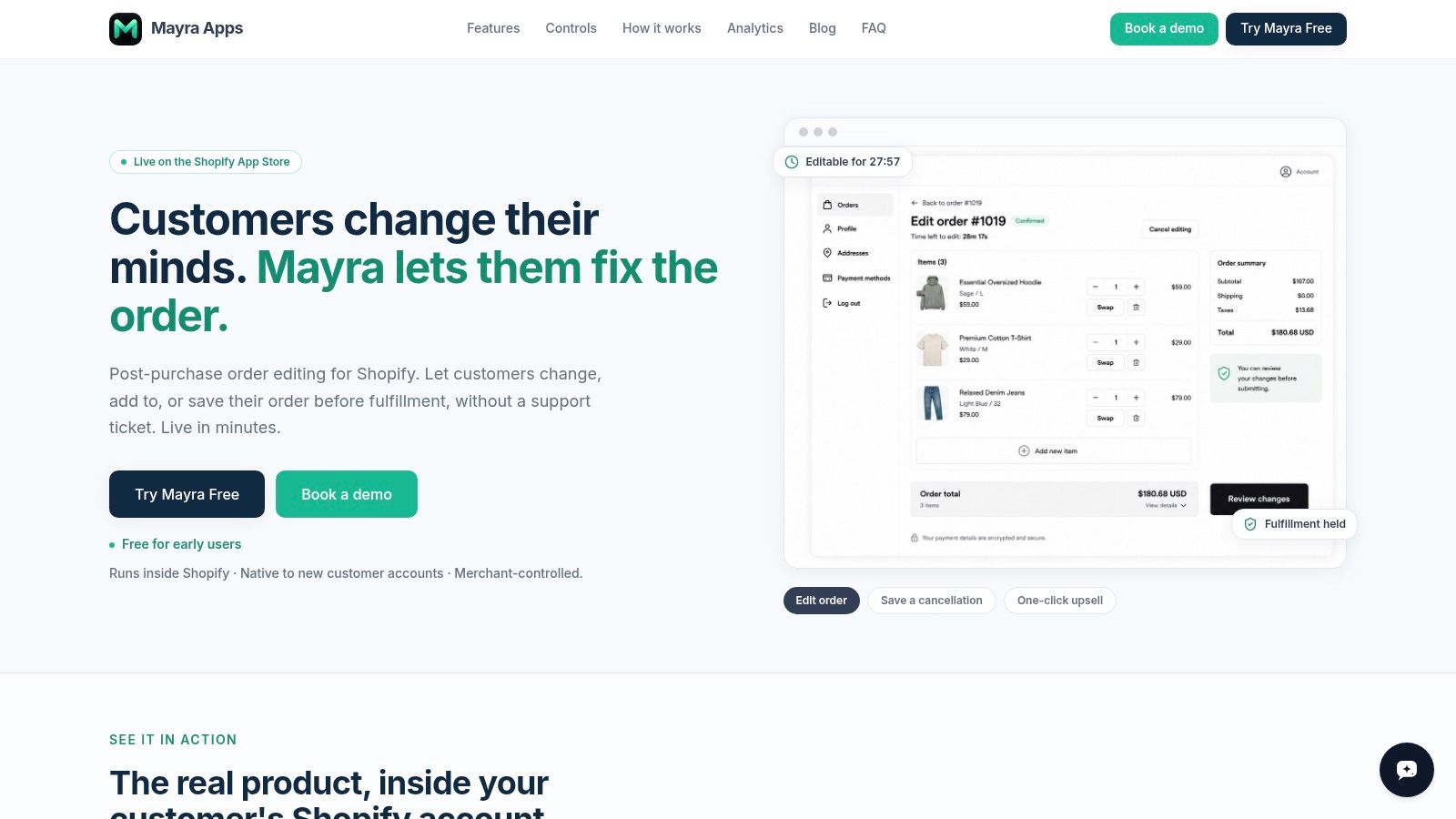
Configure permissions around real operational risk
The merchant controls should reflect the consequences of each edit type:
- Quantity changes can be allowed for eligible unfulfilled items, with settlement handled through Shopify.
- Variant swaps can support a size or color correction without asking the customer to place a replacement order.
- Address updates need strict eligibility rules because the shipping destination affects fulfillment and delivery.
- Line-item additions and removals should be limited where inventory, bundles, or regulated products make changes sensitive.
- Cancellation options can be governed separately, including store-credit save offers and a full-cancel fallback where appropriate.
Mayra's configuration also supports edit windows, approval rules, eligibility caps, and exclusions by products, collections, tags, fulfillment state, order value, or destination country. Those controls matter because a self-service feature should narrow the decision space, not eliminate merchant judgment.
Settle the financial side automatically
An order edit isn't complete when the line item changes on screen. The customer may owe more, or the merchant may need to issue a refund. Mayra's workflow uses Shopify for settlement, with extra charges invoiced through Shopify and refunds processed automatically or held for approval according to merchant rules.
The fulfillment safeguard remains central. Active edits can place shipments on hold, so the warehouse doesn't process the old version while the customer is changing the order. Once the edit and financial logic settle, the merchant's rules determine whether the order can proceed.
For the product's workflow and placement details, Mayra's order-editing process describes how customer-facing changes connect back to Shopify's order record.
One-click upsells belong in the same controlled moment. When a customer is already reviewing an order, relevant additions can be offered and written to the existing order rather than forcing a new checkout. That can support retention and add-on sales, but it should remain secondary to the primary job: ensuring that the original order is correct and safe to fulfill.
Best Practices for Controlling and Measuring Results
Self-service works when governance comes first. A customer should see only the actions your team can fulfill reliably, within a defined window, with a clear financial outcome.
Set rules by edit type, not one broad permission. Allow a variant correction where inventory is straightforward, require approval for destination changes, and exclude products or orders that need specialized handling. Pair every customer-facing edit with a fulfillment hold and a release check.
Use a short operating policy:
- Eligibility: Define which orders, products, destinations, and fulfillment states qualify.
- Permissions: Decide whether customers can change quantities, variants, addresses, additions, removals, or cancellations.
- Approvals: Route higher-risk refunds, address changes, or exceptional orders to staff.
- Settlement: Make extra charges, refunds, and invoices visible before confirmation.
- Auditability: Keep the edited order, fulfillment decision, and customer communication aligned in Shopify.
Measurement should focus on store-specific activity rather than borrowed industry benchmarks. Track edited orders, recovered revenue, saved orders, and modeled ticket avoidance, then compare those signals with support feedback and fulfillment exceptions. Mayra's analytics tools are designed for that type of reporting.
The strongest setup combines Shopify's native admin control and fulfillment holds with a carefully limited customer surface. Admins retain authority over exceptions, while shoppers resolve eligible changes without waiting for a ticket. That balance protects fulfillment accuracy and makes the post-purchase experience easier to manage.
Mayra Apps adds customer-facing order edits, cancellation controls, upsells, fulfillment holds, and store-specific analytics to the Shopify post-purchase workflow. Visit Mayra Apps to evaluate how its merchant-controlled rules can help your team manage order changes without losing operational control.