
A customer places an order late at night, then notices the confirmation email is going to an old apartment, a workplace they no longer use, or the wrong gift recipient. They contact support hoping someone can fix it before the warehouse creates a label. That window matters. Once fulfillment advances, a simple order edit can become a label replacement, carrier request, reshipment, or difficult customer conversation.
The practical answer to how to change shipping address on Shopify depends on the order's current state. Shopify gives merchants a native admin workflow for eligible orders, while customer self-service through a post-purchase editing tool can move routine corrections out of the inbox. The safest process combines both, with clear rules for when an address can change and what happens after fulfillment begins.
Table of Contents
- Why Shipping Address Changes Happen After Checkout
- Updating a Shipping Address from the Shopify Admin
- Enabling Customer Self-Serve Address Edits
- Handling Address Changes After Fulfillment Begins
- Reducing Support Tickets with Merchant-Controlled Edit Rules
- Key Takeaways and Workflow Checklist
Why Shipping Address Changes Happen After Checkout
A customer can enter the right address and still end up with the wrong destination. Autofill may select an old saved address. A recent move may not yet be reflected in the customer's account. A shopper buying a gift may enter their own details first, then realize the recipient lives elsewhere. Travel plans, workplace deliveries, apartment numbers, and simple typing mistakes create the same support request.
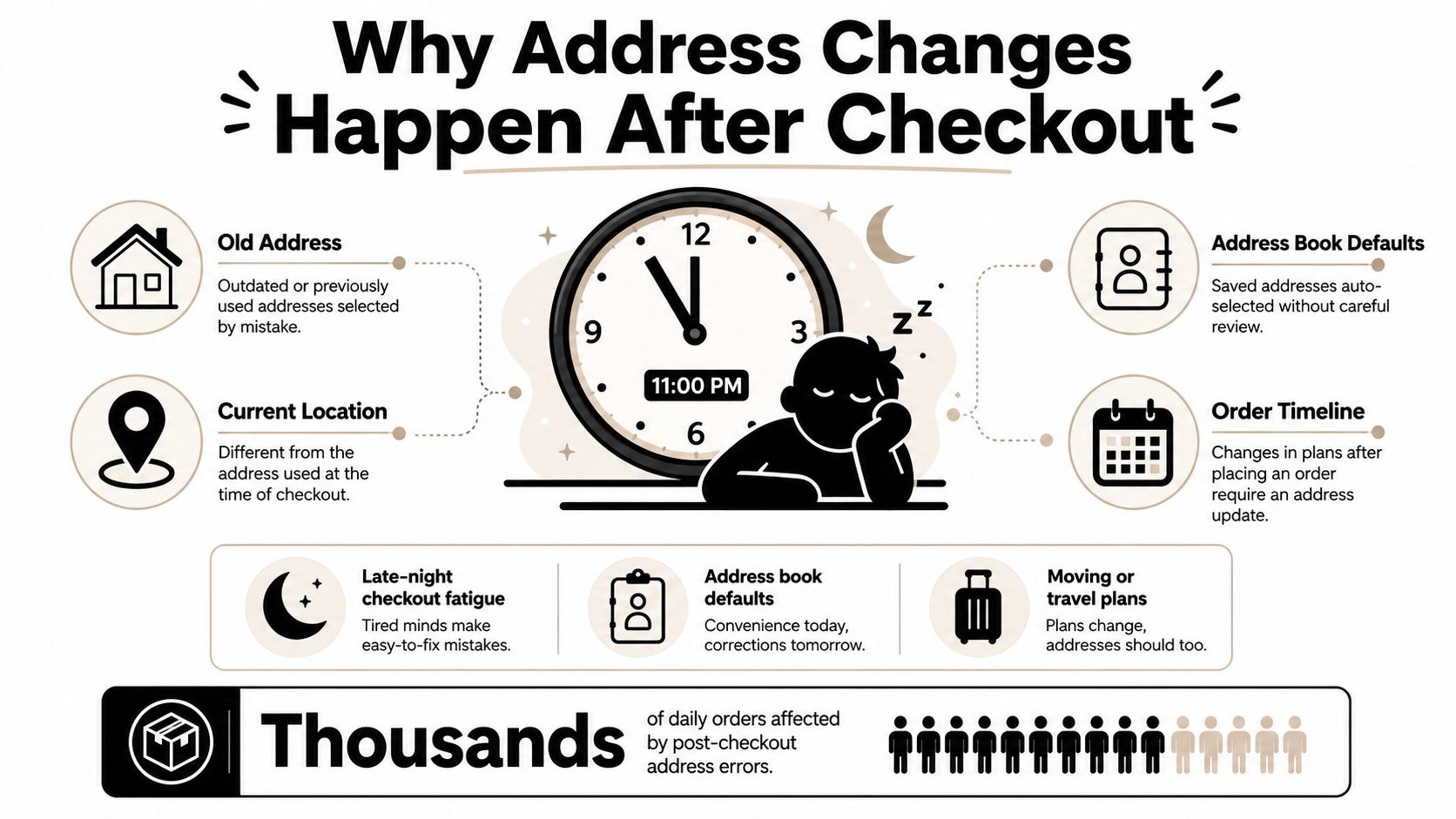
The customer experiences urgency because the order is already paid for, while the merchant sees a race against fulfillment. A ticket that arrives before picking may take a controlled admin edit. The same request after a label is purchased can require voiding that label and creating another. If the parcel has physically shipped, the merchant may have to work with the carrier instead of Shopify.
Operational reality: The earlier an address problem is identified, the more options the merchant has.
Address corrections also expose a distinction that causes confusion: the shipping address is not the billing address. Shopify's order-editing documentation states that merchants can update a customer's shipping address after an order is placed, but not the billing address, using the order's Customer section in the admin or Shopify app. The Shopify order workflow guidance is useful when documenting where address edits fit alongside other post-purchase actions.
Shopify also lets merchants allow shipping and billing addresses to differ at checkout. That separation supports legitimate use cases such as gifts, workplace deliveries, and alternate residences, but it means support teams must verify which address the customer wants changed. The admin remains the source of truth for the order, not the customer's default address book.
Updating a Shipping Address from the Shopify Admin
For an eligible order, the native Shopify process is direct. Open Orders in Shopify admin, select the order, and find the Customer section. Choose Edit shipping address, replace the necessary fields, resolve any validation warning, and save the change. The same flow is available in the Shopify app, which helps teams respond when they aren't at a desktop.
Shopify may flag an address issue during editing. When it does, the merchant can select Use suggestion to accept Shopify's correction or manually edit the address and save it. Don't treat a warning as cosmetic. A mismatch between postal information and the selected locality can create downstream carrier or delivery problems.
Check the financial effect before saving
An address edit isn't only a text correction. Shopify ties the change to tax adjustments and payment settlement. After updating the destination, review the Summary card for tax changes. If the revised order creates an outstanding balance, send an invoice. If the adjustment produces an amount owed back to the customer, process the refund before completing the workflow.
That review protects the merchant from accepting a different tax outcome or shipping obligation. It also gives support a clear explanation if the customer asks why the order total changed. The address should be confirmed with the customer in writing, especially when the requested change affects the country, region, or delivery instructions.
Handle labels and fulfillment connections
A purchased label can still contain the old address even after the order record changes. If the parcel hasn't physically shipped, Shopify community guidance indicates that the merchant may need to void the existing label, cancel the fulfillment, update the address, and purchase shipping again. The replacement label must be checked before it reaches the packing station.
Connected fulfillment services may receive the revised order on their next sync, but don't assume every warehouse has processed the update immediately. Place an internal hold or contact the fulfillment partner when timing is tight. Finally, send the customer a confirmation showing that the shipping destination was changed, while making clear that the billing address remains unchanged.
Enabling Customer Self-Serve Address Edits
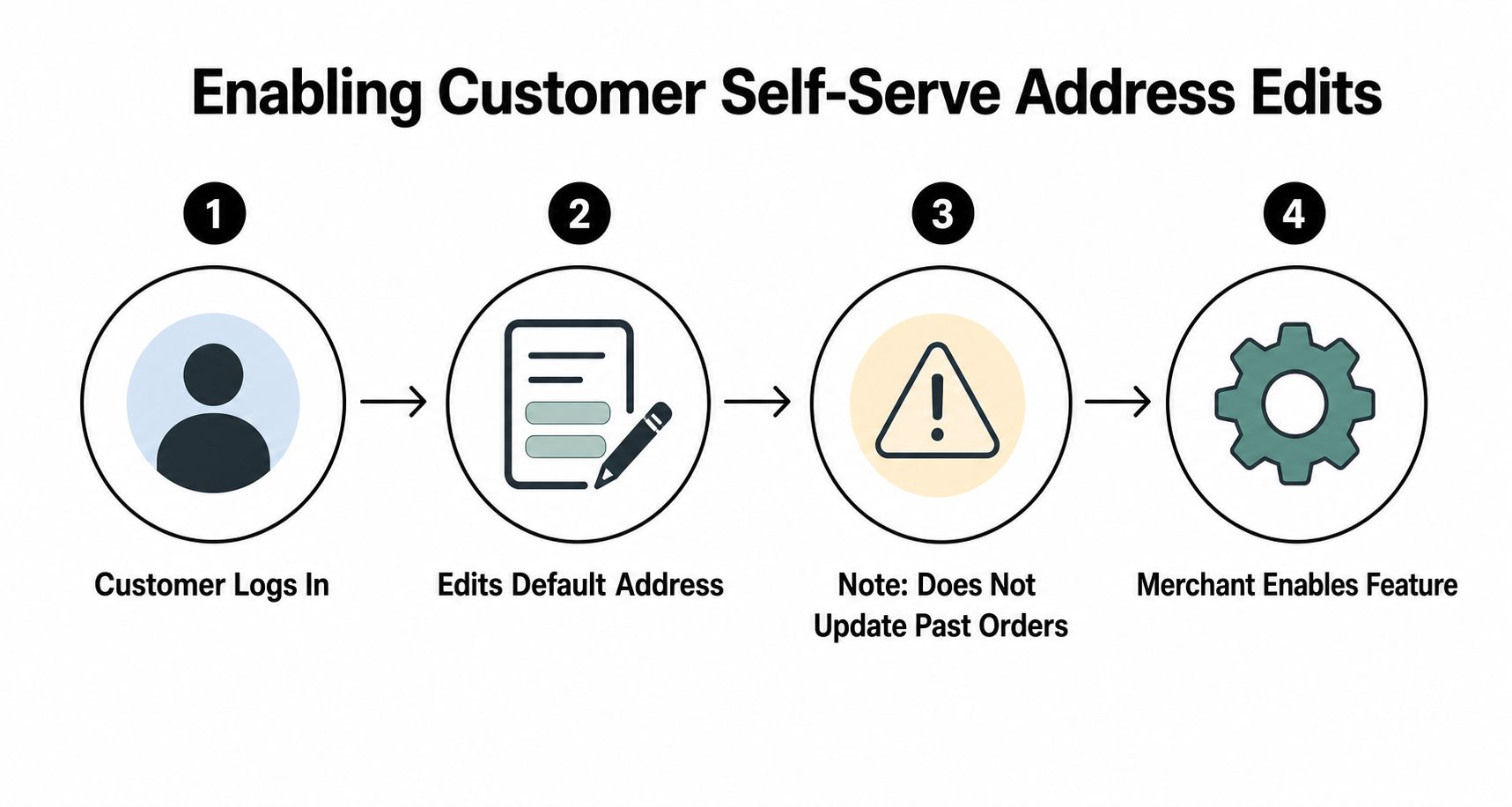
Native Shopify customer accounts let buyers manage a default address, but changing that saved address doesn't automatically rewrite an order that already exists. That distinction is the source of many failed self-service expectations. A customer may update their profile and still see the original shipping destination on the order.
A customer-facing edit path must be connected to the order status page or a post-purchase portal. When enabled, the buyer can open the order, choose the permitted edit action, enter the corrected shipping address, and submit it while the order remains eligible. The change should write back to the original Shopify order so the admin and fulfillment team are working from one record.
Separate profile edits from order edits
A reliable customer experience needs to show the difference between:
- Default address updates: Changes the customer's saved account information for future purchases.
- Order shipping edits: Changes the destination attached to a specific existing order.
- Merchant eligibility rules: Determines whether that order can still be edited based on fulfillment status, permissions, or other restrictions.
A clear message prevents a customer from assuming that updating their account has fixed an order already in processing. The customer self-service portal guidance provides useful context for presenting post-purchase actions where buyers already check order information.
Configure the merchant-controlled path
Install a compatible post-purchase order-editing app, add its customer account or order status page block, and enable shipping-address editing as an allowed action. Then define the conditions under which the action appears. Common controls include an edit window, fulfillment-stage cutoff, destination restrictions, product exclusions, approval requirements, and automatic fulfillment holds while an edit is active.
The customer should see a confirmation after saving. The merchant should see the update in Shopify admin, review any tax or settlement effect, and ensure that warehouse systems receive the corrected information before a label is created. Self-service reduces friction only when the rules match the actual pace of fulfillment.
Handling Address Changes After Fulfillment Begins
The order status determines whether Shopify can solve the problem or whether logistics must take over. An unfulfilled order is primarily an administrative correction. A fulfilled order may already involve a label, a warehouse handoff, or a parcel moving through a carrier network.
Label purchased, package not physically shipped
This is the most workable post-label scenario. A merchant may need to void the current label, cancel the fulfillment, edit the shipping address, and purchase a replacement label. The exact actions depend on the shipping workflow and fulfillment service, but the principle is consistent: the old label must not remain in circulation.
Before repurchasing, verify the full address on the order and the new label. If the warehouse has already printed paperwork, notify the packing team directly rather than relying only on a system sync. A corrected Shopify record doesn't help if staff still pick up a paper label carrying the old destination.
Partially fulfilled orders
Partial fulfillment requires item-level judgment. Products already shipped cannot be redirected through a Shopify address edit, while items still awaiting fulfillment may remain editable depending on the order and connected systems. Confirm which items are in transit, which are still at the warehouse, and whether the customer understands that the order could arrive in separate shipments.
Avoid promising that one address change will move every item. Record the customer's requested destination and coordinate the unfulfilled portion separately. If the warehouse can't safely split the remaining shipment, explain the available options before taking action.
Fully shipped orders
Once the parcel is in transit, changing the address inside Shopify won't change the label already attached to the package. Contact the carrier quickly to ask whether an interception or redirect is available, but don't promise success. Carrier policies, timing, destination, and shipment status determine what can happen.
The merchant's decision should weigh the parcel's value, the likelihood of recovery, the carrier's available service, and the cost of reshipping. If interception isn't practical, explain whether the customer should wait for a return and receive a reshipment, or place a new order while the original is resolved. Put responsibility and next steps in writing. Clear communication is often more valuable than pretending the platform can reverse a shipment it no longer controls.
Reducing Support Tickets with Merchant-Controlled Edit Rules
Self-service works when it gives customers freedom inside boundaries the operation can honor. An unrestricted address-edit button creates risk. A rule that allows edits only before fulfillment, excludes destinations the warehouse can't serve, and pauses fulfillment during an active change is much easier to manage.
Mayra Apps can be configured as one option for this model, with post-purchase order editing inside customer accounts and the order status page. Its merchant-defined rules can govern edit windows, permitted actions, approvals, fulfillment state, product or collection exclusions, destination-country eligibility, and fulfillment holds. That keeps the original Shopify order as the operational record while allowing the customer to correct an eligible address without opening a ticket.
Rules that match warehouse reality
Start with the cutoff your warehouse can reliably observe, not the cutoff that looks convenient in the storefront. If pick-and-pack begins quickly, the edit window must close before orders enter that queue. If some products need special handling, exclude them or require approval rather than exposing a generic edit option.
Geographic controls matter too. A domestic order shouldn't automatically become an international shipment because a customer selected the wrong saved address. The system should either block the change or route it for review when the destination falls outside the order's permitted shipping configuration.
A useful operating table looks like this:
| Rule Configuration | Ticket Reduction | Implementation Complexity |
|---|---|---|
| Address edits allowed only before fulfillment | Qualitative reduction in routine correction requests | Low to moderate |
| Address edits with destination restrictions | Qualitative reduction in unsafe or unsupported changes | Moderate |
| Address edits with product and collection exclusions | Qualitative reduction where warehouse exceptions are common | Moderate |
| Address edits requiring approval for selected orders | Reduces avoidable tickets while preserving review for risky cases | Moderate to high |
| Address edits with fulfillment holds | Reduces collisions between customer changes and warehouse processing | Moderate |
These outcomes should be measured against the store's own ticket history, not borrowed benchmarks. Track which requests customers resolve themselves, which changes require approval, and which rules create false blocks. The support-ticket reduction workflow can help teams think through the wider post-purchase process without treating every order as an exception.
Key Takeaways and Workflow Checklist
Address management works best as a staged control system. Checkout validation catches problems before payment, customer self-service handles eligible post-purchase corrections, and the admin team manages exceptions once fulfillment or carrier movement begins. Shopify supports merchant shipping-address edits from the order's Customer section, but the billing record remains separate and the financial effect must be reviewed.
Use this checklist during an operations audit:
- Test the admin path: Open a test order, edit the shipping address, resolve a validation warning, and review the Summary card for tax adjustments.
- Confirm the record of truth: Make sure the corrected address appears on the Shopify order, not only in the customer's saved profile.
- Test the buyer experience: Open the order status page and customer account as a customer would, then confirm whether the permitted address-edit action is visible.
- Match the edit window to fulfillment: Compare the customer-facing cutoff with the moment the warehouse starts picking and packing.
- Review label handling: Document what staff must do when a label was purchased but the package hasn't physically shipped.
- Define partial-fulfillment rules: Decide which unfulfilled items can be changed and how support should explain split delivery outcomes.
- Write the post-shipment policy: State when the team contacts the carrier, when it waits for a return, and who handles any reshipment decision.
- Review patterns regularly: Group address tickets by cause, such as old saved addresses, gift orders, missing apartment details, or late fulfillment notices.
The immediate improvement usually comes from documenting the workflow and giving customers a safe correction path. The longer-term improvement comes from using ticket patterns to adjust checkout messaging, fulfillment timing, and edit eligibility.
Mayra Apps provides post-purchase order editing through customer accounts and the Shopify order status page, including merchant-controlled rules for shipping-address changes and fulfillment eligibility. Visit Mayra Apps to review how its editing workflow can help your team handle address corrections before they become fulfillment exceptions.