
A customer has just paid, the order is authorized, and the confirmation experience is loading. This is the moment many Shopify stores send the buyer straight to a receipt, even though the customer is still focused on the purchase and may be open to one relevant addition.
That opportunity has limits. Shop Pay, Apple Pay, Google Pay, subscriptions, duties, multi-currency orders, and certain local or installment payment methods can prevent a post-purchase offer from appearing, while fulfillment holds and order edits can create operational work behind the scenes. A profitable one click upsell shopify strategy therefore depends on more than choosing a product and adding a button. It depends on understanding which orders qualify, where the offer loads, how Shopify updates the original order, and whether the warehouse can absorb the change.
Table of Contents
- What a One Click Upsell on Shopify Actually Does
- Where the Offer Appears in the Order Journey
- How One Click Upsells Move AOV and Conversion
- The Payment and Order Eligibility Ceiling
- Fulfillment Holds, Edits, and Automatic Settlement
- Checkout, Order Status Page, or Customer Account
- Launching a One Click Upsell Flow Without Breaking Ops
- Treating One Click Upsells as a Post-Purchase System
What a One Click Upsell on Shopify Actually Does
A customer completes checkout and the original payment is authorized. Instead of moving immediately to the final confirmation experience, Shopify can present a second offer in the post-purchase journey. The buyer can accept it with one tap, without entering card details, shipping information, or a second checkout form.
The important distinction is where the offer sits in the lifecycle. A cart cross-sell appears before payment and asks the shopper to reconsider the basket. A checkout bump interrupts the final purchase decision. A one-click upsell appears after the primary transaction has been authorized, so accepting it adds another item to an existing order rather than putting the original sale at risk.
The basic transaction flow
- The buyer pays: Shopify creates and authorizes the original order.
- The offer becomes eligible: The platform and the upsell app check payment method, order type, currency, product rules, and fulfillment state.
- The customer sees the offer: The page presents one relevant product, usually with a clear accept action and an equally visible decline option.
- The order is updated: If accepted, the additional line item is written to the original order record where the implementation supports that workflow.
- The extra amount settles: The customer is charged through the configured Shopify payment process, subject to the app's settlement rules and the payment method's capabilities.
Practical rule: Treat the offer as a controlled change to an active order, not as a miniature second storefront checkout.
That positioning creates the channel's main advantage. The buyer has already committed money and effort, and the marginal action can be very small. It also creates the main risk. The offer is placed between authorization and fulfillment, so an accepted item can affect pick lists, packaging, inventory allocation, tax calculations, and shipment timing.
Shopify's post-purchase upsell guidance describes the mechanism as an offer shown after checkout, but the operational question is whether the specific order is eligible. A technically correct installation can still produce disappointing results if most orders use a payment path that bypasses the offer.
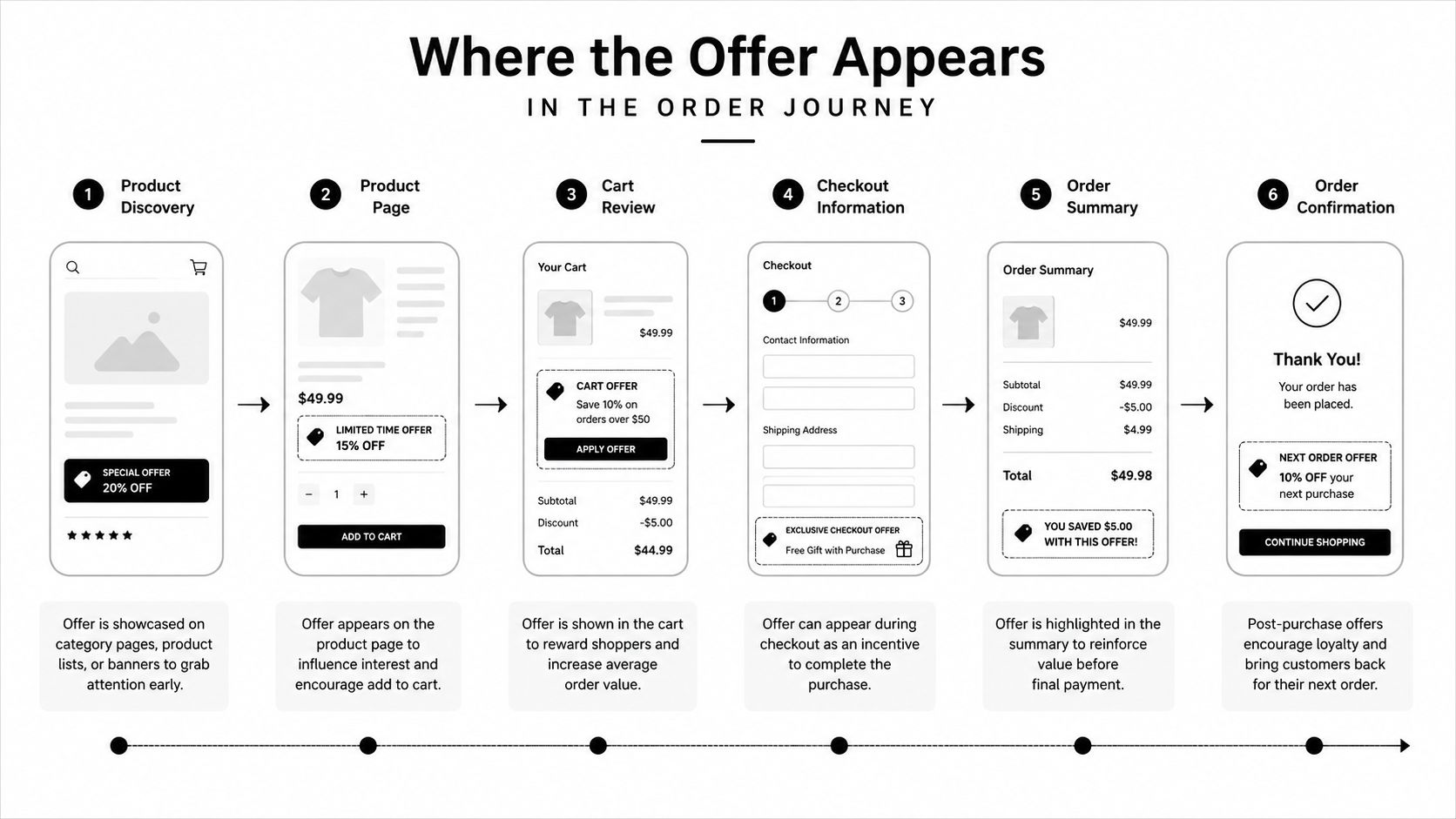
Where the Offer Appears in the Order Journey
Shopify merchants commonly work with three post-purchase surfaces, and each one captures a different intent window. The first is the immediate post-purchase step, shown directly after the customer completes payment and before the final confirmation experience is finished. The second is the customer account, where a logged-in buyer reopens an order and encounters an offer alongside self-serve actions. The third is the order status page, reached through the tracking link in a shipping confirmation email or from the customer's account.
Immediate post-purchase
The immediate offer loads while the customer is still in the original purchase session. That usually means a mobile browser or desktop browser, depending on how checkout was completed. The offer has the strongest behavioral continuity because the customer has just paid, but it also has the narrowest eligibility because accelerated payment experiences may not return the buyer to the merchant-controlled step.
Keep the creative simple here. A matching accessory, consumable, protection item, or quantity add-on can make sense. A broad product catalogue will usually create decision fatigue at the exact point where the customer needs a quick yes-or-no choice.
Customer account
The account surface appears when a customer signs in and revisits an order. The trigger might be tracking, an address question, an edit request, or a desire to review the purchase. The buyer may be on a mobile browser, desktop, or a customer-account experience linked from a shopping app.
This is a later intent window, so the offer should reflect the order's current context. A replenishment product or an item that completes the original purchase can work better than a generic promotion. The account surface also needs careful permission rules, because an offer shown beside order edits can become part of a broader customer-service workflow.
Order status page
The order status page is tied to the order's public tracking experience. Customers may reach it from the confirmation page, an email, or a direct saved link. It remains closely connected to the order, but the customer may now be checking delivery details rather than shopping.
That makes the status page a strong operational surface. The offer can sit beside shipment information and order actions, provided it doesn't obscure the delivery timeline. Configure it separately from the immediate post-purchase flow, even if the product recommendation is similar.
How One Click Upsells Move AOV and Conversion
The original order has already converted when a post-purchase offer loads. Measure the offer as a separate revenue event. The useful question is how much incremental revenue the accepted line adds after payment, fulfillment rules, and order-edit limits are accounted for.
Benchmarks vary by store, product, traffic, and offer placement. One industry benchmark reports typical post-purchase one-click acceptance in the 3% to 8% range, with strong performers above 5%. A Shopify app benchmark reports a 16.2% average conversion rate and more than $1.5 billion in generated upsell revenue. These figures describe different populations, so use them for planning context rather than as a store forecast. For broader measurement guidance, see this Shopify average order value guide.
The lift equation
Use this planning model:
Baseline AOV × offer attach rate × offer price = expected incremental revenue per original order
Calculate the attach rate from eligible impressions, not total orders. Set the offer price at the discounted amount the customer pays. For example, a store with a $45 AOV, a 5% attach rate, and a $12 accessory generates $0.60 incremental revenue per eligible order. The calculation applies to eligible orders, so total-store revenue depends on the size of that eligible pool.
Two factors determine whether the offer earns that lift:
- Relevance: Recommend an item that completes, protects, replenishes, or improves the original purchase.
- Value framing: Use a bundle price, exclusive post-purchase price, or clear functional benefit. The customer should understand why the added line belongs in this order.
| Surface | Typical Conv. Rate | AOV Lift Range | Friction |
|---|---|---|---|
| Post-purchase one-click offer | 3% to 8% in typical conditions, with strong performers above 5% (industry benchmark) | 10% to 25% when relevance and timing are strong | Low after payment, but eligibility is restricted |
| Broader post-purchase implementations | 3% to 8% in normal conditions (benchmark discussion) | 8% to 18% | Low acceptance effort, higher operational responsibility |
| Onsite cross-sell | Track store-specific results | Track store-specific results | Customer must reconsider before payment |
Use the table to separate benchmark context from operating results. Post-purchase figures do not establish an onsite cross-sell baseline. Track each surface independently, including impressions, eligible impressions, accepted offers, refunds, and contribution margin. A higher AOV is not a win if the added item creates fulfillment exceptions, delays settlement, or increases support work.
The Payment and Order Eligibility Ceiling
Your total order count is not your upsell audience. Shopify's post-purchase documentation states that post-purchase offers do not display for accelerated payments such as Shop Pay, Apple Pay, or Google Pay. Orders involving subscriptions, duties, multi-currency, and certain local or installment payment methods are also excluded. The payment method and order configuration therefore set a hard ceiling before copy, targeting, or offer design can improve results.
Model that ceiling from your own orders. Export the last 90 days, then apply the filters in sequence:
- Start with total orders.
- Remove excluded accelerated, local, and installment payment methods.
- Remove subscription orders and renewal lines.
- Remove orders using unsupported currencies or duties configurations.
- Remove POS, draft, B2B, and other order types your implementation cannot process.
- Compare the remainder with actual offer impressions.
Use this internal formula:
Eligible impressions = total orders × eligible payment share × eligible order-type share × eligible currency share
The result is an operating limit, not a forecast. An offer cannot convert on an order that never reaches the post-purchase surface.
| Order Type | Eligibility Check | Action |
|---|---|---|
| Standard card order | Check gateway and app support | Export last 90 days of orders and categorize by payment method |
| Shop Pay accelerated order | Excluded under Shopify's documented restriction | Check your Shopify Analytics > Payments report for actual share |
| Apple Pay or Google Pay order | Excluded from the documented post-purchase surface | Check your Shopify Analytics > Payments report for actual share |
| Subscription order | Check initial and renewal behavior separately | Export last 90 days of orders and identify subscription lines |
| Multi-currency or duties order | Validate market and tax configuration | Export last 90 days and group orders by currency and duties status |
| POS, draft, or B2B order | Check whether the implementation processes the order type | Export last 90 days and categorize by order source |
Eligibility varies by payment setup, market configuration, and app behavior, so validate the model against real orders. Pull the actual payment mix from Shopify Analytics or an order export, then inspect a sample of excluded orders. Check eligibility before judging offer performance.
The common reporting error is dividing accepted offers by all orders and calling that the conversion rate. Use eligible impressions as the denominator, and track accepted offers, refunds, and contribution margin separately. A higher AOV does not justify an offer that creates fulfillment exceptions, delays settlement, or adds support work.
Fulfillment Holds, Edits, and Automatic Settlement
A post-purchase offer changes more than the customer's total. It can change the timing and shape of fulfillment. Shopify documents that an active post-purchase cross-sell flow can place fulfillment on hold until the customer completes the flow or the hold times out, and that the accepted product can be added to the original order record.
That behavior protects order integrity, but it introduces a trade-off for operations teams. A short hold may be harmless for a normal pick wave. The same hold can matter for same-day shipping, made-to-order products, pre-orders, or a catalogue split across warehouses.
Build the workflow around the original order
Before launch, document four events:
- Offer accepted: Which line item is added, and which inventory location owns it?
- Offer declined: Does the hold release immediately, or does the flow wait for a timeout?
- Order edited: Can a support agent change the original order without breaking the offer reference?
- Settlement completed: Where does the additional charge appear, and how does the order show the financial update?
Shopify's product offers developer documentation is the relevant technical reference for building and governing these flows. Your app configuration still needs testing against your payment gateway, tax settings, fulfillment service, and order-edit permissions.
Operational warning: Never let an upsell workflow outrun the warehouse's ability to pick and pack the revised order.
Automatic settlement reduces manual intervention, but it doesn't remove financial edge cases. A merchant may need to recalculate tax when the destination or line items change. The customer's statement can show the original payment and the upsell charge separately, particularly when the extra amount settles later or the payment provider handles the adjustment as a distinct capture.
Order edits also deserve a written rule. If an agent changes quantities, variants, addresses, or shipping methods while an upsell is pending, the app may need to cancel, recalculate, or reauthorize the addition. Test those actions in a development or low-risk workflow, then tell support exactly which edits are safe.
Checkout, Order Status Page, or Customer Account
The immediate post-purchase surface offers the strongest intent and the highest eligibility risk. Customers have just paid, but accelerated checkout methods can bypass the merchant-controlled offer step. Use it when your payment mix supports it and when the offer belongs naturally to the original purchase.
The order status page offers a different balance. Customers can reach it through tracking and order-management behavior, so the surface stays connected to a real order even after the immediate buying moment has passed. It also aligns well with Shopify's movement toward customer actions inside post-purchase surfaces. The Shopify order status page guide provides useful context for treating that page as more than a receipt.
The customer account is the broadest relationship surface, but it usually has weaker purchase intent. A customer may open the account to change an address, review a shipment, or find an order number. That setting suits replenishment, replacement, and product-use offers more than a generic discount.
A practical placement decision
| Placement | Intent | Eligibility risk | Operational fit |
|---|---|---|---|
| Immediate post-purchase | Highest | Highest | Best for simple, fast-ship additions |
| Order status page | Still order-linked | Lower than accelerated-checkout-dependent flows | Strong default for governed post-purchase actions |
| Customer account | Later and task-oriented | Depends on account access | Best for replenishment and self-serve changes |
For most Shopify merchants, the order status page is the cleanest starting point because it combines order context with a longer-lived customer touchpoint. Keep the message subordinate to tracking and fulfillment information. If the customer can't quickly find shipment status, the upsell is competing with the page's primary job.
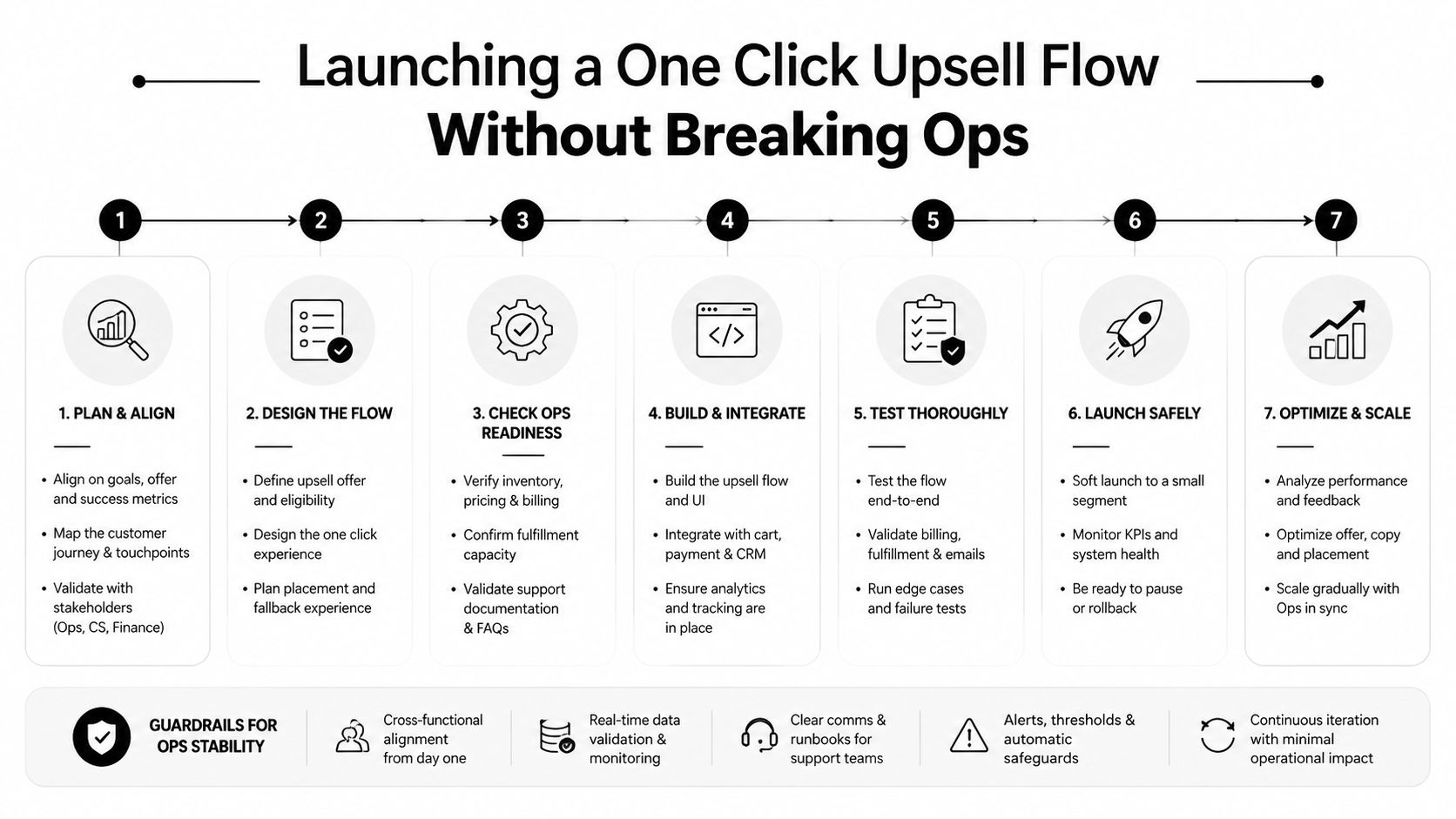
Launching a One Click Upsell Flow Without Breaking Ops
Start with guardrails, not product selection. Choose items that can ship through the existing fulfillment path, don't require a new warehouse decision, and won't force the pack team to redesign the carton after the original order enters processing.
Use a controlled rollout
- Define order rules: Exclude unsupported payment methods, subscriptions, multi-currency orders, B2B orders, and any fulfillment state that can't tolerate an edit.
- Select low-risk products: Start with fast-moving, prepaid SKUs that have predictable packaging and stable inventory.
- Exclude complicated lines: Avoid hazardous goods, bundle components, pre-orders, and products that change shipping dimensions.
- Choose one surface: Lock the placement before measuring performance. Changing the surface during the test makes attribution difficult.
- Set a short window: The offer should expire before the warehouse's pick process creates a conflict. A short window is operational protection, not artificial pressure.
- Create a kill switch: Pause the flow when inventory, carrier, tax, or fulfillment exceptions appear.
- Review the whole order: Confirm the original line items, added line, payment state, tax, fulfillment hold, and customer-facing status.
Track eligible impressions, not just total orders. Your dashboard should separate offer views, acceptances, incremental AOV, refunds, settlement failures, support contacts, and fulfillment-cycle time. If the offer produces revenue but increases manual reconciliation, the gross lift may not translate into contribution margin.
Run the first release on a controlled group of qualifying orders. Have fulfillment and support review accepted orders as they move through the system. Expand only after the order record, pick list, customer account, and tracking experience remain consistent.
Treating One Click Upsells as a Post-Purchase System
A one-click upsell shouldn't operate as an isolated AOV widget. It belongs inside a broader post-purchase system that includes order edits, cancellation handling, fulfillment timing, support workflows, customer accounts, and shipment messaging. Shopify's post-purchase upsell overview is useful for the commercial definition, but operators need to connect the offer to what happens after acceptance.
Assign each surface a job. The immediate post-purchase step can handle a simple, highly relevant addition. The order status page can combine an offer with tracking and controlled order actions. The customer account can handle replenishment or a later product-use recommendation. Don't show the same offer repeatedly across all three surfaces for one order, because repetition makes the customer experience feel disjointed.
Put ownership around the workflow
Merchandising owns product pairing and margin rules. Operations owns fulfillment holds, inventory eligibility, packaging, and shipment timing. Support owns the customer explanation when a charge, edit, or delivery date changes. Finance owns settlement, refunds, tax treatment, and reconciliation.
The system should answer practical questions without manual detective work:
- Did the accepted item append to the original order?
- Did the pick list update before fulfillment began?
- Did inventory reserve correctly?
- Was the additional charge settled through Shopify?
- Can the customer still edit or cancel within the permitted window?
- Did the tracking page reflect the revised order?
Mayra Apps is one Shopify option for this workflow. Its product supports self-serve order edits, cancellation deflection, and one-click upsells on customer accounts and the order status page, with accepted items added to the original order and additional charges settled through Shopify. Merchant-defined eligibility, edit windows, fulfillment holds, and approval rules determine how the workflow behaves.
The decision you own is not which product to offer. You own the eligible order ceiling, the placement, the offer window, the settlement policy, the fulfillment response, and the measurement model. When those rules work together, the channel can raise realized order value without creating avoidable support and warehouse work.
Visit Mayra Apps to evaluate a Shopify post-purchase workflow that combines order-status-page upsells, customer-account edits, cancellation deflection, and merchant-controlled fulfillment rules. Use the product's eligibility and settlement controls to test one relevant offer on low-risk orders before expanding across your store.