
A customer emails at midnight asking to change a size. Another wants to cancel before the warehouse prints a label. A third requests a refund after the parcel has already shipped. By morning, your support team is checking order timelines, your warehouse is working from a different state, and your finance process is trying to reconcile changes that happened in separate threads.
That's the operational reality behind Shopify order management. The difficult part isn't finding an order in Shopify admin. It's controlling what can change, where the change happens, whether fulfillment pauses in time, and how the customer sees the result. As Shopify moves more post-purchase activity into customer accounts and the Order status page, merchants need workflows that survive platform changes instead of depending on fragile page customizations.
Table of Contents
- The Hidden Chaos Behind Shopify Order Management
- How Order Editing Works Inside Shopify Admin and Customer Accounts
- Using Fulfillment Holds to Protect Shipping During Edits
- Cancel Deflection, Store Credit, and Refund Decisions
- Governance Rules and Merchant Controls for Order Management
- Practical Implementation and Analytics for Post-Purchase Workflows
The Hidden Chaos Behind Shopify Order Management
The problem usually starts with a simple request. A shopper notices the wrong variant in the confirmation email and replies to support. The support agent opens Shopify admin, checks whether the warehouse has started work, edits the order if possible, and sends another message. Meanwhile, an automation may already have released the fulfillment order, or a warehouse integration may have begun picking.
That sequence creates several versions of the truth. The customer believes the order changed. Support believes it changed in Shopify. The warehouse may still be acting on the original details. When those states diverge, the result can be a wrong shipment, a refund request, a reshipment, or a preventable escalation.
The order is no longer confined to admin
Shopify's own analytics make fulfillment an operational discipline rather than a vague back-office activity. On the Orders page, merchants can track total orders, ordered items over time, returns, fulfilled orders, delivered orders, and median time to fulfill, with comparisons against the preceding period through Shopify's order analytics documentation. Shopify defines time to fulfill as the median time required to fulfill an order, measured in hours or days.
That visibility matters because post-purchase decisions affect the same measures. A delayed address correction can become a return. An unprotected edit can become a fulfillment exception. A cancellation that support handles manually can consume time while the warehouse continues processing.
Shopify's newer customer-account flow changes the operating surface again. Customers can sign in to view order details, while order notifications can open the Order status page through a partially authenticated token. Shopify says that access works for 3 weeks in the same browser session, 2 weeks across different browser sessions, and a maximum of 5 browser sessions, as described in Shopify's explanation of Order status pages. Web pixels can also load on customer accounts and Order status pages, allowing tracking across discovery, purchase, and order management.
Operational rule: Treat every customer-facing order action as part of the fulfillment workflow, not as a marketing add-on.
The practical skill is governance. You need clear edit eligibility, a reliable pause mechanism, financial rules, and one system of record. Feature lists won't prevent chaos. A controlled process will.
How Order Editing Works Inside Shopify Admin and Customer Accounts
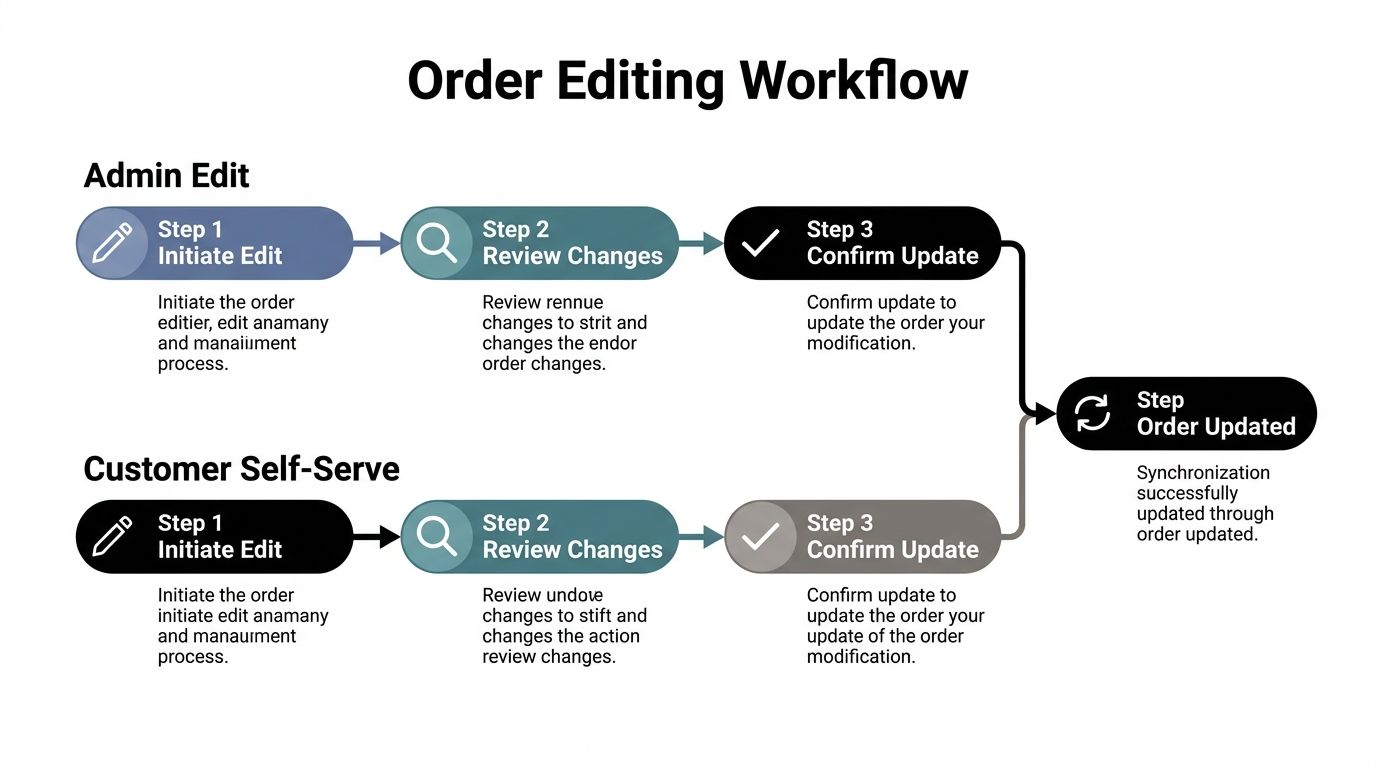
Order editing works best when the customer's request changes the original order rather than creating a second transaction. Shopify admin remains the operational record, while the customer account and Order status page become controlled interfaces for permitted actions.
A merchant-side edit typically covers adding or removing products, changing quantities, and updating shipping fees, as described in Shopify's order customization guidance. A customer-facing workflow can extend that experience to practical requests such as changing a variant, updating an address before fulfillment, or adding a line item during the permitted edit window.
Start with the original order
A dependable edit follows a simple sequence:
- Identify the order and eligibility. Check payment state, fulfillment state, destination, product restrictions, and whether the request falls inside the merchant-defined edit window.
- Show the proposed change clearly. Display the original item, replacement item, quantity difference, shipping effect, and any additional amount or refund.
- Settle the financial difference. Additional charges should go through Shopify's payment flow. Refunds should follow the merchant's approval policy rather than being improvised by support.
- Write the result back to the original record. The order timeline, fulfillment details, customer communication, and reporting should reflect one transaction.
- Release or continue fulfillment only after confirmation. If the order was paused, the workflow needs an explicit completion state.
Creating a duplicate order may seem easier, but it fragments fulfillment, reporting, customer history, and support context. Shopify's Order status architecture supports apps through the customer-account.order-status target and OrderStatusApi, which gives apps order identifiers and related details. That lets a post-purchase app place contextual actions beside the order while preserving Shopify admin as the system of record, as documented in Shopify's Order status page developer documentation.
For merchants evaluating an implementation, this guide to letting customers edit Shopify orders is relevant because it focuses on the customer-facing workflow rather than only the admin action.
Separate convenience from permission
Customers may be allowed to change quantities and variants automatically, while address changes or high-value additions require approval. A useful rule is to make the common, low-risk correction self-serve and route exceptions to support. The customer should see one consistent interface either way.
Contextual upsells can also be attached to an edit, but the recommendation must fit the order. An additional item added to the same order is operationally cleaner than forcing a new checkout, provided inventory, payment, and fulfillment rules support it.
Using Fulfillment Holds to Protect Shipping During Edits
An edit window exists only while the warehouse is prevented from shipping the old version. A customer can submit a change through the Order status page, yet the workflow still fails if a fulfillment partner has already picked the original item. Shopify's migration to new account and order-status surfaces makes this handoff easier to miss, so the hold, edit, and release states must remain visible to support and fulfillment tools.
Shopify treats an order or fulfillment marked On hold as non-fulfillable until the hold is released. Shopify Flow's Hold fulfillment order action applies the hold at the fulfillment-order level for each location tied to the order, according to Shopify's fulfillment hold documentation. Teams building ecommerce operations management workflows should also record the hold reason and completion state where downstream systems can read them.

Build the pause before the edit
A controlled workflow follows these steps:
- Trigger the hold when an eligible edit begins. Apply it before the customer reviews or confirms the change, not after the warehouse receives new instructions.
- Pause every relevant location. If fulfillment work is split across locations, verify that each involved fulfillment order is held.
- Complete the financial adjustment. Collect an additional amount through Shopify when the revised order costs more. Route refunds through the configured approval process.
- Validate the updated lines and destination. Confirm inventory, shipping method, address, and fulfillment assignments still match the revised order.
- Release once. Release the hold only after the edit is committed and connected systems can consume the updated state.
Use a reason an operator can understand. “Customer edit” is more useful than an unexplained pause when support, warehouse, and finance teams share the same queue. The workflow also needs an explicit outcome, such as edited, rejected, or expired, so a new account surface does not leave support guessing whether shipping may proceed.
Don't turn holds into a storage system
Shopify limits manual holds to 10 per fulfillment, so teams cannot stack unlimited reasons on one fulfillment. Define a hold taxonomy, keep internal notes separate from hold states, and clear stale holds through an owned queue.
Manual holds do not replace eligibility rules. If a product cannot be edited after fulfillment begins, block the edit rather than relying on someone to notice the order in time. If a destination requires review, route it to approval before the customer can create a fulfillment exception.
Cancel Deflection, Store Credit, and Refund Decisions
Cancellation handling is a decision system, not a single button. The right response depends on customer intent, order state, product condition, payment status, and whether fulfillment has started.
A customer who selected the wrong size may prefer a variant change. Someone who no longer wants the product may accept store credit if the offer is clear and immediate. A customer facing a delivery or product problem may need a full cancellation or refund, and pushing a save offer in that situation can damage trust.
Use intent to choose the path
Capture the reason before presenting an option. A short reason menu gives support and operations a useful classification without requiring a long conversation.
| Customer situation | Preferred path | Operational check |
|---|---|---|
| Wrong size or variant | Edit the original line item | Confirm replacement inventory and eligibility |
| Address mistake before fulfillment | Address correction | Hold fulfillment and validate the destination |
| Customer still wants the product but not the current order | Store-credit save offer | Explain value, timing, and restrictions clearly |
| Product issue or failed delivery | Refund or replacement | Follow the service recovery policy |
| Fulfillment already progressed | Cancellation review | Don't promise an edit that the warehouse can't execute |
A save offer should be optional and understandable. Store credit can preserve future purchasing intent, but it isn't a substitute for a refund when the merchant's policy or the customer's circumstances require money returned. Keep full cancellation available as the fallback.
Treat upsells as order operations
A one-click add-on can recover value when it attaches to the existing order and doesn't create a second fulfillment problem. The offer should account for stock, shipping, and whether the order is already held. An upsell that creates a split shipment or requires a new support intervention may add complexity instead of value.
Financial settlement needs the same discipline as the operational workflow. Extra charges should be invoiced through Shopify, while refunds can process automatically or wait for approval above a merchant-defined threshold. That threshold should reflect risk, not convenience. A low-risk correction may be automatic, while a large adjustment, restricted product, or partially fulfilled order should receive human review.
This practical guide to cancellation deflection and store credit covers the customer-facing mechanics, but the operational principle is broader: save an order only when the proposed outcome is better for the customer and executable for the business.
Governance Rules and Merchant Controls for Order Management
Self-serve editing needs boundaries. Customers should be able to correct ordinary mistakes, while merchants retain control over inventory, payment, fulfillment, restricted products, and support workload. Without those rules, post-purchase work shifts into less visible channels and becomes harder to track.
Define the edit window before configuring buttons or apps. Close it before the warehouse reaches an irreversible step, not only when a carrier label is printed. Picking may begin before tracking appears, so fulfillment state must determine eligibility.
Set controls by risk
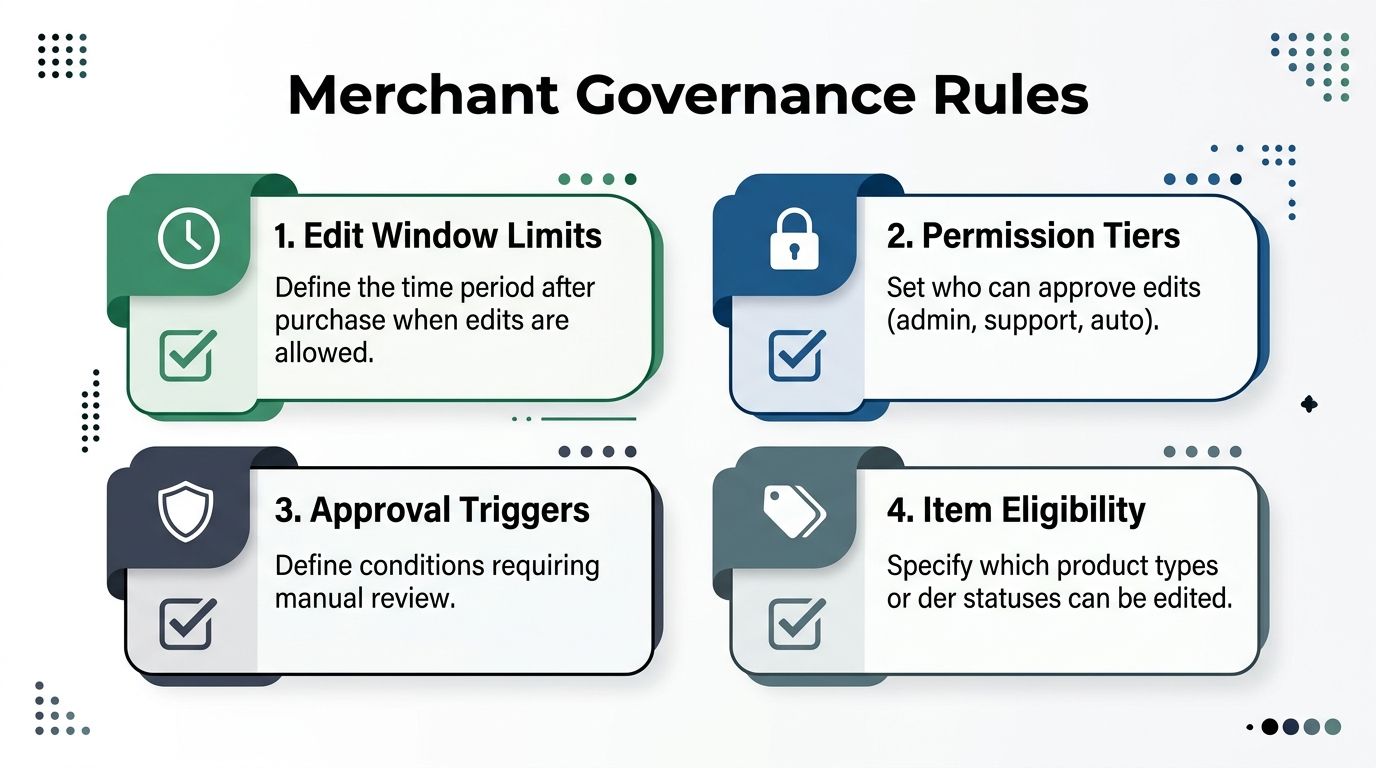
Use four control layers:
- Edit window limits: Define when customers can request changes, then close the window before warehouse execution becomes difficult to reverse.
- Permission tiers: Allow routine changes automatically, route exceptions to support, and require administrator approval for sensitive payment or destination changes.
- Approval triggers: Review high-value orders, unusual destinations, restricted items, and requests made after fulfillment activity.
- Item eligibility: Exclude products, collections, tags, and order states that create inventory, compliance, or margin risk.
Write the logic in operational terms. A standard apparel variant swap may be eligible, while a personalized item remains locked. An address update may be allowed before fulfillment, but blocked after the warehouse confirms dispatch.
Keep the customer surface safe
The Order status page and customer account should show only actions the current order can complete. A visible edit button that ends in an error creates support work and undermines confidence. Eligibility should be clear before the customer spends time reviewing a change.
Control additions and removals separately. Adding an item may require payment collection and inventory confirmation. Removing one may trigger a refund, change shipping eligibility, or leave a fulfillment order with an incomplete bundle. These paths carry different operational and financial risks, so they need separate rules and audit events.
Shopify's migration to new account and order-status surfaces makes this governance more urgent. Shopify has announced that non-Plus stores will need to upgrade by August 26, 2026. The shutdown of additional scripts, script-tag apps, and checkout.liquid on those pages began on August 28, 2025. Build controls into supported account and app surfaces rather than copying old page logic. The Shopify upgrade guidance for Thank you and Order status pages should inform the migration checklist, especially where tracking, support alerts, or edit eligibility depend on legacy customizations.
Practical Implementation and Analytics for Post-Purchase Workflows
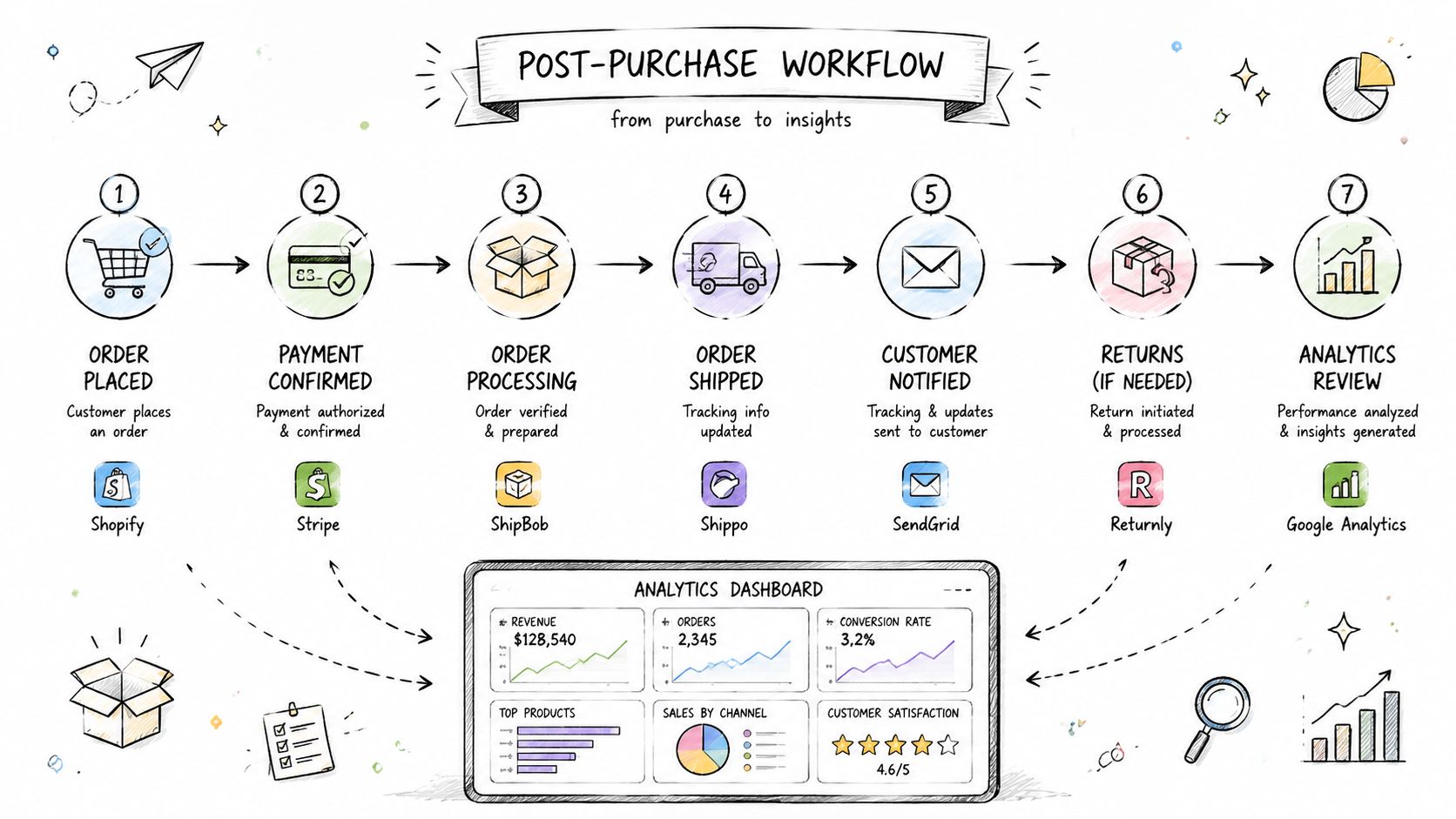
A customer may receive an order notification, sign in to an account, request an edit, and trigger a payment adjustment before fulfillment begins. If any step remains visible only in the storefront while Shopify admin, fulfillment, support, or tracking tools miss the change, the workflow creates more work instead of removing it.
Start with Shopify's native customer journey, not a theme workaround. Install the selected app from Shopify, place its block on the Order status page and customer account, then test the full path from notification and sign-in through edit review, payment adjustment, and fulfillment release. The button matters less than whether each state change reaches the right team and remains visible in Shopify admin.
Use a migration-safe checklist
- Inventory legacy customizations. Record scripts, script-tag apps,
checkout.liquidchanges, Thank you page logic, and Order status page actions. - Map each action to a supported surface. Assign it to customer accounts, the Order status page, email, Shopify Flow, or support.
- Define eligibility before installation. Document edit windows, fulfillment states, product exclusions, destination rules, and approval triggers.
- Connect fulfillment holds. Confirm that an active edit pauses downstream work and that a named owner releases the order.
- Test financial paths. Test additions, removals, refunds, approval thresholds, and failed payment adjustments.
- Measure operational outcomes. Track edited orders, saved orders, recovered revenue, refunds, fulfillment exceptions, and modeled ticket avoidance.
- Review Shopify's migration timeline. Non-Plus stores are expected to complete the new experience upgrade by August 26, 2026, while legacy page customizations have already begun losing support.
Mayra Apps is one option for this workflow. Its Mayra Order Edit and Upsell App places self-serve editing, cancellation deflection, store-credit offers, and one-click upsells in customer accounts and the Order status page, while writing changes back to the original Shopify order. It also provides merchant-defined rules, fulfillment holds, Shopify-based settlement, and store-specific analytics.
Measure what the workflow changes
Shopify's native Orders analytics provide a base through order, fulfillment, delivery, return, and median time-to-fulfill measures. Add workflow measures that explain changes in those outcomes. More edits may indicate easier customer access, while more fulfillment exceptions may expose weak eligibility rules.
Model ticket avoidance carefully. Label estimates as estimates, use the store's own support data, and separate saved orders from refunds that were only delayed. Analytics should guide operational decisions, not produce a flattering dashboard.
A post-purchase workflow withstands platform changes when its customer interface, financial process, fulfillment pause, and reporting model agree. Rebuild those connections on Shopify's supported account and Order status surfaces before legacy customizations become an emergency project.
Mayra Apps helps Shopify merchants offer self-serve order edits, cancellation deflection with store credit, and one-click upsells directly in customer accounts and the Order status page. Visit Mayra Apps to review how its merchant-controlled rules, fulfillment holds, and Shopify-based settlement can fit a post-purchase order-management workflow.