
A cancellation request rarely arrives at a convenient time. It lands in the support inbox while the warehouse is picking orders, a customer is waiting in chat, and someone in finance is trying to reconcile refunds. The Shopify admin makes it possible to cancel an order, but the button is only the visible part of a decision involving payment, inventory, fulfillment, reporting, and the customer relationship.
A reliable Shopify cancel order process gives each request a defined path. Some cancellations are initiated by the merchant, some come through email or phone and need manual handling, and others can be managed by the customer through a self-serve order experience. Treating those situations differently reduces avoidable work and prevents a rushed refund from becoming a preventable operational error.
Table of Contents
- Why Order Cancellation Deserves a Real Process
- Canceling an Order in the Shopify Admin
- What Cancellation Does to Refunds, Inventory, and Reports
- Letting Customers Manage Cancellations Themselves
- Turning Cancel Requests Into Saved Orders
- Your Cancellation Setup Checklist and Next Steps
Why Order Cancellation Deserves a Real Process
A merchant-initiated cancellation usually starts with an inventory problem, a payment issue, a suspected fraud concern, or an inability to fulfill the order. The merchant controls the action, but still has to decide what happens to captured funds, reserved inventory, fulfillment tasks, and customer communication.
A customer request is different. The buyer may have entered the wrong address, selected the wrong variant, forgotten a discount, or changed their mind. If the request arrives by email, the support agent has to identify the order, check its fulfillment status, determine whether the warehouse has acted, and explain what refund the customer should expect. The same request handled through a customer-facing order page can become a controlled edit, cancellation, or save offer instead of a long message thread.
Practical rule: Decide what can be changed before fulfillment, what requires approval, and what must be canceled. Don't make those decisions for the first time while a customer is waiting.
Shopify's documentation describes the order status page as a place where customers can view and manage a specific order, including use cases such as order actions, tracking, returns, loyalty, and surveys. Customers can reach the page through order notifications or by signing in and locating an order with the order number plus the email address or phone number used at checkout. That makes the page more than a tracking destination. It can serve as a shared operational surface between the customer, support team, and merchant. Shopify's explanation of order status pages documents that customer-facing role.
A sound policy should answer four questions:
- What qualifies for a cancel? Define the fulfillment, product, destination, and payment conditions.
- What can be edited instead? Address changes, quantity changes, or variant swaps may solve the original problem without removing the order.
- What gets offered before a refund? Use a save option only when it fits the customer's reason.
- Who owns exceptions? Give support and fulfillment a clear approval path for unusual or already-processed orders.
The admin cancel action remains important, but it works best as one controlled outcome in a broader post-purchase workflow.
Canceling an Order in the Shopify Admin
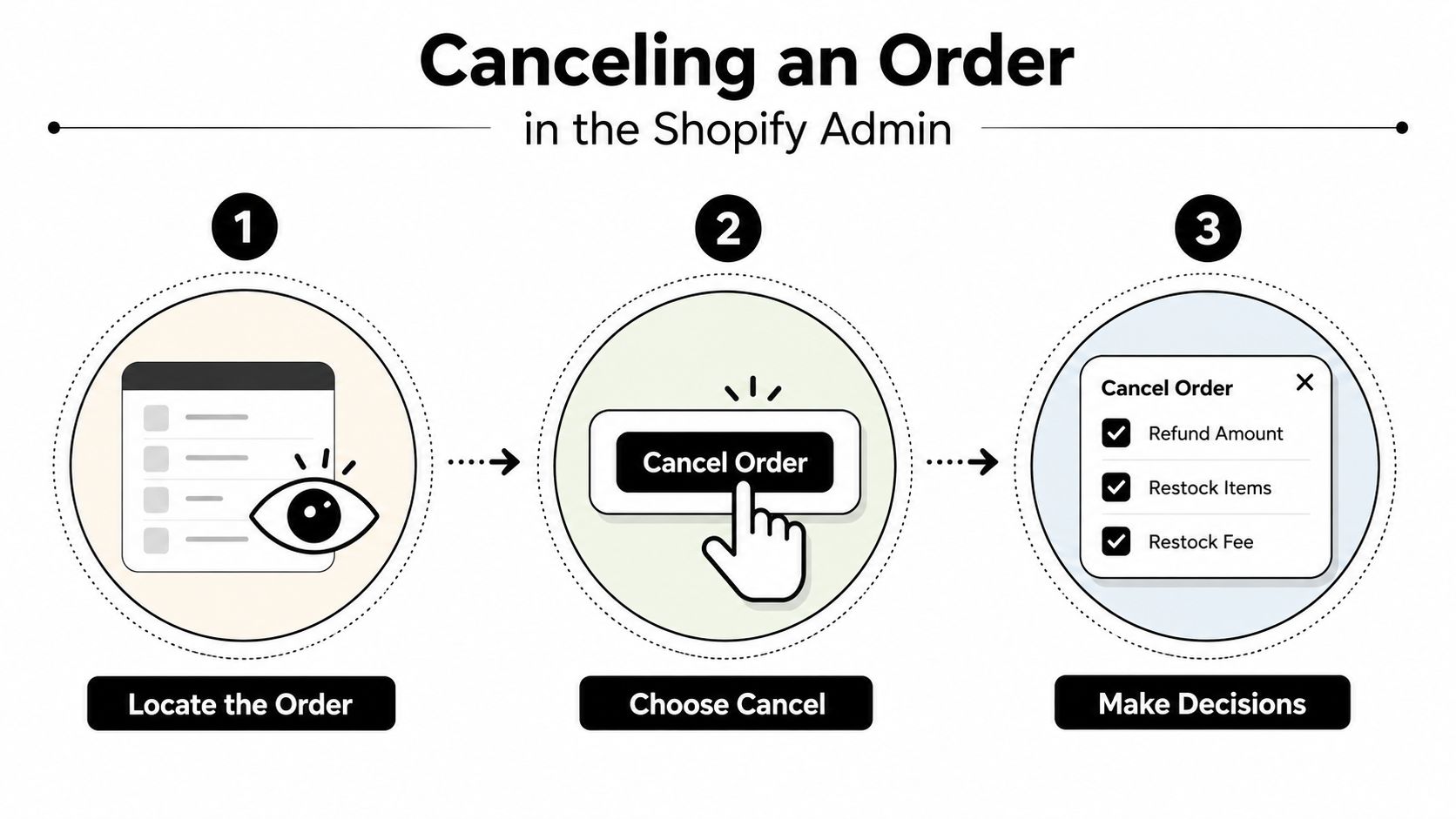
Start in Shopify admin and open Orders. Select the order, review its fulfillment and payment status, then open the order action menu and choose Cancel order. Shopify presents the decisions that matter before the cancellation is finalized, so read the dialog rather than treating it as a confirmation screen.
Check the financial and inventory choices
The refund choice controls whether money is returned and how much is returned. If payment was captured, confirm whether the customer should receive a full refund, a partial refund, or no refund because the order is being canceled for an administrative reason that has a separate resolution. If payment hasn't been captured, the available treatment can differ, so check the order's payment state before promising a specific outcome.
The restock option controls whether canceled line items return to available inventory. Restock only what the warehouse can sell again. If fulfillment has started, a simple restock can create an inaccurate available-to-sell figure unless the physical items have been located and returned to stock.
Choose the cancellation reason consistently. A reason such as customer request, inventory issue, fraud concern, or payment problem gives your team useful context later. Inconsistent reasons turn reporting into anecdotal guesswork and make it harder to identify recurring causes.
The notification setting determines whether Shopify sends the customer a cancellation message. Keep communication aligned with your support policy. If an agent has already explained the outcome, an automatic notice can still provide a useful record, but duplicate or contradictory messages create confusion.
Shopify permits merchants to cancel up to 250 orders at one time, and Shopify says this limit exists “to ensure accurate refund calculations” in its order cancellation guidance. That ceiling reinforces the operational point: batch cancellation is a financially sensitive process, not a casual cleanup action.
For stores connecting Shopify with other operational systems, review how cancellation events move through those systems before changing a live workflow. An integration resource such as Exerta Shopify integration can help teams evaluate how Shopify data connects with external tools, but your own refund, inventory, and fulfillment tests should decide the final configuration.
What Cancellation Does to Refunds, Inventory, and Reports
Cancellation changes the order state, but it does not erase the order record. Shopify keeps canceled orders in order history, giving support, finance, and fulfillment a record to review when a customer questions the outcome or an order leaves the active queue.
Treat cancellation, refund, and inventory adjustment as separate operational events. A cancellation can trigger refund handling, yet the reporting result depends on the transaction and the report definition. Shopify reports may include canceled activity differently from refunded activity, so compare the order record with transaction details before treating a canceled order as a negative sale.
Match the action to the order state
| Order state | Cancel action | Refund handling | Inventory handling |
|---|---|---|---|
| Unfulfilled | Cancel before release to fulfillment | Check whether payment was captured, then apply the intended refund | Restock only items that were reserved and remain sellable |
| Partially fulfilled | Cancel only the remaining portion when the workflow supports it | Separate the unfulfilled amount from money already refunded or still owed | Confirm the remaining physical stock with the warehouse before restocking |
| Fulfilled | Handle the request as a return or post-delivery resolution | Follow the return and refund policy for delivered goods | Restock only after inspection and acceptance |
The refund checkbox does not verify the physical inventory position. A canceled item may still be in a pick cart, on a packing bench, or with a carrier. Update Shopify only after the warehouse state supports the inventory adjustment.
Finance check: Reconcile the canceled order, refund transaction, and inventory adjustment as separate records. One cancellation can affect all three, but each records a different result.
Use consistent cancellation reasons, such as customer request, inventory issue, fraud concern, or payment problem. That gives support and finance usable context when they review recurring causes instead of forcing them to infer intent from notes.
If a customer disputes a payment or says the refund never arrived, include Disputely chargeback solution in the payment-risk review. It does not replace clear cancellation notifications or refund reconciliation.
Document the handoffs in your Shopify order workflow. Support confirms the request, fulfillment confirms the physical status, and finance verifies the monetary result. This ownership model also makes customer-initiated cancellation and store-credit alternatives easier to manage without losing the original order record.
Letting Customers Manage Cancellations Themselves
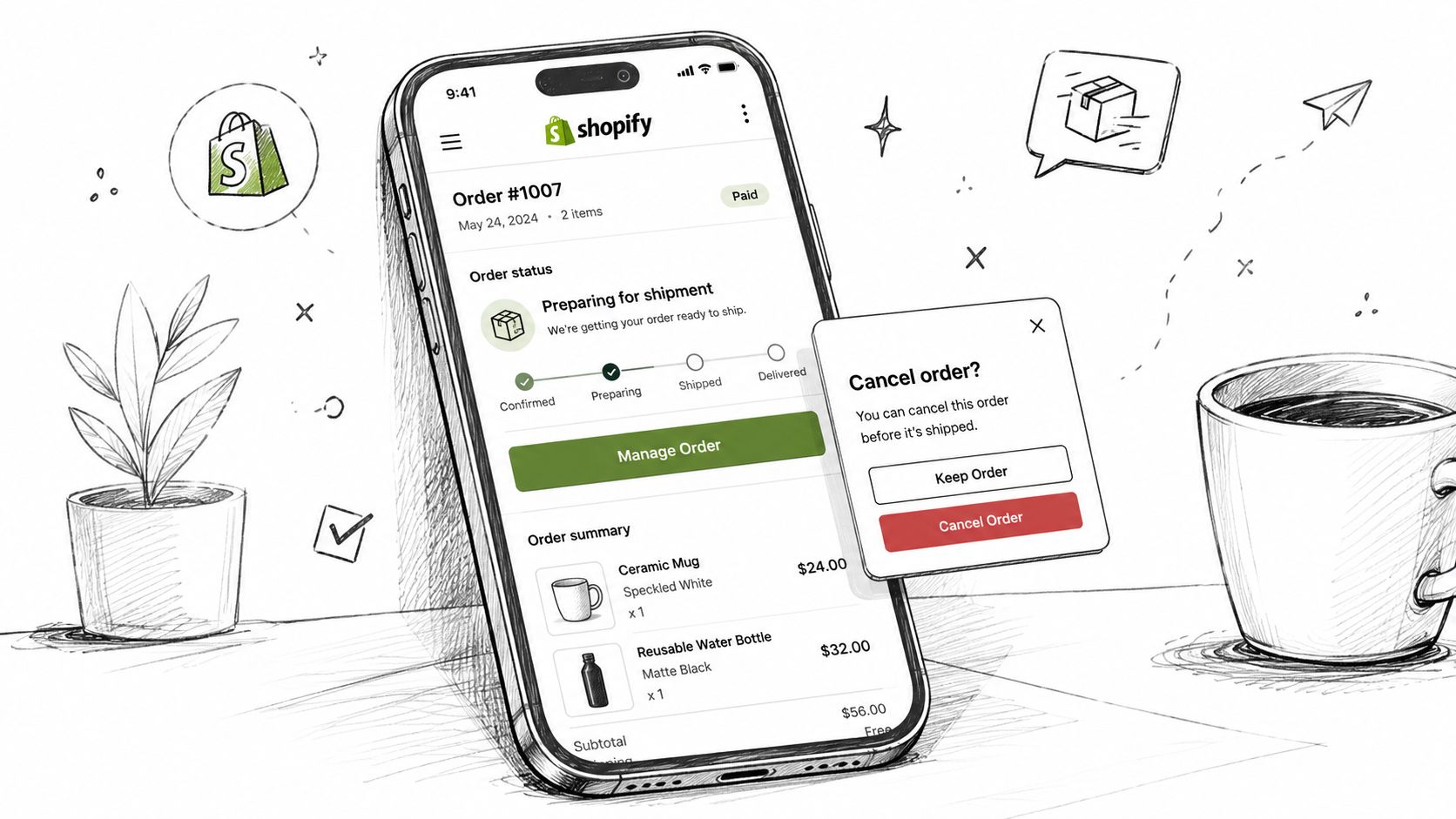
Self-service cancellation works when customers can see which actions are available, understand the cutoff, and confirm the consequence before submitting. Configure those choices around your fulfillment handoff, not around what the app can technically display. The order status page and customer account should provide controlled entry points for editing or canceling, while the original Shopify order remains the system of record.
Install the Mayra Order Edit and Upsell App from Shopify, then add the Mayra block to the order status page and customer account. Approved changes write back to the original order, which keeps the customer request connected to the admin record. For implementation details, review this guide to letting customers edit Shopify orders.
Set boundaries before enabling the action
Set an edit window that matches the warehouse handoff, then enable only changes your team can fulfill safely. Depending on the operation, customers might be allowed to swap variants, change quantities, update addresses, add items, or remove items. The right choice depends on inventory controls, payment handling, and how quickly fulfillment begins.
Use eligibility rules to limit access by order value, fulfillment state, products, collections, tags, or destination countries. An unfulfilled order should not offer the same actions after picking has started. If a change needs staff review, route it for approval instead of presenting it as an immediate customer action.
Keep a visible full-cancellation option when editing or saving the order is unsuitable. A save offer should clarify the available choice, not obstruct a refund request. Hiding cancellation can reduce immediate cancellations while increasing complaints and payment disputes.
During active edits, fulfillment holds can stop the warehouse from shipping outdated contents. Test internal orders through the customer view, admin record, inventory adjustment, payment handling, fulfillment release, and notification messages. Verify each boundary before exposing the workflow to customers.
Turning Cancel Requests Into Saved Orders
A cancellation request often identifies a problem, not a final preference. Someone who chose the wrong size may want a variant swap. Someone who entered the wrong address may want an address correction. Someone reacting to a price change may prefer store credit if the credit gives them a practical reason to return.
The first step is structured reason capture. Replace an open text box with clear choices such as wrong variant, address problem, shipping concern, changed mind, or discount issue. The reason determines whether you should offer an edit, a store-credit save, or an immediate cancel.
Use an honest save path
A save offer should solve the stated reason, not pressure the customer into keeping an unsuitable order. A variant swap is relevant to a sizing mistake. A shipping explanation or address edit may resolve a delivery concern. Store credit can make sense for buyer's remorse when the customer still likes the brand but doesn't want the original payment reversal.
| Cancellation reason | Better first option | Cancel when |
|---|---|---|
| Wrong size or color | Offer a variant change | The requested variant isn't available or the order can't be edited |
| Incorrect address | Allow an address correction before fulfillment | The carrier has possession or the destination can't be changed |
| Forgotten promotion | Apply an eligible adjustment or offer store credit | The promotion can't be honored under policy |
| Shipping concern | Show the relevant delivery information or offer a suitable change | The timing no longer meets the customer's need |
| Changed mind | Present store credit if appropriate, with a standard cancel fallback | The customer declines or the product isn't suitable |
Configure which offers appear for each reason and keep full cancellation available. The system should record orders saved, revenue retained, and cancellation reasons so you can judge whether the offer is helping or merely adding friction. Review those outcomes alongside support feedback, refund records, and fulfillment exceptions.
The cancellation deflection and store-credit approach works best when merchants treat it as a customer-service decision tree. A save is successful only when the buyer receives a usable resolution and the operation can fulfill it accurately.
Your Cancellation Setup Checklist and Next Steps
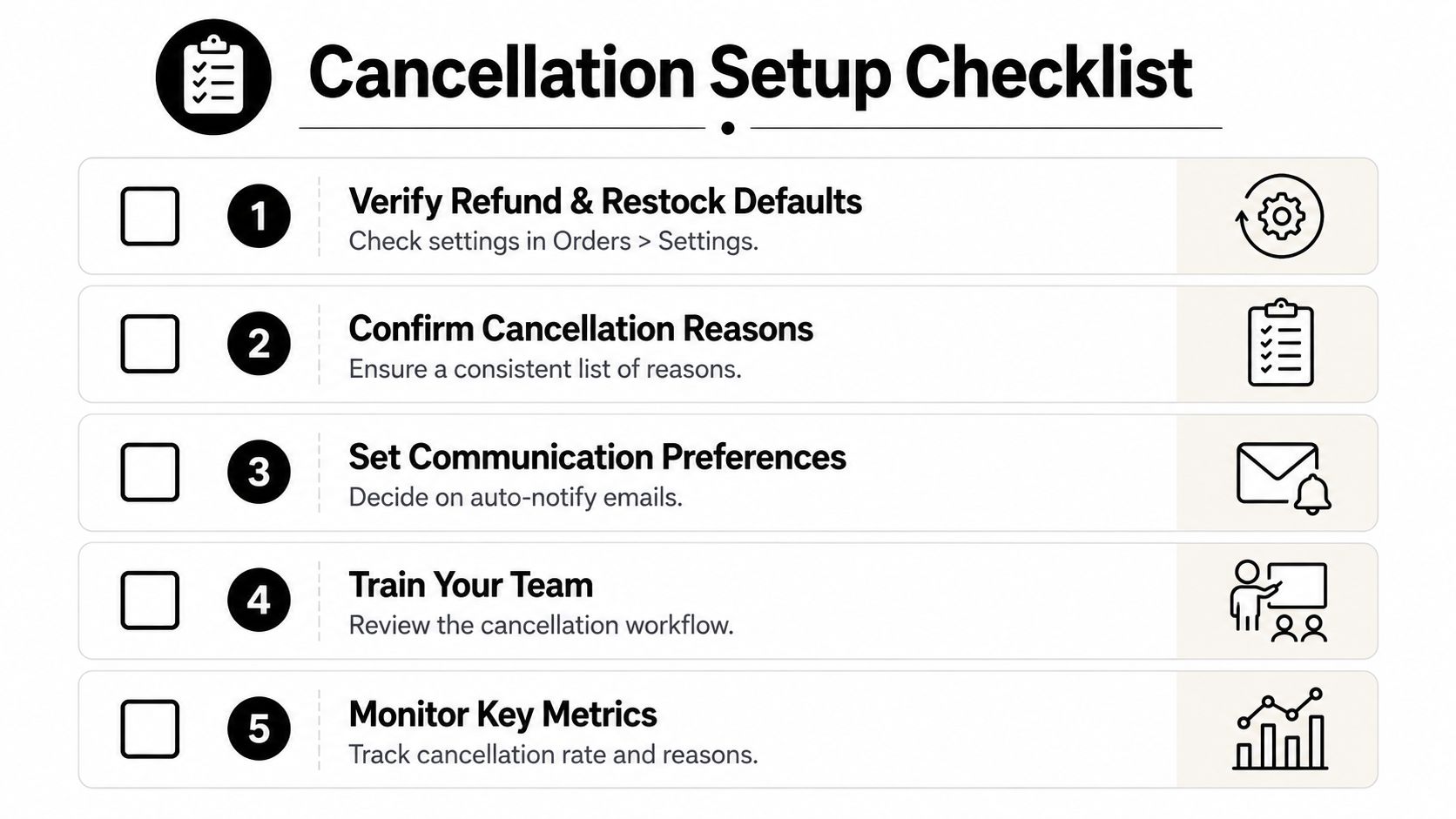
A cancellation policy becomes dependable when the settings, customer experience, and team behavior agree. Use this checklist before sending customers into a self-serve flow.
- Verify refund and restock defaults. Open the order settings and confirm what agents should select for captured payments, unfulfilled items, and inventory that remains sellable. If you skip this, two agents can handle the same situation differently.
- Confirm cancellation reasons. Create a consistent reason list and use it in manual support handling and self-service. Without shared labels, recurring problems stay hidden in free-text notes.
- Set communication preferences. Decide when Shopify should notify the customer automatically and when an agent should send a message. Conflicting emails make a straightforward refund feel unreliable.
- Define self-serve eligibility. Set the edit window, fulfillment-state limits, order-value caps, and product or destination exclusions. If you don't, customers may change orders after the warehouse has begun work.
- Train the team on exceptions. Review partially fulfilled orders, carrier handoffs, payment issues, and return cases. A written escalation path prevents staff from using cancellation as a substitute for a return.
- Monitor the outcome. Track cancellation reasons, support tickets avoided, orders saved, revenue retained, refunds, and fulfillment errors. The useful question isn't only how many orders were canceled. It's whether the process resolved the customer's problem without creating a new one.
Review the workflow regularly as products, fulfillment partners, payment rules, and customer-account features change. A useful setup keeps the admin accurate, gives customers appropriate control, and preserves a clean fallback when cancellation really is the right answer.
Mayra Apps provides Shopify tools for self-serve order edits, customer-account cancellation flows, store-credit save offers, and post-purchase upsells, with merchant-controlled rules for permissions, approvals, and eligibility. Visit Mayra Apps to see how you can move suitable cancellation requests out of support queues while keeping Shopify as the source of truth.